Sometimes we can almost forget smartphones are for making and receiving calls. Sure, speaking to someone via a telephone no longer represents state-of-the-art technology, particularly with the advent of social media, augmented reality (AR) and virtual reality (VR), 5G, and everything else you can do with a phone nowadays.
However, when your iPhone or Android phone can’t make or receive calls, you really notice the absence. This is especially the case if you’re expecting an important call from someone or if you need your phone for work.
If this has happened to you, we’ve put together an outline of things you can try when your phone is not making or receiving calls. This spans everything from the simple to the more involved. Regardless of why your phone is acting up, it should get you back up and running again.
Why is my phone not making or receiving calls?
Do you have a SIM card in your phone?
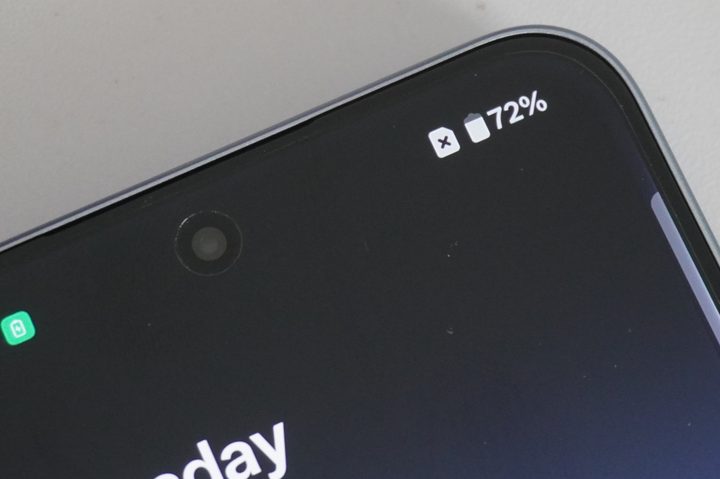
Without a SIM card, you’re not going to be making phone calls on your handset.
Thankfully, it’ll be pretty obvious if your phone doesn’t have a SIM card inserted. On iPhone you’ll see “No SIM” in the status bar, while on Android there will be a SIM icon with a cross through it in the status bar.
If you are seeing this, check the SIM tray to ensure your SIM card is there, and properly installed – it needs to be facing the right way up, so you may need to flip it over if it’s not working.
Check for signal
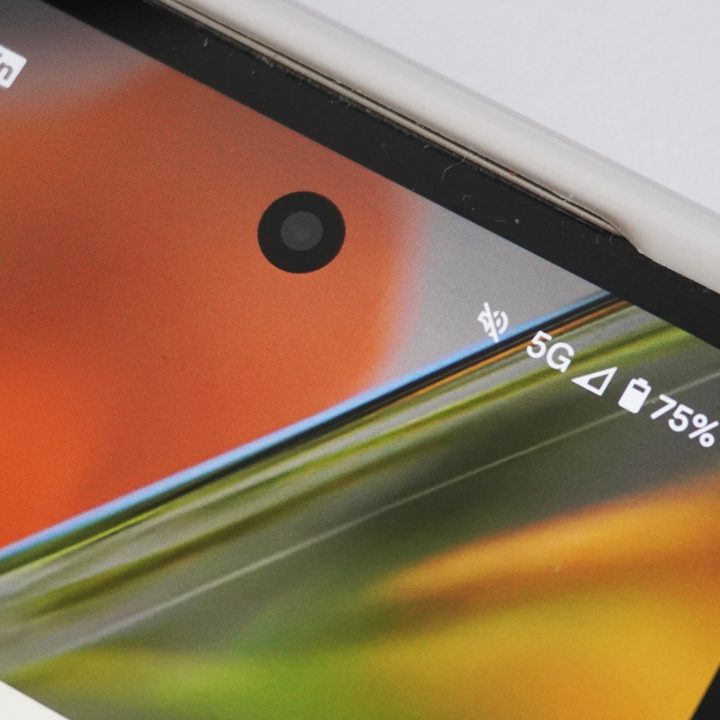
Assuming your phone is indeed switched on, you should check if it’s receiving a signal. This can be done easily on either an iPhone or Android by looking in the corner of your phone at the signal indicator.
On iPhones and most Androids, the signal indicator can be found in the top-right corner of the screen. Even a single bar should indicate enough of a signal to make and receive calls. However, if the signal occasionally drops out so that you see “No Service” (or no bars in the icon and a cross symbol), you may find that calls don’t work.
If this is the case, you should try moving to an area or location with a stronger signal. Note that certain locations and premises — such as tunnels and underground car parks — will prevent you from receiving any signal. As such, look for places on or above ground that aren’t too remote (i.e., that aren’t out in the middle of nowhere).
Turn off Airplane Mode
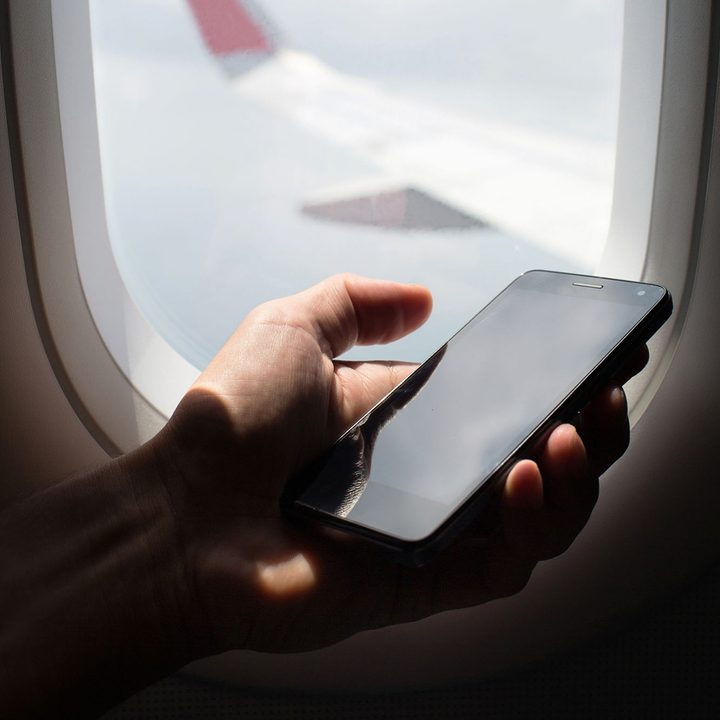
When checking the signal bar, you may instead find a symbol indicating Airplane Mode (this will usually look like a plane).
If you do, this means Airplane Mode is activated and that you can’t receive any kind of communications signal. It also means you’ll have to switch it off if you want to make or receive calls.
You can do this on an iPhone by taking the following steps:
Step 1: Swipe down from the top-right of the display
Step 2: If the Airplane Mode symbol is orange, this means it’s on. Turn it off by tapping it so that it turns clear.
On most Androids, you can (de)activate Airplane Mode by following a similar process as above, or by doing the following:
Step 1: Open Settings.
Step 2: Select Wireless & Networks (or Network & Internet or something similar). You may have to tap More after this on some models.
Step 3: Unselect Airplane Mode.
Check your phone contract
One reason why your phone can’t make calls may be that there’s a problem with your carrier. For example, your phone contract may be for only a limited amount of minutes per month, and you may have previously set a block on going beyond that limit (so that you’re not charged). As such, you may need to contact your carrier in order to change your monthly limit and/or block.
Much the same goes if you’re using some kind of prepaid or pay-as-you-go SIM, which limits calls in terms of how much credit you’ve purchased. Check how much credit you have left, and if you’re fresh out, buy some more if you need to make a call.
The above causes usually prevent you from making calls. However, in rare cases, your SIM can be deactivated or blocked, particularly if you’ve repeatedly failed to pay monthly bills on time. You may therefore have to contact your carrier in order to resolve any issues.
Check for carrier issues
Even if you don’t have any issue with your contract or SIM, it may still be worth contacting your carrier in case there are any network outages.
- Check AT&T service outage info
- Check T-Mobile signal issues troubleshooting
- Check Verizon network status
Sometimes, third-party sites such as Downdetector can alert you to a problem before a carrier has had a chance to issue official comms on a problem – so it’s worth checking if you are unable to make calls, you’ve followed the steps in this article up to now, and your carrier has released any information on a possible fault.
Check for blocked numbers
If you’re expecting a call from a particular number, but it never comes (even when the other person tells you they’re trying to phone), you may want to check if you’ve previously blocked it. Blocking a number prevents that person from calling you, so if you want to receive calls from the number, it’s time to unblock.
If you have an iPhone, you can unblock numbers by going to Settings > Phone > Blocked Contacts. Next, tap Edit in the top-right corner and tap the red Minus icon next to the number you want to block before tapping Unblock.
With Android, you can unblock contacts by going to Phone > More > Settings > Blocked Numbers. You then have to tap Clear X and Unblock.
Unblocking a number will let that number call you again. Of course, unblocking numbers won’t achieve much if you can’t make calls.
Turn off Do Not Disturb mode
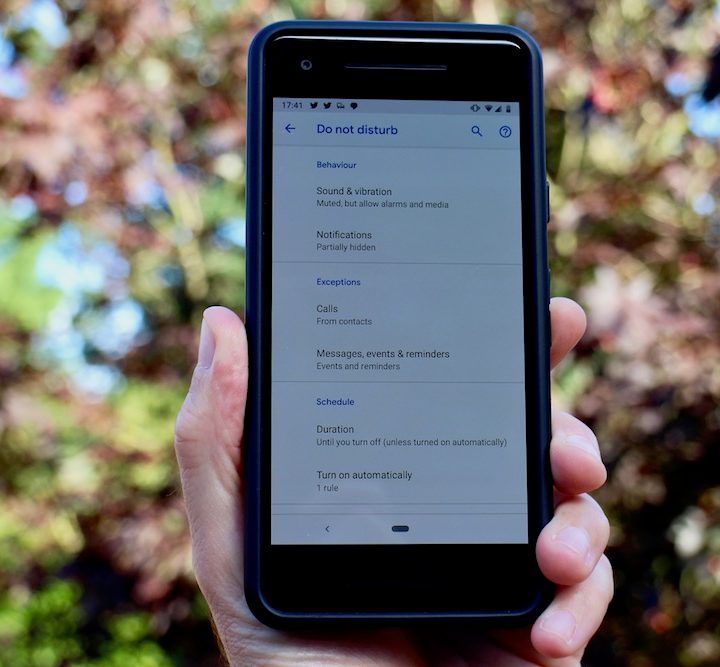
As with Airplane Mode, it’s also a good idea to check whether you have Do Not Disturb mode on. This shouldn’t stop you from making calls, but it generally stops you from receiving them. Or, at least, it will stop you from hearing an incoming call since many Do Not Disturb modes (such as Apple’s) only silence calls rather than disabling them completely.
If you have an iPhone, you can turn off Do Not Disturb mode by swiping down from the top-right corner (or up from the bottom) of the screen. Next, tap the Do Not Disturb Mode icon (it looks like a crescent moon) so that it turns clear.
With Android, you can turn off Do Not Disturb mode by swiping down from the top of the screen to expand the notification shade. Then tap the Do Not Disturb icon so that it goes from blue to gray.
Remove and reactivate SIM card
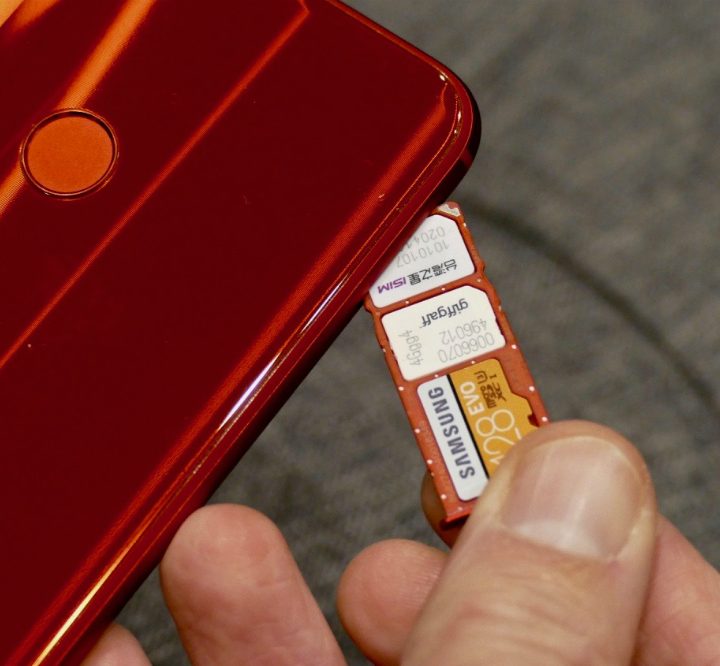
Similar to the perennial reboot advice you get from IT departments, it’s usually worth removing your SIM card and reinserting it again. Doing this effectively de- and reactivates the card, hopefully removing any issues that were preventing your phone from making and receiving calls.
If you have an Android, you can also go to Settings to deactivate and reactivate a SIM, but only if you have two SIMs in your phone. Go to Settings > Network & Internet > SIM cards. Tap your SIM card, and then tap the slider into the off position, which deactivates it. Lastly, tap the very same slider into the on position to reactivate it.
Reset network settings
As with your SIM card, you can try resetting your network settings if you still can’t make or receive calls. This clears your phone of any stored data that might potentially interfere with its functioning.
On an iPhone, go to Settings > General > Reset > Reset Network Settings.
On Android, go to Settings > System (or General Management) > Reset (or Reset options) > Reset Network Settings (or Reset Wi-Fi, Mobile & Bluetooth).
Software update
Yes, we’re starting to get a little desperate now, but updating to the latest available version of your operating system can often help in cases where your phone won’t make or receive calls.
On an iPhone, go to Settings > General > Software Update. Your phone will then tell you if an update is available.
On Android, go to Settings > System (or General Management) > Advanced > System Update.
Factory resets and manufacturer fixes

If you’ve tried all of the above steps and you still can’t make or receive calls, you may want to consider a factory reset. This is basically the nuclear option as far as any problem or bug is concerned, but it can resolve issues in certain cases.
On an iPhone, go to Settings > General > Reset > Erase All Content and Settings.
On Android, go to Settings > System (or General Management) > Reset (or Reset options) > Erase All Data (Factory Reset).
Needless to say, you should always backup your device before performing a factory reset. Info on how to do this can be found in our separate articles on backing up iPhones and Androids.
However, if this and every other option fails, it may be time to contact the manufacturer of your phone and inquire into a potential repair or replacement. If you have an iPhone, contact Apple and ask about possibly visiting an Apple Store. Similarly, if you have an Android, find an official support number or contact its manufacturer.