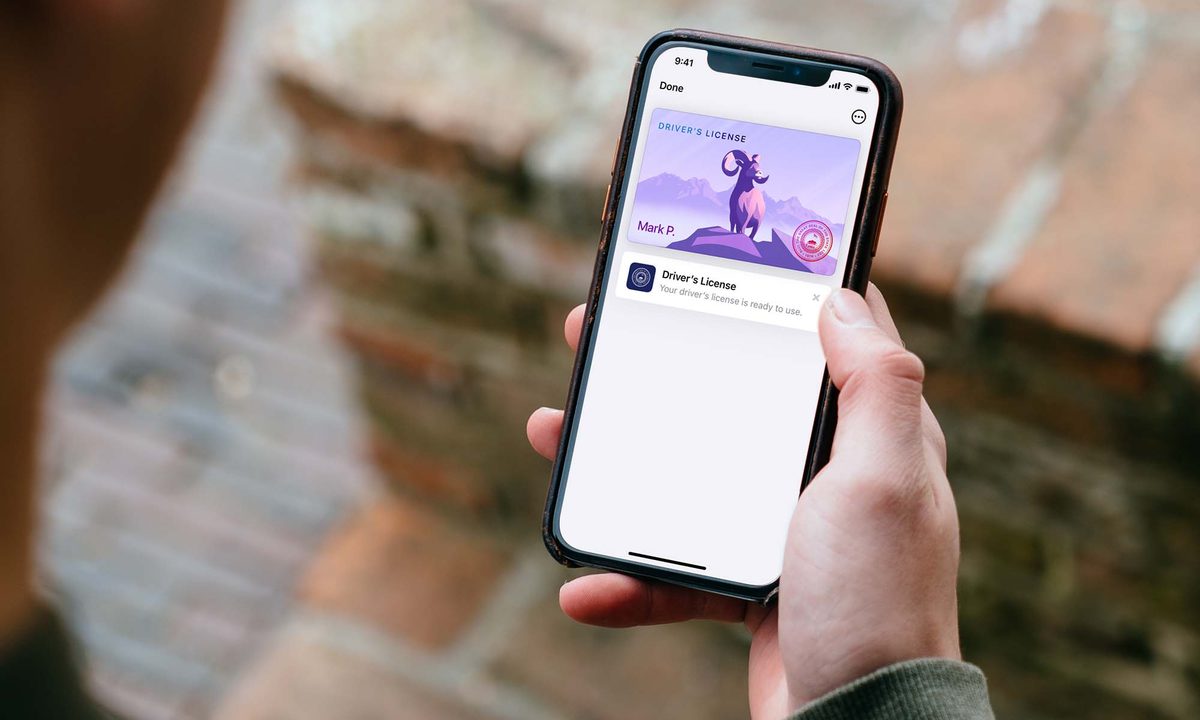
Apple has broken new ground by allowing iPhone users' Apple Wallets to serve as official identification if equipped with a driver's license or state ID. There isn't currently a huge use case for the tech, as only a handful of states -- including Arizona, Colorado, Georgia, Maryland, and Ohio -- recognize Apple Wallet as legitimate ID. However, Apple has a whole list of other states in the U.S. that the company expects will follow in the coming months.
As more and more states start allowing iPhone owners to leave their official IDs at home in favor of Apple Wallet, knowing how to properly enter your information will be crucial. Before getting started, make sure that your iPhone is up to date with iOS 17.6 or a later version. If you're planning on using your Apple Watch to serve as your ID, make sure that it's fitted with watchOS 10.3.1 or later as well.
Which states accept Apple Wallet as a form of ID?
As mentioned above, this technology is still in its early stages, so it hasn't been widely accepted as an official ID outside of five states, including, most recently, Ohio. The current list of states that recognize Apple Wallet's driver's license and state ID feature is as follows:
- Arizona
- Colorado
- Georgia
- Maryland
- Ohio
While the list of states is still small, Apple has big plans for the rest of the country. Apple has its own list of specific states that it's planning on prioritizing when it comes to Wallet IDs, so Apple users eager to start using the feature should expect the following states (and one territory) to be the next to get it:
- Connecticut
- Hawaii
- Iowa
- Kentucky
- Mississippi
- Oklahoma
- Puerto Rico
- Utah
The list above is obviously far from all-encompassing when it comes to the U.S., but it seems like these states will be testing the waters before Wallet ID is used nationwide.


How to add your driver's license to Apple Wallet
Setting up your iPhone with a driver's license or state ID is just as simple as adding a card to your Apple Wallet. The only prerequisite is that you'll need to have Face ID turned on and set up to access the feature. Face ID has been something of a point of contention for many Apple users, but registering your device as an official ID requires it. If you're not comfortable using Face ID, then you'll have to continue carrying your physical driver's license or state ID for now. Here's how to set up your ID in Apple Wallet.
Step 1: Open the Wallet app on your iPhone.
Step 2: Select the Plus icon in the top-right corner of the screen.

Step 3: When the Add to Wallet menu pops up, select on Driver's license or state ID and choose your state.

Step 4: If not done previously, you'll be prompted to set up Face ID or Touch ID. Follow the steps required to set it up, or check out this guide for in-depth steps.
Step 5: From here, if you've got an Apple Watch, you'll be given the option to either set your ID up with both your iPhone and Apple Watch or just set it up with your phone. Decide which device(s) you want to set it up with and select either Add to iPhone and Apple Watch or Add to iPhone only. If you don't have an Apple Watch, simply select Continue.
Step 6: Place your ID on a flat surface in a well-lit room and line up the edges of it with the edges on the screen. Your phone will automatically take a picture once it recognizes your ID. Select Continue once you have a good photo of the front of the ID.

Step 7: Flip your card over and repeat step six for the back of the card.
Step 8: Select Continue on the page notifying you that additional verification will be needed to finish the process.
Step 9: Follow the on-screen prompts and position your phone like you're going to take a selfie using the front-facing camera on your iPhone. You'll be asked to do different movements such as closing your eyes or moving your head to the left or right. Hold each position until the phone vibrates and gives you a new task. If doing such movements isn't possible for any reason, select Accessibility options at the bottom of the screen and follow the prompts. After following the instructions, select Continue.

Step 10: From here, you'll be prompted to take a selfie using the front-facing camera. For the best results, try to match the face you made in your driver's license or state ID photograph. Once taken, select Continue.
Step 11: The next screen will ask you to confirm all of the photos you've taken so far. If everything looks good, select Continue with Face ID. If not, go back and retake the photos and then continue once completed.
Step 12: Select Agree on the terms and conditions page. Your request will be sent to your state authority for confirmation.

With all that completed, Apple will send your information to your state's motor vehicles department. It should take a few minutes for it to confirm your ID, but once it does, your new ID will be viewable in the Wallet app. It can be used at select airport terminals by opening your Apple Wallet and selecting your iPhone or Apple Watch, similar to paying using an Apple Wallet credit or debit card.