

Every new console generation is another step forward in accessibility. Whether that be through innovations in the best PS5 games that allow players to customize the experience to their own preferences, new controllers, or even the hardware itself. While the PlayStation 5 launched with only a handful of new features compared to its predecessor, Sony has continuously updated it with functionality to make it easier and more convenient to control its most powerful system yet.
One extremely handy and highly requested feature the PS5 was given is voice commands. These allow you to navigate and control a majority of your console’s functions (outside of actually playing games, of course) without having to pick up a controller. This system can be both more convenient and intuitive for people, especially if you’re unfamiliar with navigating the PS5 UI. You do need to do a few things to get this system up and running, and then know what exactly you can do with it before laying back and ordering your PS5 around with nothing but your headset. Here’s a full voice command guide to get you going.
How to set up voice commands
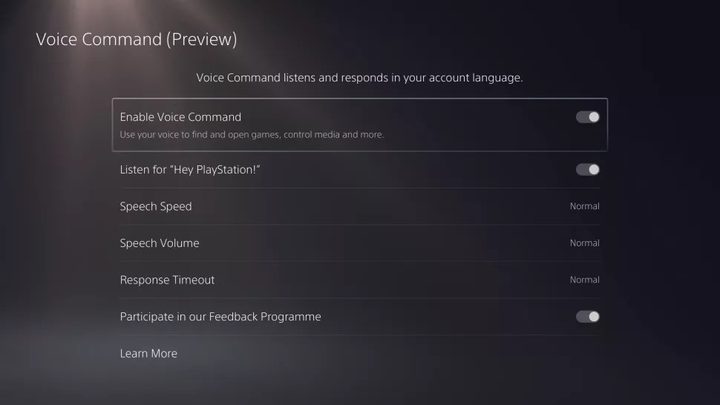
Setting up voice commands isn’t too hard, but does require a few specific steps that you won’t accidentally stumble upon, and aren’t pointed out to you anywhere by the system itself. To set it up, simply start up your PS5 and go to the Settings menu. From here, simply select Voice Command and toggle it to be enabled.
You should also make sure that the Listen for “Hey PlayStation!” toggle is enabled as well. This is the phrase your PS5 will listen for to start accepting voice commands.
While the PS5 doesn’t come with a packed-in microphone of any kind, there is a built-in microphone in your DualSense that will function for your voice command needs. Just make sure the microphone is turned on by pressing the small button in the bottom center of your controller between the analog sticks.
Voice command settings
There are several other voice command settings in this menu you can tweak to customize your experience a bit. Unfortunately, you can’t add new voice commands for functions it doesn’t already cover, but you can at least make it a bit more convenient.
Speech Speed and Speech Volume simply adjust how fast and loud the PS5 will respond to your voice commands.
Response Timeout might be one you want to set above normal since it will dictate how long you have to say a correct command after activating voice commands by saying “Hey PlayStation!” before it assumes you no longer want to make a command and stops listening. In the normal setting, you have four seconds to deliver a command before it stops listening.
One important setting that, for whatever reason, is not listed on this screen is the list of commands. The list of commands, which we detail below, can all be found simply by saying, “Hey, PlayStation. Help.” This is a great and easy way to remind yourself of what you need to say to do different things or remind yourself of things you forgot you could do.
All voice commands
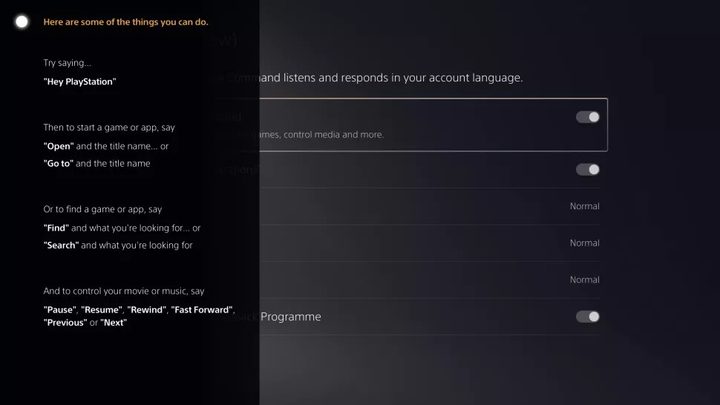
These are all the current voice commands you can use with your PS5. Again, if you ever forget any commands, simply say “Hey, PlayStation. Help” and your console will present the full list for you as well.
Again, you must say, “Hey, PlayStation!” before using any of the following voice commands or you’ll just be talking to yourself.
Open game/app
To start up any game or app you have installed on your PS5, just say, “Open X” with X of course being the name of either the game or app you want to start. In the event that you want to play a game in a series, or if two names sound similar, your PS5 will present you with a list of options based on what you said. When this happens, the different options will be numbered. To pick which one is correct, just say “Number One” or whichever number is the choice you want. Alternatively, if none of the options are correct, you can say “Show more” to get more options or try again.
You can also say “Go to X” to accomplish the same thing.
Find a game or app
If you want to search either your library or the PlayStation store for an item, simply say “Find X” or “Search X”. This will bring up a list of options related to the game or app you’re searching for.
Media controls
While the other options are great for quickly moving through the menus to get into the game or app you want, voice commands really shine when you’re using the PS5 for media purposes. If you’re watching a movie, TV show, or listening to music, you have a number of voice commands at your disposal that are far more convenient to use than navigating with a controller. Each one is self-explanatory, so we’ll simply list them here:
- Pause
- Resume
- Rewind
- Fast forward
- Next
- Previous
Game Capture
If you experience a moment you want to capture while playing a game, there are several voice commands you can use to make it easier:
- Capture that! – This will save a clip of your recent gameplay at your system’s default capture duration.
- Capture the last five minutes – This will record the previous five minutes of gameplay.
- Start recording – This will begin a recording session.
- Stop recording – This will end your recording session and save the clip.
For now at least, these are all the available voice commands you can use on the PS5. While Sony hasn’t confirmed it, there is a possibility that more will be added in future updates. If more are added, we will update this article to include them.


