
Instagram users with multiple accounts can now easily toggle between them in the Instagram app. This feature, which rolled out in early 2017, was long overdue, as users had been asking for a solution to quickly switch between accounts for a long time. Before the update, users had to log out of one account and log back into another every time they wanted to check it, or were at the mercy of third-party apps — many of which actually made it difficult to jump from one account to the next. In the age of instant gratification, this was grossly inefficient.
Now, Instagrammers have the ability to add up to five accounts to the Instagram app, meaning you, your cat, your baby, and several inanimate objects in your life can each have a platform to express themselves, whether by posting or reposting photos, GIFs, or videos. Although you may never accumulate as many followers as Selena Gomez or Portuguese soccer player Cristiano Ronaldo (these two have the most Instagram followers in the world, topping more than 150 million), you can still relish the moment when one of your photos receives that crucial 11th like and your general existence is momentarily validated.
You’ll be well on your way to celebrity status if you utilize the steps outlined below on how to manage multiple Instagram accounts.
How to add an additional Instagram account(s)
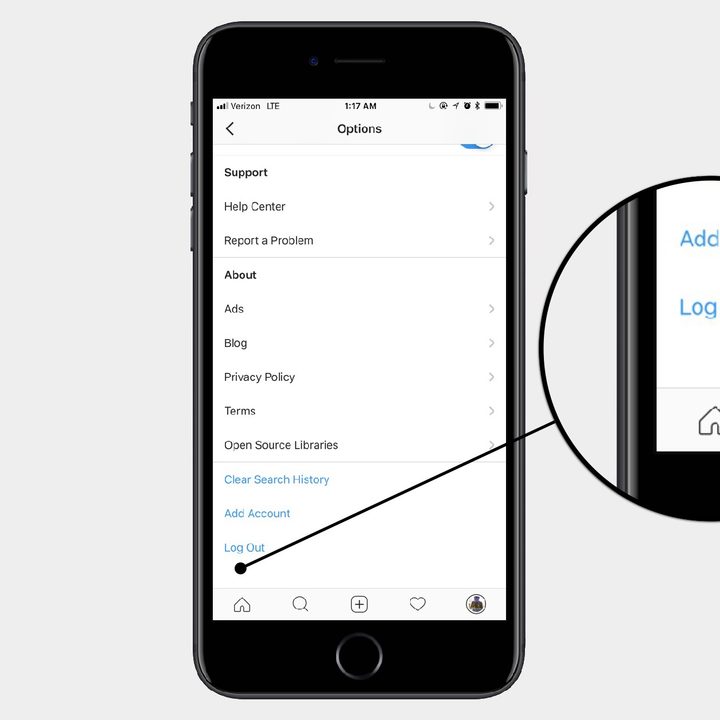
Instagram has made the process of adding additional Instagram accounts to the app simple enough. Once you launch the app, go to your profile (the icon or picture on the far right along the bottom), select the menu in the upper-right corner of the next screen and then Settings.
Then, scroll down, select Add account, and enter the desired username and password for the account you would like to add. If you’ve created several Instagram accounts, you will be able to access notifications for each on the corresponding profile. You can change your notifications settings for each of them.
How to switch between accounts
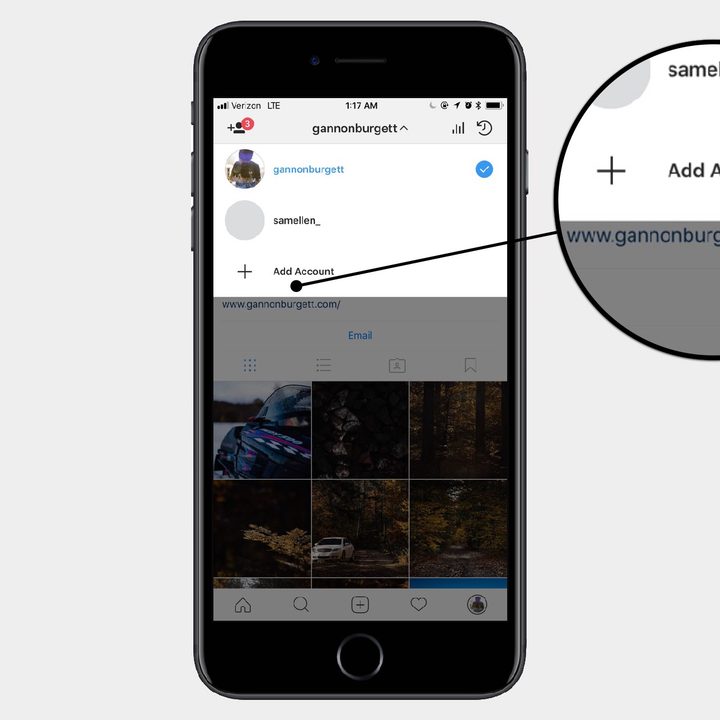
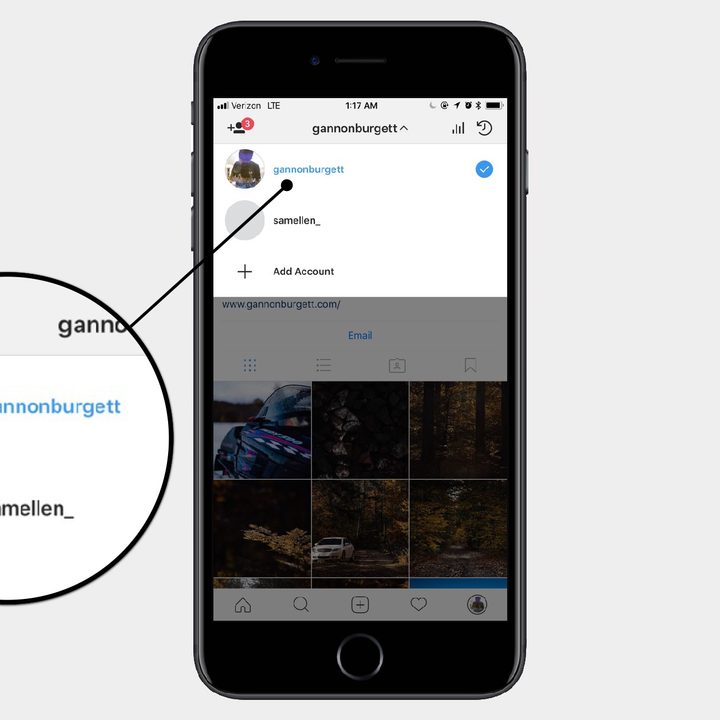
At this point, you, your curmudgeonly cat, and your ill-fated terrarium each have their own Instagram account. Now you’ll need to know how to toggle between your various accounts. Go to your profile page and tap your username at the top of the screen. You’ll then have the option to select from a list of accounts associated with your specific app. You’ll also have the option of adding even more accounts.
How to remove an account you’ve added
OK, so the novelty has worn off, and that newly added account isn’t really panning out as you had hoped. It happens to the best of us. Thankfully, it’s easy to erase that old account and move on with other prospects. Once you’ve loaded your Instagram profile, select the menu in the upper-right of the screen and then Settings. Scroll down and select the Log out of [username] option. If you wish to use the account again in the app, you’ll need to log back in.
If you’re over the Instagram game entirely and want to remove all of your accounts from your device, you can also select Log out of all accounts to do so. But don’t be too hasty, a quantum reality could easily be at stake. After all, if a tree falls in the woods and no one is around to document it on Instagram, does it make a sound? It’s a good question. If you want to permanently delete your Instagram account, rather than just logging out of it, we have a guide for you as well so you can say goodbye once and for all.


