You've got a brand new MacBook or iMac, so it's time to spruce up that desktop background with something other than the stock Apple photos.
The good news is that it's not hard to change the background in macOS. Whether you want to switch to a favorite new photo, put up a dazzling image you found online, or rotate between a collection of your favorite backgrounds, we can show you how to change the background on a Mac the easy way.
Change your Mac background in the System Settings app
One of the fastest ways to change your macOS wallpaper is in the System Settings app. Here's how it's done.
Step 1: Open the System Settings app from your Mac's Dock or by selecting the Apple logo in the top-left corner and choosing System Settings
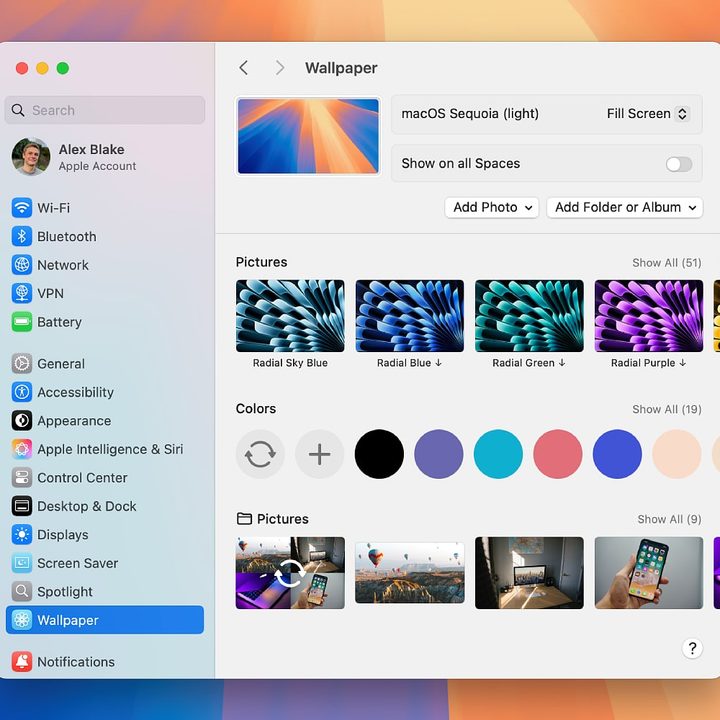
Step 2: In the left-hand sidebar, select Wallpaper.

Step 3: Here, you'll see different wallpapers organized into sections. There are Dynamic Wallpapers -- which change their look throughout the day -- then various groups for landscapes, cityscapes, underwater images, and more. Simply pick one and it will become your new background image.
Step 4: To the right of these sections, you'll see a Show All button. Click it to see every wallpaper option within the selected category.

Step 5: You don't have to stick to Apple's wallpaper options. Near the top, click either Add Photo or Add Folder or Album, then navigate to your own image or folder of images to add them to System Settings.
Step 6: Once you've picked a background image, you have some more options. At the very top of the Wallpaper section in System Settings is a dropdown menu (set to Fill Screen by default). Open this menu and pick one of the other options (Fit to Screen, Stretch to Fill Screen, and Center) to change how the wallpaper is displayed.

Step 7: There is also a toggle underneath the previous dropdown menu labeled Show on all Spaces. Toggling this on will ensure that the same wallpaper is used on all desktop spaces and connected external displays.
Change your background image within the Finder app
If you are browsing a folder of images using the Finder app on your Mac, you can change your background image directly from there, without needing to open the System Settings app first.
Step 1: In a folder of images, right-click one picture and select Set Desktop Picture from the context menu. This will instantly change your wallpaper to your chosen image.

Step 2: Note that this automatically sets the image to fill your screen, but does not stretch or crop it to fit in any way.
Step 3: You can get more control over how the image is displayed by opening System Settings, heading to Wallpaper in the sidebar, then playing with the dropdown menu near the top of the window. Here, you'll also get the other controls mentioned further up this page.
Use a rotating selection of background images
You don't have to settle for a static background image, and there are two ways you can get a rotating group of wallpapers on your Mac.
Step 1: The first method is to select one of Apple's Dynamic Wallpapers in the Wallpaper section of the System Settings app. All of these wallpapers will subtley change over the course of the day, creating a pleasant effect every hour. Note that you don't get much control over how regularly these images change.
Step 2: The second option is to use a folder of images as your background. To do this, go to System Settings > Wallpaper, then select Add Folder of Album. From here, you can either choose an album from the Photos app or manually pick an album. If you want to do the latter, select Choose Folder from the dropdown menu.
Step 3: Navigate to the folder you want to use, select it, then click Choose.
Step 4: This album will appear at the bottom of the list of wallpapers in the System Settings app. You can either choose one image by clicking on it, or tell macOS to rotate through the images by selecting the left-most thumbnail (it shows a pair of rotating arrows overlaid on images from the album).

Step 5: Back at the top of the Wallpaper section of System Settings, you'll see a new Shuffle option. You can choose how often the images rotate (from once every five seconds to once a day) and whether they only shuffle when you log in or when you wake your Mac from sleep. There is also a checkbox to randomize the order of the shuffle.

You have a few options when it comes to changing the background image in macOS, but all of them are pretty straightforward. Whether you want to use a static image or a rotating stock of pictures, there are a few options to meet your needs.
Before too long, you'll have a great new wallpaper -- or group of wallpapers -- adorning your Mac.