Smartphones have found a way to change and enhance our video-gaming lives. They don’t just play game apps anymore, but can now work as a second controller for our consoles.
How to connect your phone to your Xbox
Although a regular Xbox controller is easier to play with, using your smartphone as an Xbox controller can have its own benefits. Your smart device will need to be up to date and connected to your app store in order to sync it as an Xbox controller. As long as these two things have happened, we can help guide you in connecting your smartphone to your Xbox console easily.
Further reading
- The best gaming phones for 2020
- The best video game consoles for 2020
- All cross-platform games (PS4, Xbox One, Nintendo Switch, and PC)
- The best Xbox One controllers for 2020
Step 1: Download the Xbox app
Before downloading the Xbox app for iOS or Android, you’ll want to update your smartphone or tablet to the latest version of its operating system. Users of iOS need version 10.3 or higher to run the app. Microsoft recommends Android users have version 4.4 or higher. Once updated, head over to either the Apple App Store or the Google Play Store and enter “Xbox” in the search field to locate the app.
Tap the Install button to begin downloading the app to your smartphone or tablet, and launch it once it’s installed. Then, sign in to your Xbox account when prompted.
Step 2: Connect to your network
To sync your Xbox One and your phone, both devices must be online. To check your network on the Xbox One, go to Settings > Network > Network Settings.
On your smartphone, go to the network/Wi-Fi menu in your device’s system preferences or settings. If your Xbox One is not connected, select Set Up Wireless Network, choose your desired network, and enter the respective password when prompted. Both devices must be within the range of your network to connect.
Certain features, like using your phone as a remote control for the Xbox One, require both your Xbox One and phone to be connected on the same Wi-Fi network. Others, such as checking your achievements and activity feed, work as long as both devices are on an internet connection.
Step 3: Sync your smartphone with your console
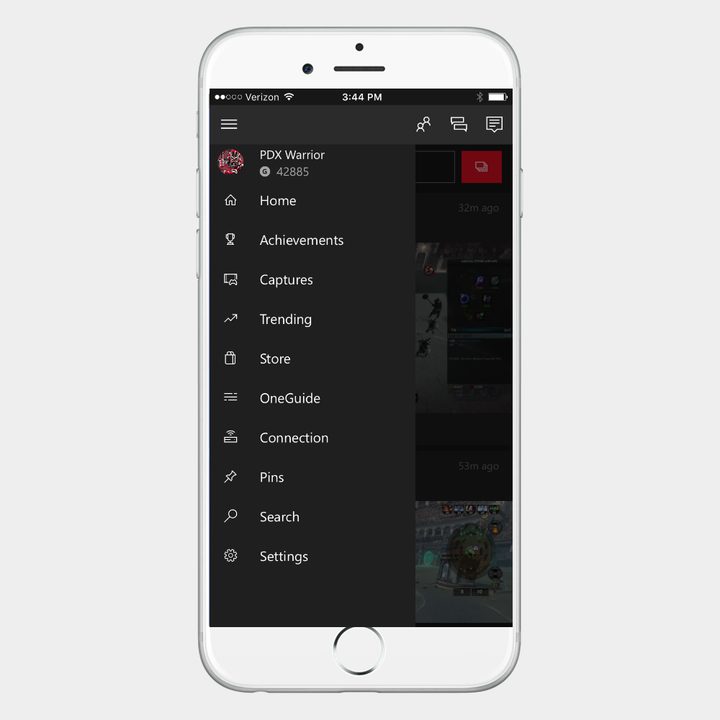
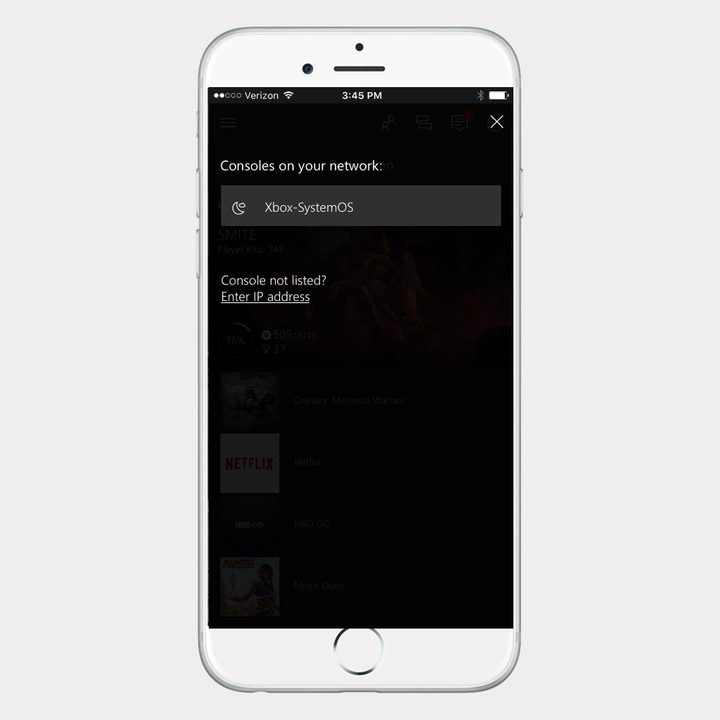
While using the Xbox app, tap the three horizontal bars in the upper-left corner to bring up the main menu. From here, you can access most features, but for now, just tap Console. After a second, a Connect to Your Xbox One option should appear near the top of the screen.
Tapping that should bring up a list of available Xbox consoles that you can connect to. Assuming yours is the only one on the list, tap the icon — labeled Xbox-SystemOS, unless you’ve renamed it — and then tap Turn On.
Voilà! Your smartphone and your Xbox are now soulmates. You should now be able to use your smartphone as a controller and keyboard, though this functionality is limited to the Xbox OS. There’s currently no in-game, second-screen integration.
Step 4: Use the app
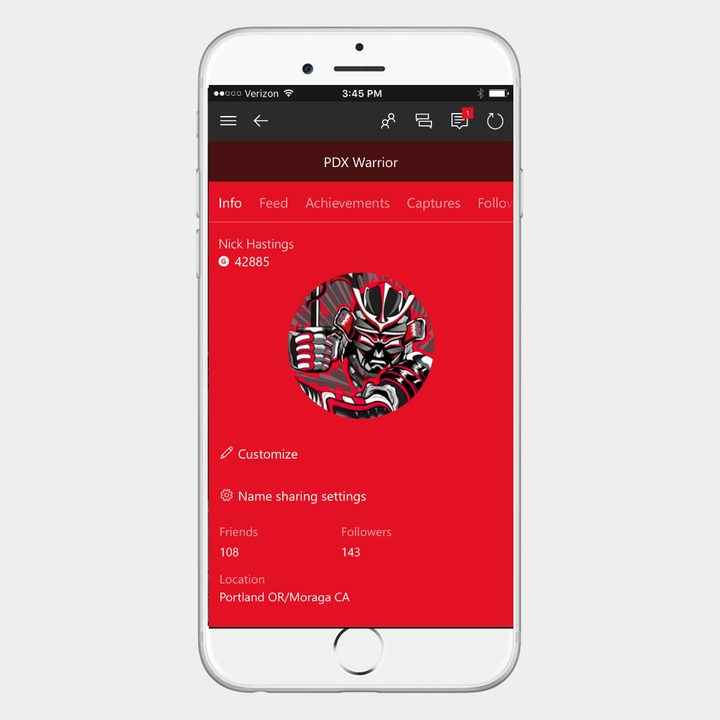
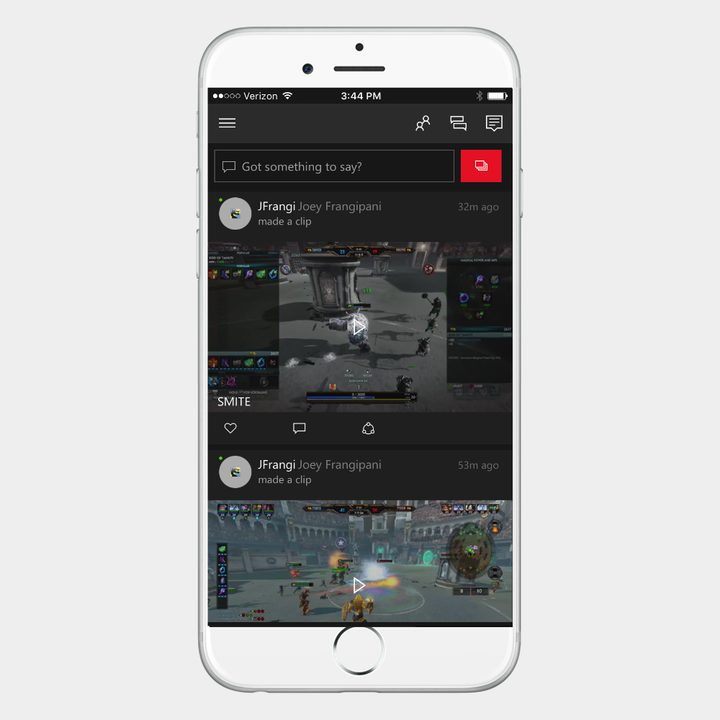
Once you’ve successfully connected to the app, you can do so much with it. Getting the hang of the different features may take a little time but is worth the effort. Click the three horizontal bars once more in the top left corner of the screen, and the menu will appear. From here, you can look at your profile, accomplishments, recorded clips, screen captures, enter the Xbox Store, and many other things. Press the Avatar Icon, and your list of friends will pop up. The nearby icons are responsible for controlling messages and notification settings. Eventually, you will see a new icon pop up with three small avatars. This indicates that you can start a group chat.
Step 5: Control your Xbox One with the app
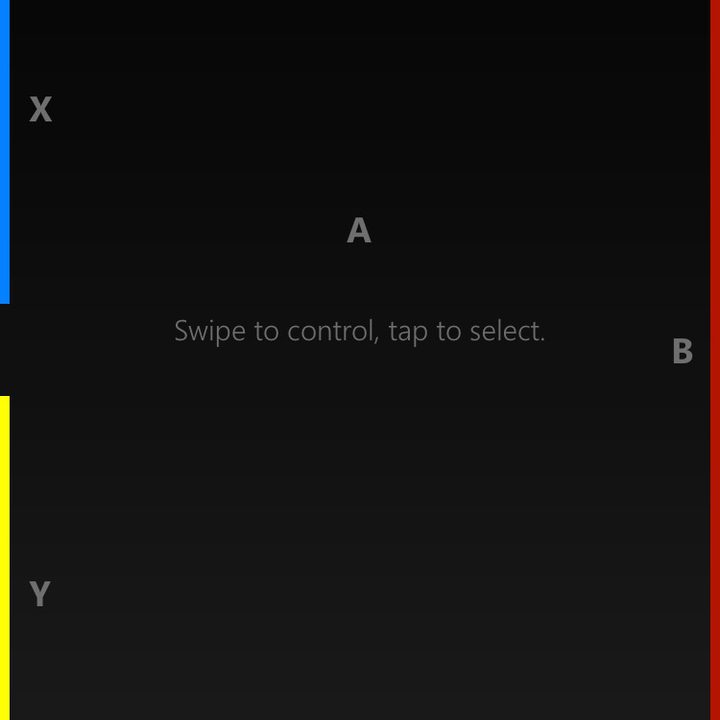
While a real controller is always going to be the best way to control your Xbox One, it’s worthwhile to learn how to use your phone. Once you’ve successfully linked the two, the app on your phone will show a small symbol of a remote in the bottom right corner of your screen. Click this symbol, and you’ll immediately be transported to a black screen featuring four face buttons and a button for home, view, and menu.
Now you’re ready to start controlling your Xbox One. All you have to do is drag your finger across the screen to pick a particular tile while simultaneously pushing down on the A button in the center of the screen to approve it. We don’t think you will ever really use this function, but again, it’s good to know that you can.
Check out our handy guide that shows you how to connect your Xbox controller to your PC. We wouldn’t leave that out.