1. Home
  2. Phones
  3. Computing
  4. Mobile
  5. Web
  6. How tos

How to delete messages in Facebook Messenger

Add as a preferred source on Google
facebook messenger 2017 android
Image used with permission by copyright holder

Facebook Messenger is one of the social media platform’s most popular features, and while it’s a great way for users to have private conversations, it’s also used by many as a way to start a fight or say things they don’t really mean. It’s not uncommon to make a mistake on Messenger or instantly regret sending a message.

Previously, when these mistakes happened, we just had to let them sit there, preserved in Facebook Messenger for all eternity. Now this is no longer the case.

Recommended Videos

Further reading

You can also archive and delete entire threads you no longer wish to look at. Deleting Facebook messages on your desktop or mobile device takes mere seconds, but deleting whole threads only applies to your own inbox, not your friend’s. Here’s how to do it:

Deleting messages on your desktop

Step 1: Log into Facebook like you normally would.

Step 2: Click the Chat Bubble in the upper-right corner, followed by See All in Messenger. The latter option is located in the bottom-left.
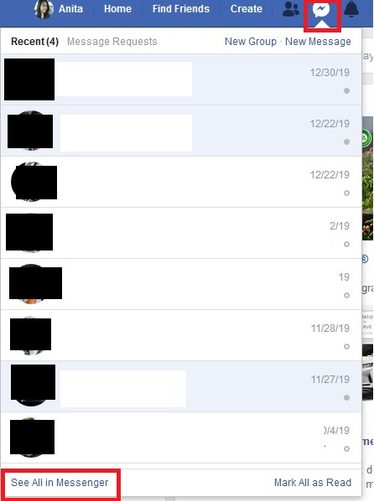
FB Messenger Desktop screenshot step 2
screenshot

Step 3: To delete an entire message thread, hover over the conversation and click the Three Horizontal Dots icon on the right side of the message in your inbox. Afterward, select Delete from the menu that pops up.
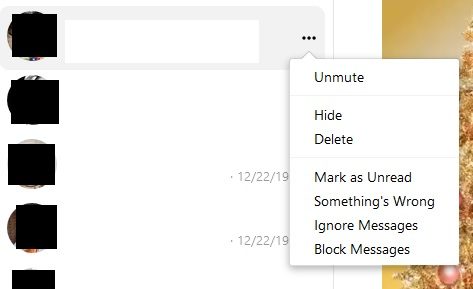
FB Messenger desktop website screenshot
screenshot

Step 4: You will then be presented with three options: Cancel, Delete, or Hide Conversation. Click Delete to continue.

Step 5: To delete a part of your conversation, click into the conversation, and hover over the message you would like to delete. Then, click the Three Horizontal Dots and press Remove.
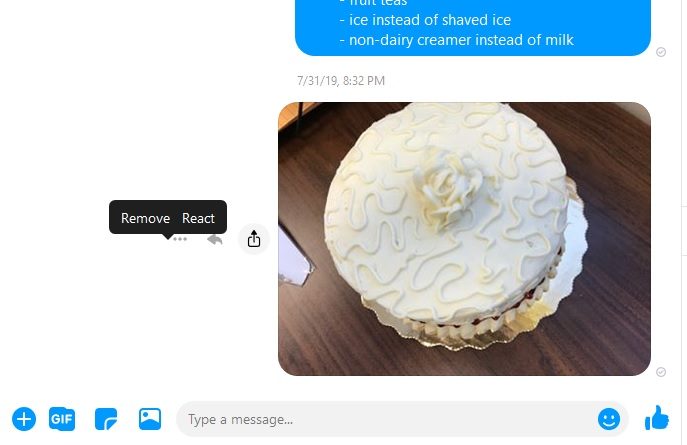
Screenshot of how to remove FB message from desktop FB Messenger
screenshot

Step 6: If it’s been less than 10 minutes since you’ve sent the message, you will then be given the option to remove the message for everyone or just for yourself. Once you’ve made your selection, press Remove.

The person on the other end of the conversation will be able to see that you removed a message if you chose the “for everyone” option, but the content will no longer be available. If it’s been more than 10 minutes, you’ll only be able to remove the message for yourself.

Deleting messages on your mobile device

Step 1: If you haven’t already, download the Messenger app for either iOS or Android, and log in as you normally would.

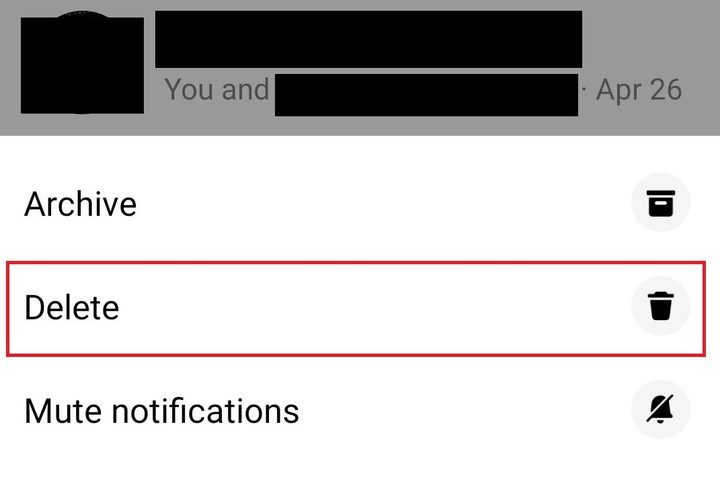
Step 2: If you want to delete an entire conversation, press and hold down the conversation, or if you’re an iOS user, swipe the conversation to the left and select the Red Trash Can. We know it’s easy to do this by mistake, so don’t stress about losing anything valuable. Your phone will always ask you to confirm before deleting. This is true for both Android and iOS.
FB msg delete conversation screenshot
screenshot

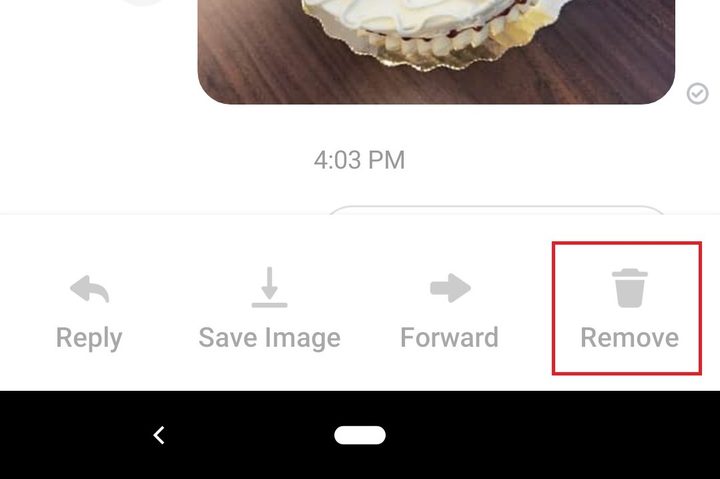
Step 3: If you want to delete a single message, go into the conversation, hold down the message you want to delete, and tap Remove at the bottom. Then select Remove for You. If you have an Android, you will need to select Remove again to confirm. iOS users won’t see this final prompt, so be sure you want to select Remove for You.
fb msg delete message screenshot
screenshot

You’ll be able to remove the message for everyone if you take action within 10 minutes of sending it. Your phone will give you the choice to remove for everyone or just yourself.  Once you’ve made your selection, press Remove. While the intended recipient will be able to see that you removed a message if you selected “for everyone,” they won’t be able to see the message’s content. If it’s been more than 10 minutes, you’ll only be able to remove the text for yourself.

Brie Barbee
Former Staff Writer
Brie is a writer from Portland, Oregon. She received a bachelor's degree from Portland State University in 2016, where she…
Enter the wrong PIN 13 times and your Galaxy phone is locked for good
New Galaxy phones will require a factory reset after 13 failed unlock attempts
Samsung Galaxy S26 Ultra smartphone in blue color.

Samsung is making the lock screen much harder to break on Galaxy devices launching with Android 17-based One UI 9. Enter the wrong PIN, pattern, or password 13 times, and the phone will stop accepting attempts. A full factory reset will then be the only way to use it again.

The change is designed to stop brute-force attacks, where someone repeatedly guesses different passwords until one works. It is a major shift from older One UI versions, which mainly relied on temporary waiting periods rather than a mandatory final lockout.

Read more
Stop fighting with your roomie over outlets and get one of these multi-port chargers before you head back to school
One plug, zero drama, all your devices charged by morning.
Satechi ChargeView

Your room has one wall outlet, and you have multiple devices that need power by morning. Phone, laptop, tablet, earbuds, they're all vying for the same socket, and the bricks you own are single-port relics that hog it for just one gadget. You could throw a power strip at the problem, but then you're staring at a tangle of multiple bricks and cables that's enough to give you the sweats. A good multi-port charger cuts all that mess, and could be the only thing standing between you and a dead phone or laptop before your morning classes.

Back-to-school season is a smart time to buy one. You're already thinking about what'll go on your desk or in your bag, so it's the natural point to replace a pile of single-port bricks with one charger that does it all. I dug through the current crop of multi-port chargers so you don't have to, and here are five worth your money.

Read more
Back-to-school phone shopping on a tight budget? Here’s the one phone I’d recommend without hesitation
The budget phone market got messy this year, but one phone still makes sense.
Galaxy A17 in all colors on gradient background

Somewhere between the last day of school and the first day back, your phone conked out. Perhaps the screen shattered after a particularly nasty fall, or its battery regularly gives up by noon, or apps take so long to launch that by the time they do, you've forgotten why you opened them in the first place. You don't think it'll last another school year, but between all the school supplies and everything else, a budget phone is all your wallet can handle right now.

Fortunately for you, cheap phones have come a long way, offering better screens, bigger batteries, and more capable cameras than devices launched just a couple of years ago. Since you're already prepping to head back to school, this is as good a time as any to lay your old phone to rest and lock in an upgrade. But unfortunately, the timing isn't great for the smartphone industry in general, and that has had a real impact on entry-level phones.

Read more