There’s no denying the enthusiasm that Spotify subscribers bring to the music-streaming party. In fact, we’d be glad to go on record and say that Spotify is one of the coolest web-connected ways to share your favorite albums, artists, and playlists with friends, family, colleagues, and even sworn enemies (there’s nothing a little music can’t fix, right?). The service is home to millions of subscribers and over 100 million songs, and if you’re a Spotify Premium member, you’ll also gain access to offline downloads.
That’s right: There’s a quick and easy way to download Spotify tracks for playback when there’s no internet or cellular data to connect with. We here at Digital Trends love Spotify, use it every day, and put together this step-by-step guide to teach you everything you need to know about building your own library of offline media!
And in the event that you'd like to part ways with your Spotify subscription, we also have a guide on how to cancel your Spotify Premium account.

How to download music from Spotify's mobile app
Grab your smartphone or tablet and launch the Spotify app. Before you start, be sure to set your download preferences to your liking, depending on your mobile data situation. If you don't want to use your device's mobile data, turn it off first.
Step 1: Go to Settings, Audio Quality, and scroll down to Download.

Step 2: Here you can select the audio quality of your downloads, if you haven't already. If you're only going to be downloading over Wi-Fi, feel free to set the quality to Very high for the best playback.

Step 3: If you're going to turn on the Download Using Cellular option here, you can choose a lower-quality download to save data. If data consumption isn't a concern, choose a higher quality. With this button in the off position, you won't be able to download anything unless you're connected to Wi-Fi.

Step 4: Downloading is dead simple. Simply search for or browse the playlist, album, or podcast you want to download. It can be from anywhere — the Made For section, existing playlists you've created, Daily Mixes, full albums, podcast episodes, you name it (except individual songs).

Step 5: Once selected, all you have to do now is tap the Down arrow icon and the download will begin. Doing this will also add it to your library (the heart icon next to it will fill in).

Step 6: You'll know the download is complete and successful when all of the tracks display a green Down arrow next to them.

How to access your downloaded music on mobile
If you've just had a download frenzy for a long road trip or flight, here's the easiest way to locate all that good stuff.
Step 1: On the Spotify app, choose the Your Library icon on the bottom toolbar.

Step 2: Use the Downloaded filter at the top. This will parse out everything you've downloaded, ensuring that anything from here will play when you don't have an internet connection.
How to remove downloaded music from Spotify on mobile
Removing downloaded music, playlists, albums, and podcasts is just as easy as adding it, and is more or less the opposite of that process.
Step 1: Navigate to the content you want to remove — playlist, album, podcast — and simply deselect the green Down arrow. A confirmation message will appear. Select Remove to lock in your choice.

Step 2: To take it to the extreme level, if you'd like to free up some space on your device and just want to purge all of your downloaded content from Spotify on mobile, tap the Settings gear in the top-right corner of the home screen.


Step 3: Scroll down to Storage, where you will see how much space on your device that your downloads are using. Tap Remove all downloads and confirm the choice by tapping Remove. All of your downloads will be deleted from the device.

How to download music from Spotify's desktop app
Believe it or not, the process for downloading using the Spotify desktop app is basically exactly the same as it is on mobile or tablet. It is a little different accessing the Audio quality settings, so we'll start there.
Step 1: On a Mac or Windows, access the Settings menu from the Spotify app by selecting the drop-down menu from your profile pic in the top-right corner of the app.

Step 2: Scroll down to Audio quality and make a choice. It's likely your laptop or desktop is using wired or Wi-Fi internet access, so you should choose Very high for the best possible playback.

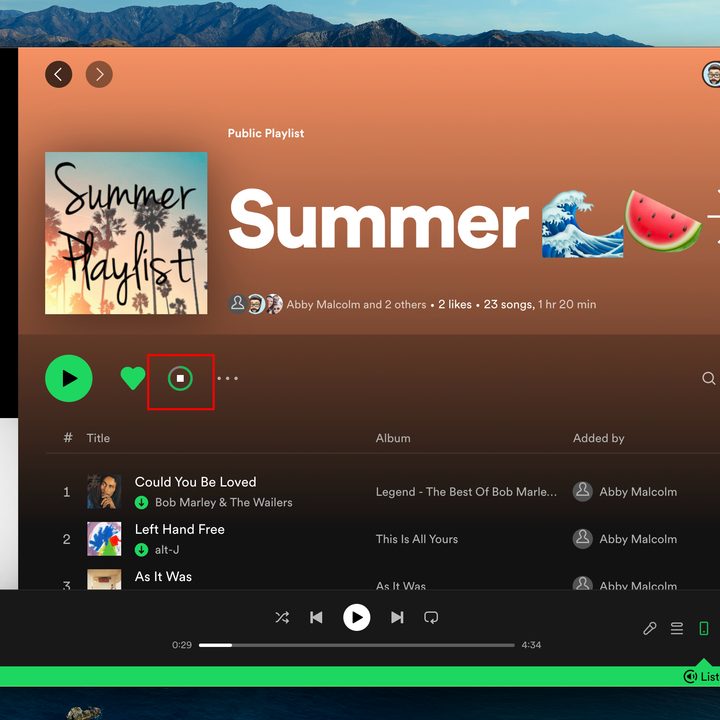
Step 3: To download, as outlined above, just find the playlist, album, or podcast you want to download and click the green Down arrow icon. Your download will start and there will be a filled-in green Down arrow icon to let you know the download was successful.
How to access your downloaded music on desktop
This is a little different than the mobile app experience. While all of your downloaded content will be easily identified among all the available content to stream by green down arrow icons, parsing it all in one Downloads filter is a little different.
To do this, you must put the app in Offline Mode.
Step 1: On a Mac, from the Apple menu in the top-left corner of the screen, select Spotify to access the drop-down menu.
On a Windows PC, click the ... icon at the top of the screen and select File.

Step 2: On both platforms, the dropdown menu will show Offline Mode. Click this. This will show a little blue icon next to your profile image to let you know you're in Offline Mode, and the main screen should display all your Music Downloads — playlists, albums, podcast episodes — in one place.
Anything in your library that you haven't downloaded will be grayed out and will be unplayable until you exit Offline Mode.

How to remove downloaded music from Spotify on desktop
Not to sound like a skipping streaming file here (or a broken record if you're old), but purging your downloaded tracks from the desktop Spotify app is more or less the same as on mobile.
You simply access the Settings menu, scroll down to the Storage section, and select Remove all downloads. Easy.
Can I listen offline without Spotify Premium?
Unfortunately, the only legitimate way to enjoy offline music and podcasts from Spotify is to pay for a Spotify Premium subscription.
Mind you, this doesn’t have to be the $11 per month Individual plan. Spotify Duo, Student, and Family plans have access to all the same Individual perks, including offline listening.
How much is a Spotify Premium subscription?
At the time of writing, Spotify Premium pricing is as follows:
- Individual — $12 per month
- Duo — $17 per month
- Family — $20 per month
- Student — $6 per month
What other music streaming platforms have offline listening?
Pretty much every major music streamer has access to offline downloads. This includes competitors like Apple Music, Tidal, Qobuz, and Deezer. Like Spotify though, do keep in mind that, in most cases, offline listening is a benefit exclusively for paid subscribers.