Updated from an older iPhone to the new iPhone 15? You may have noticed that your notifications have changed. Where once they sat nestled at the top, now, they appear at the bottom, stacked atop one another. It's a relatively small change, but an important one, as it dramatically changes how and where you find your notifications.
This change came about in iOS 16, and has carried over into the new iOS 17. If you don't like it, then we have some bad news: Unfortunately, there's no way to move your notifications back to the top.
But there are other ways to make your notifications a bit more accessible. If you want to view each notification separately on the lock screen, well, that's something you can do. In a very unlike-Apple move, the company offers a way to customize your notifications. They still appear at the bottom, but you can unstack them so they aren't overlapping, making them easier to read.

How to change how notifications appear on iOS 17's lock screen
If you want to make some tweaks to how notifications look and act, there's an entire section of the settings menu for you. Here's how to find it.
Step 1: Open Settings.
Step 2: Tap Notifications.

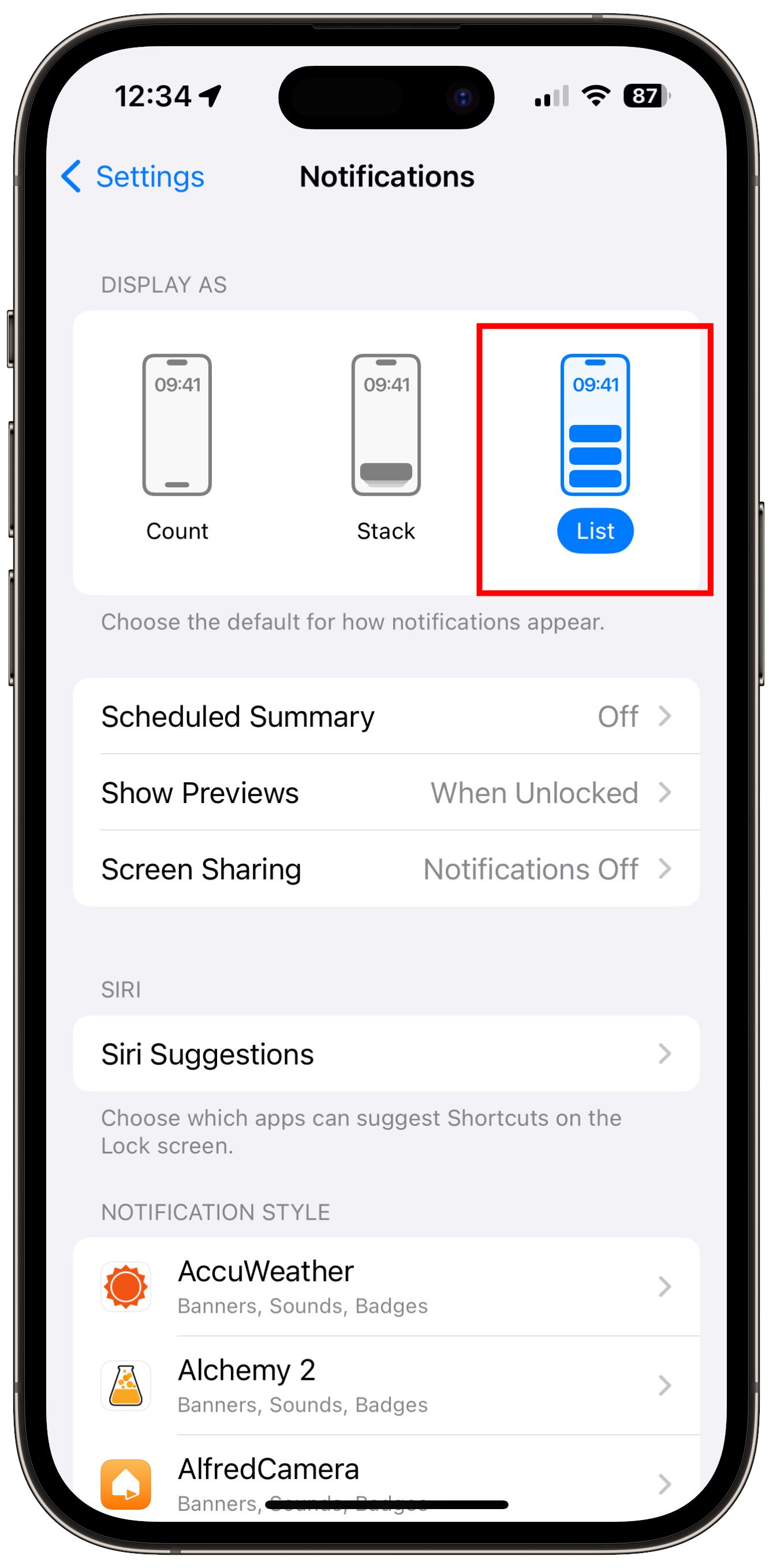
Step 3: Go to the Display as section and select the display mode you want to use. By default, iOS 16 and 17 selects Stack, which has notifications stacked at the base of the screen. If you select List, it will unstack the notifications on the lock screen so you can view them separately.
Other ways to change iOS lock screen notifications
Just changing the way notifications are displayed on your lock screen isn't the only element you can change. You can use the Notifications options to change how notifications for individual apps appear or are delivered, and you can also set up some useful tools to help you manage what appears and when.
The first of these is Scheduled summary. When enabled, this bundles up non-important notifications and delivers them at a time that's convenient for you. If you're sick of getting a barrage of low importance notifications throughout the day, but still want to read them at a certain time, e.g., when you're finished with work for the day, then this is worth setting up.
You can also toggle whether previews of notifications are shown or not. This defaults to When unlocked, meaning iOS will tell you you have a notification for an app, but not what's in it until you unlock. This is important for privacy, but if you'd rather know if something is important before unlocking, then you can change this to Always. Otherwise, you can also select Never to have notifications never tell you what's in them; you won't know what's new until you open the app in question.
Finally, there's also an option to turn off notification popups while you're using SharePlay or screen mirroring, again, perfect for keeping your notifications private.