  1. Home
  2. Phones
  3. Android
  4. Mobile
  5. Evergreens

How to take a screenshot on your Samsung Galaxy S21

Add as a preferred source on Google
galaxy unpacked 2025
This story is part of our Samsung Galaxy Unpacked 2026 coverage
Updated less than 12 hours ago
 

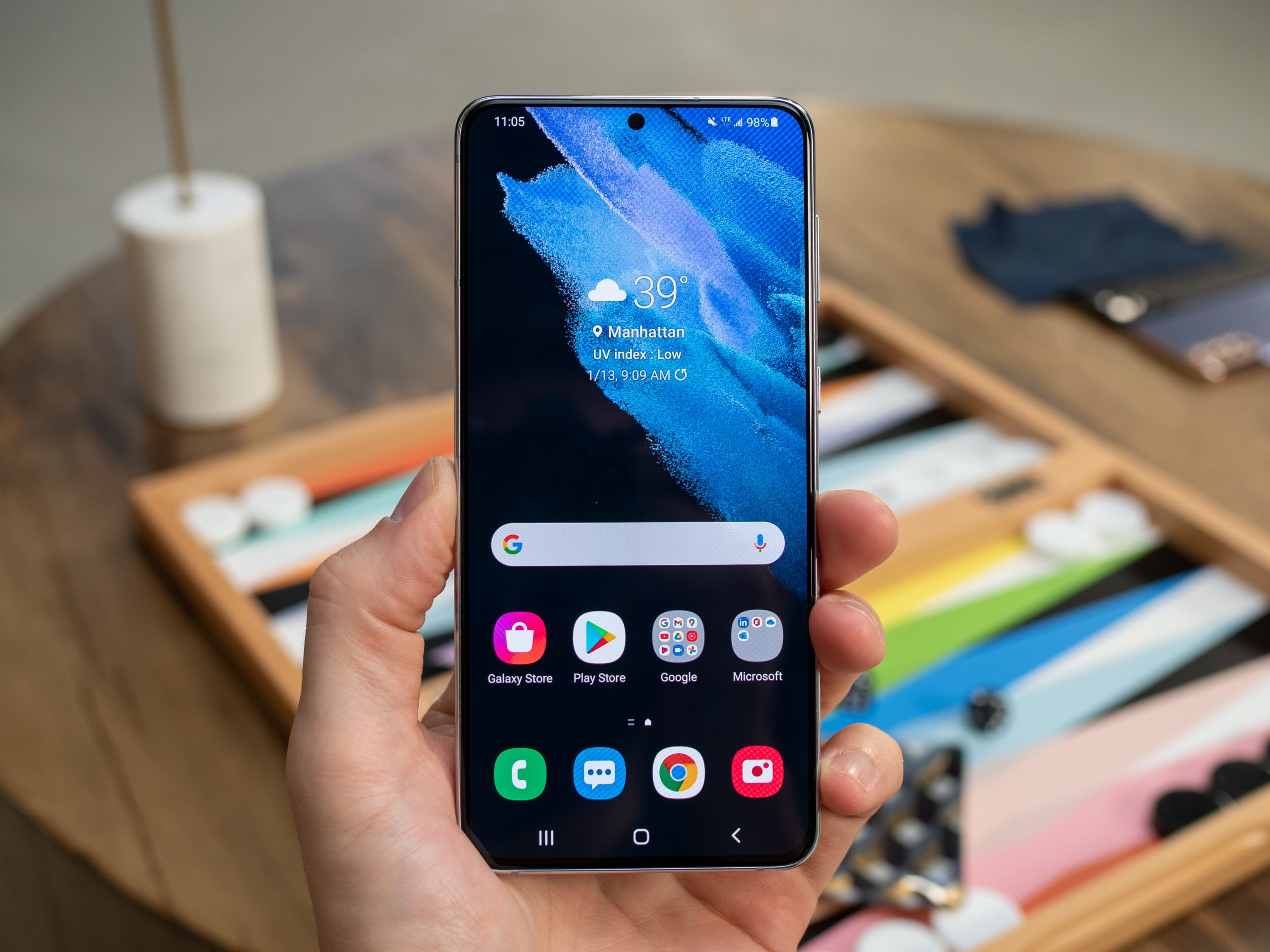
Need to share a juicy bit of gossip from within your messaging app? Or perhaps you want to share bits of an online article with friends and family? For all those moments in your life when you want to share your screen’s contents, you have the handy screenshot function. With only a few button presses, you can take a copy of your screen and save it to your gallery. If you’re rocking a Samsung Galaxy S21, here’s how to take a screenshot.

Recommended Videos

Take a screenshot on the Galaxy S21

Samsung Galaxy S21+
Andrew Martonik/Digital Trends

Once you have something on the screen that you wish to take a snapshot of, press both the Side button (the sleep/wake button) and the Volume Down button at the same time. Be sure only to press the buttons simultaneously and not hold them down; otherwise, you will trigger the power options screen. When successfully pressed, your Samsung Galaxy S21’s screen will briefly flash, alerting you that a photo has been saved to your gallery.

Editing your screenshot

When you take a screenshot on a Galaxy S21, you will be presented with a menu bar of options right after the shot is taken. Four buttons allow you to either enter the Smart Capture mode, Crop/Draw your screenshot, Tag your photo to find it later within your gallery easily, or Share your photo. The Share button is quite self-explanatory, allowing you to share the newly-captured screenshot with your contacts or via one of the applications on your smartphone, so let’s take a look at the three other options available on the Galaxy.

The Smart Capture button allows you to continue taking additional screenshots in a scenario where you might want to scroll down to see other content, such as when on a webpage. To use the function, take your first screenshot, then, when the menu bar appears, select the Smart Capture button. Your Galaxy S21 will automatically scroll down the page and take another screenshot, capturing more content than was previously possible.

Taping the Crop/Draw button in the menu bar will allow you to crop your image, or, by clicking on the Pen icon, you can write notes and make annotations on top of your screenshot. Lastly, the Tag button will allow you to specify a tag to attribute to the screenshot. When you later visit your photo gallery, you can use the tag to search out the shot with greater ease. Your Galaxy S21 will recommend tags automatically, or you can create your own.

Viewing your screenshot

To view your screenshot once it has been taken, navigate to the Gallery app on your device; here, you will be able to view all photos on your smartphone. To see only screenshots, click the Albums button at the bottom of the screen, then choose the Screenshots album. You can edit, delete, or share your screenshot from the gallery, just as you could do with any standard photograph. Also, don’t forget to keep your photos backed up using a cloud storage service so that you don’t risk losing valuable information.

Michael Archambault
Former Digital Trends Contributor
Michael Archambault is a technology writer and digital marketer located in Long Island, New York. For the past decade…
Geekbench now lets you check how a phone will actually handle your boring daily chores
New tests, smarter scores, and finally some love for NVIDIA GPUs.
Geekbench 7 open on iPhone

Geekbench, the popular cross-platform benchmark from Primate Labs, just got a major update. Geekbench 7 is out today, and you can download it on Android, iOS, Windows, macOS, and Linux. If you like to know exactly how your CPU and GPU stack up, this update brings a bunch of changes worth knowing about.

What's new in the CPU tests?

Read more
Latest Pixel 11 series leak offers the clearest look yet at Google’s next flagship
Google's next Pixel has leaked again, but this time almost nothing is left to imagine
Pixel 11

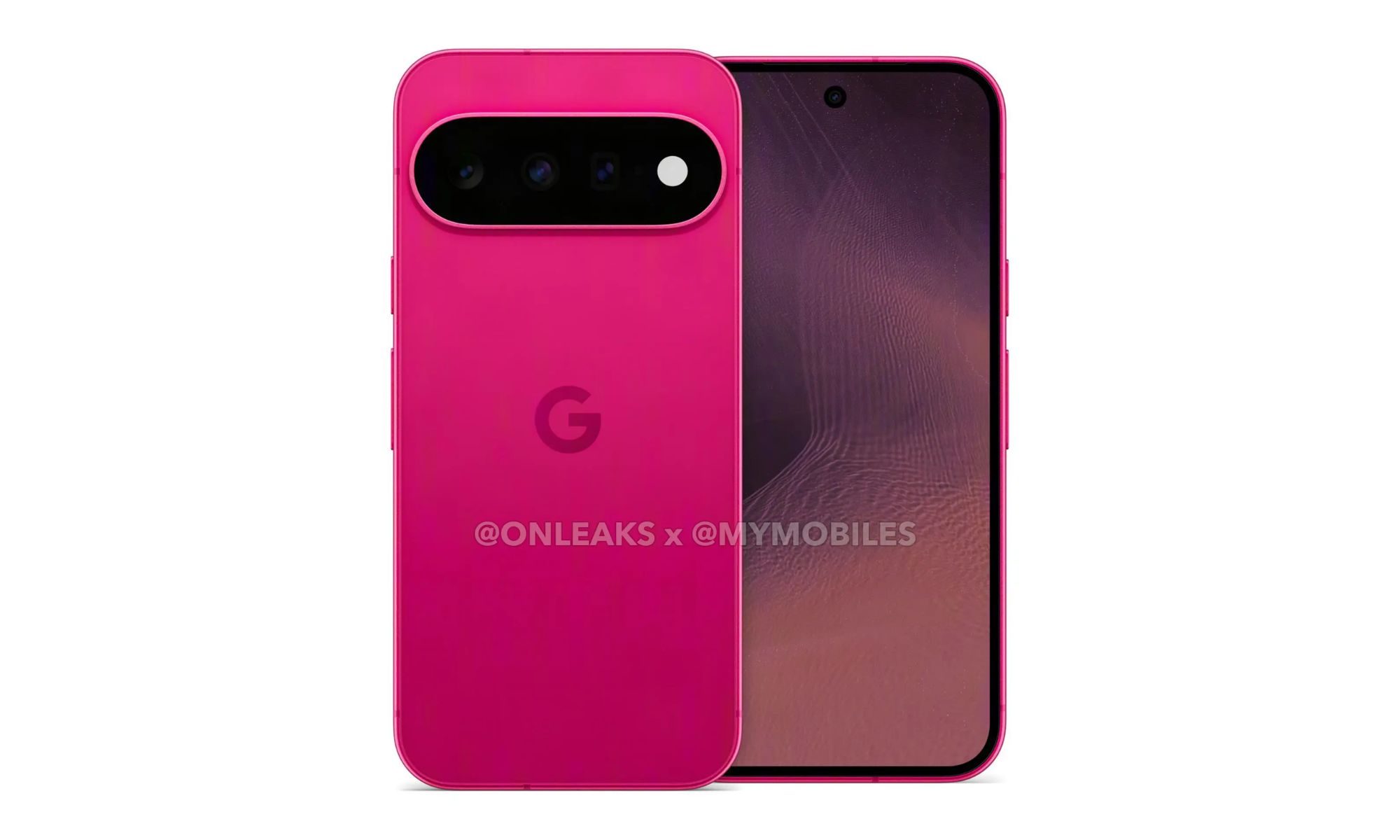
Google's Pixel launches have become increasingly difficult to keep under wraps, and the Pixel 11 series appears to be no exception. Weeks before Google's scheduled August 12 launch event, a fresh leak has revealed what is claimed to be the complete set of official press renders for the Pixel 11, Pixel 11 Pro and Pixel 11 Pro XL, showcasing every colour option across the lineup.

The renders, published by MyMobiles in collaboration with tipster OnLeaks, offer what is arguably the most comprehensive look yet at Google's next flagship family. If authentic, they not only confirm earlier design leaks but also reveal Google's colour strategy for 2026, including a vibrant Fuchsia finish for the standard model and a new copper-inspired "Dune" variant for the Pro series.

Read more
Galaxy Z Flip 8 vs. Motorola Razr Ultra (2026): Samsung’s flip phone is cheaper, but is it better?
One flip phone wins on value. The other wins on hardware.
Electronics, Phone, Mobile Phone

Flip phones have quietly become one of the most competitive corners of the smartphone market. It provides buyers with a satisfying folding snap, reducing the footprint to half the original size, and that’s the entire point. Motorola never really left the format after reviving the Razr name, while Samsung has spent generations treating the Flip line as its scrappy, budget-friendlier sibling to the Fold. 

This year, though, the gap between the two camps has narrowed to the point where picking a winner requires genuinely reading the spec sheet and learning about the phones before putting your money into one. One phone leans hard into raw display firepower, while the other leans into a deeper software ecosystem and a friendlier price tag. 

Read more