Meet Cortana; she hasn’t always been a digital assistant!
On Windows 10, Cortana is a voice controlled digital assistant, similar to Siri and Google Now. The original Cortana was an artificial intelligence character from the Halo video game series. She obtained her intelligence from the cloned brain of Dr. Catherine Halsey, a civilian scientist and founder of the SPARTAN project. In Halo, Cortana is classified as “smart”, allowing her creative matrix to expand. While certainly more limited, the digital assistant Cortana is also supposed to learn about you to offer better recommendations. The voice of Cortana, both in Halo and Windows, is provided by actress Jen Taylor.
You can enable Cortana outside the United States
 At this point, Cortana is designed for the United States only, but you can enable her if you live in another country and are willing to speak US English. Until other regions are rolled out you have the option to change your region settings and language preferences.
To enable Cortana, press Windows + S, type “region,” and open the respective Control panel result. Switch to the Location tab and change your Home location to United States. Next, search for “language” and open the respective Control panel result. If not in place yet, add English (United States) as a language and move it up to the first position. If you have more than one language in the list, you will see an input method switch in the notification area on the far right of your taskbar. You can use this to work with a different keyboard layout. Cortana works with either, but the primary selection has to be US.
It shouldn’t be necessary to reboot your computer, but you might have to re-enable Cortana via Search Settings, as explained see below.
Set up & customize Cortana
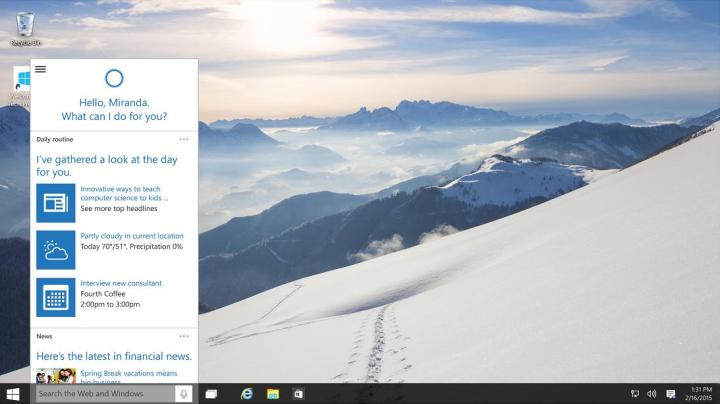
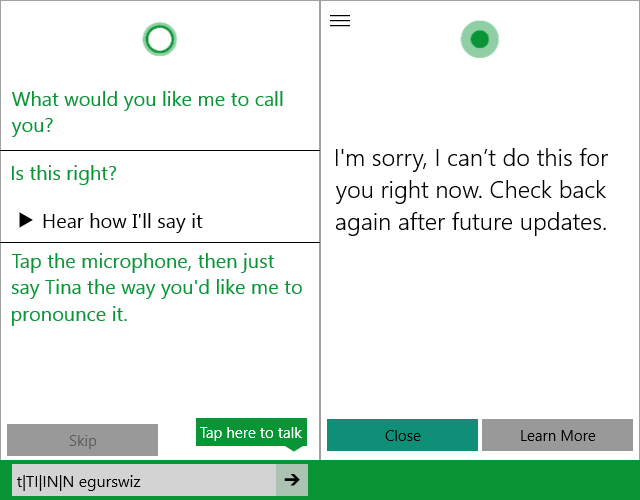
To get started with Cortana, click the halo or search bar in the taskbar and Allow her access to your usage data. She will ask for your name and whether she pronounces it right. You can change your name anytime by opening search, clicking the menu icon in the upper left, and selecting Settings. Here you can also turn Cortana on and off. Although she offers, you cannot teach her how to correctly pronounce your name, yet. It’s one of the many things not available until after a future update.
To function at her best, Cortana needs a few more things, including permission to show you reminders and your location. If you missed giving her any of these details during the initial setup, you can change that via the respective options in the upper left hand menu. Under Settings, you should turn on “Let Cortana respond when you say ‘Hey Cortana,'” which means you’ll be able to call on her hands-free.
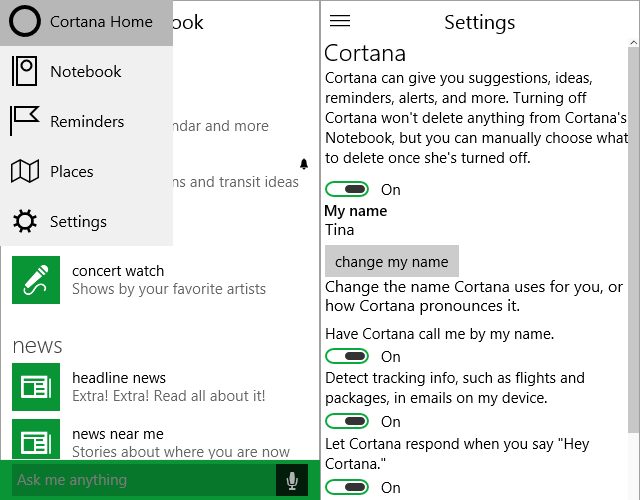
Cortana will learn about you while you’re using your computer. You can get her up to speed by adding a few things manually, including your home and work location (Places) and whether you preferably get around by car or transit (Notebook > getting around). Features like headline news, news near me, and weather near me are on by default, but you can turn them off or remove them via the Notebook, which is where Cortana keeps track of your interests. You can add categories by clicking the + button in the bottom right.
This is what Cortana can do for you
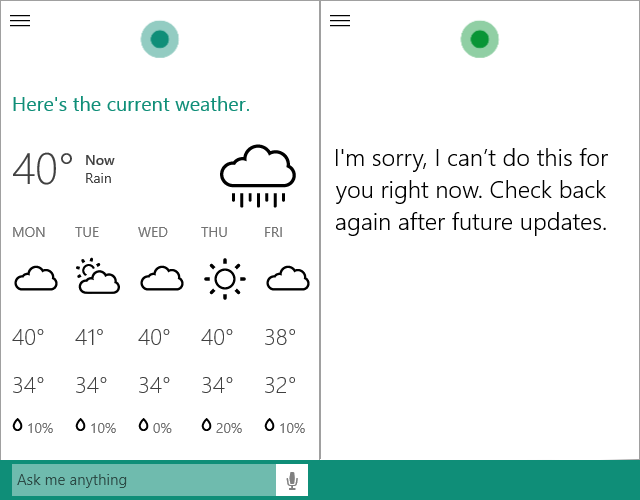 If you enabled Hey Cortana, you’ll be able to communicate with her hands-free. Simply say “Hey Cortana” immediately followed by your question or command. Alternatively, you can tap the microphone symbol and start speaking.
Depending on the quality of your microphone, Cortana will catch you from up to seven feet (about two meters) away. I found her ability to hear instructions on top of background noise remarkable. As long as you speak up and are at least as close to the microphone as surrounding noise sources, she will pick up your commands without issue.
This is the first version of Cortana on the Windows desktop, so she can’t do quite all the things available on Windows Phone. For example, I couldn’t get her to give me directions or compose an email. One day I could set reminders, the next day this feature was broken. In some cases, it’s a matter of figuring out the right instruction or sequence of commands. Whenever she cannot answer a question or command, she either returns an apology or opens a browser tab with a Bing search. Fortunately, the Bing results page typically displays a perfect answer.
- Ask Cortana for the weather: You can create a more complex question by asking for the weather in a specific city, in degrees Celcius or Kelvin (Fahrenheit is the default), and on a specific day or next week.
- Cortana knows sports scores: Ask her how your team played. She currently supports the NBL, NFL, some European soccer leagues. Unfortunately, she can’t show you a list of results or tell you the next game.
- Cortana can do math! She can solve math problems, including more complex ones like “10% of 30 divided by 3”. She can also convert units, such as from Celcius to Fahrenheit or from feet to meters. Finally, she knows exchange rates, for example, ask her for the Bitcoin exchange rate.
- Cortana can search your files: But she cannot open documents. Just tell her what to search for, e.g. “find cover letter” and you’lll get a list of files on your local drive and on OneDrive.
- Cortana can track your flights: You can ask her for the status of your flight. In future updates she should be able to pick up informaton from your email and set reminders automatically.
- Let Cortana set reminders: As mentioned above, this one doesn’t seem to work right now, but it did initially and it had bugs. We don’t know when reminders will be back. As of right now, Cortana will let you insert all the details and then tell you “Sorry, I couldn’t create that. Please try again later,” once you are ready to schedule.
Ask Cortana these fun questions
With the right sequence of questions, you can have a fun conversation with Cortana. You’ll find that she has a sense of humor and quite a few Easter Eggs. If you want to improve your AI communication skills and have a laugh, here is a list of questions you should ask Cortana:
- Yo!
- Guess what!
- How old are you?
- How do you work?
- Where are you from?
- Who is your mother?
- Who is your father?
- Can you speak Klingon?
- Ask me a question!
- Tell me a joke!
- Tell me a story!
- Sing me a song!
- Where is Master Chief?
- Are you dead?
- Who is Doctor Halsey?
- Make an impersonation!
- What do you think about Clippy?
- Do you know Satya Nadella?
- Who is the tallest woman in the world?
- What is the answer to life, the universe and everything?
- What is the meaning of life?
- Are you better than Siri?
- Are you better than Google Now?
- What do you think about Google?
- Beam me up Scotty.
- Surprise me!
- You are awesome!
For some questions she has multiple answers or will answer to variations.
You can disable Cortana
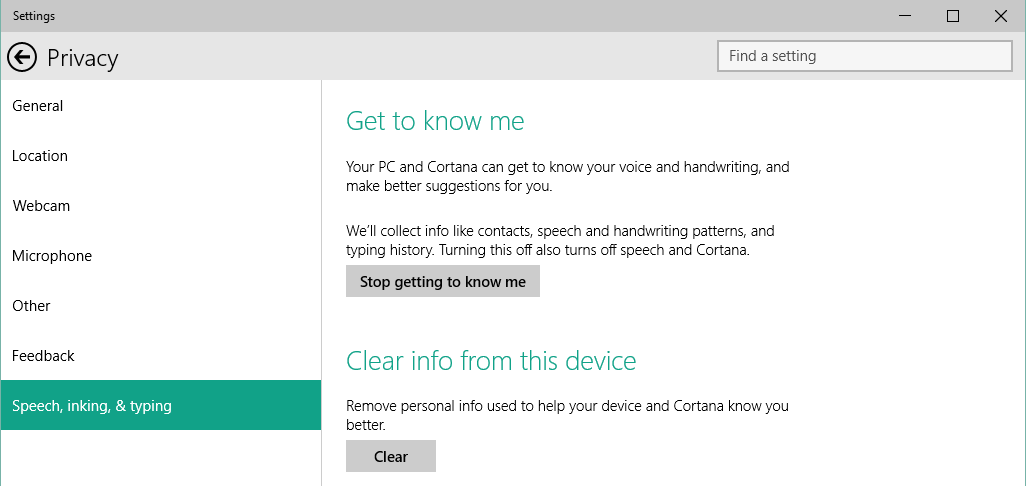
If you can’t warm up to artificial intelligence, you can disable Cortana. Under Settings, turn her off. To remove all the data she collected about you, click Manage Cortana data underneath the on/off switch. This will open Settings > Privacy > Speech, inking & typing where you can Stop Cortana from getting to know you and Clear all the information she has stored about you so far.
More features are likely to be included in future builds
When testing Cortana, we often ran into the apology “Sorry, I can’t do this for you right now. Check back again after future updates.” In some cases, the requested feature does exist on Windows Phone. Even if it doesn’t, we think this message means that Microsoft expected the question and is planning to add the respective feature soon.
Following future updates, Cortana should be able to open apps (this already works if you type in the command), set complex reminders, add appointments to your calendar, take notes, compose emails, give directions to preset locations (provided maps have been downloaded), offer traffic information, set an alarm, and more.
What would you like Cortana to do for you?
Editors' Recommendations
- Scores of people are downgrading back to Windows 10
- How to factory reset Windows 10 or Windows 11
- How to remove a login password on Windows 11
- How to automate tasks in Windows to make everything faster
- How to check your PC’s specifications on Windows 11