1. Home
  2. Phones
  3. Computing
  4. Mobile
  5. Web
  6. Evergreens

How to block channels on YouTube

Add as a preferred source on Google

Whether you post public YouTube videos for fun or profit, interactions with everyday netizens — especially trolls — are an inevitable part of the process. Unfortunately, some commenters seem to have nothing better to do with their time than post offensive and derogatory comments, so consider blocking their channel rather than continuing to feed the trolls.

By blocking someone’s channel, you effectively remove their ability to comment on videos that you have posted publicly, which will limit their ability to be a jerk. Truly dedicated malefactors can always create another account, but at least you won’t have to hear any smack talk for a while. Read on to learn how to block channels on YouTube on your PC and mobile devices with a few simple steps.

Recommended Videos

How to block channels on YouTube: PC

In order to block a YouTube channel, you will need to be logged in to your YouTube account. You’ll need the username of the account you want to block. You can get that by clicking on the name of the offending user, entering keywords into YouTube’s search bar and filters.

Step 1: Search YouTube for the username of the account you want to block.

Step 2: Select the channel’s icon, then click About in the channel toolbar.
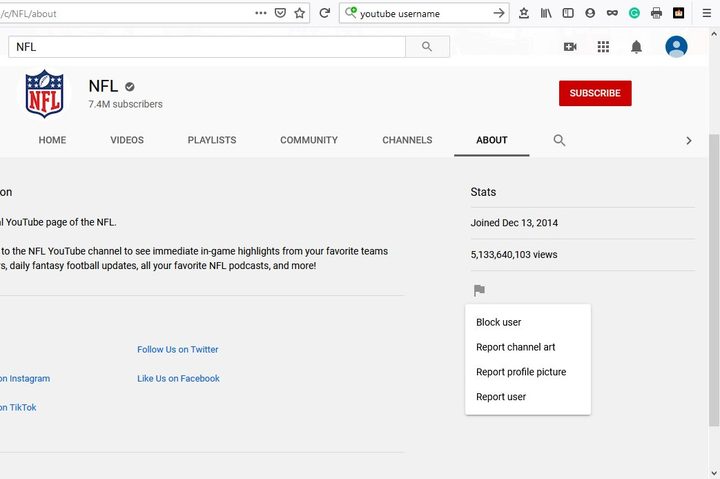
Image of YouTube Block Channel Button
Daniel Martin/Screenshot

Step 3: Click the Report User resembling a grey flag and select Block User from the list that appears.

Step 4: Select Submit on the confirmation box to block the user’s channel from commenting on your public videos.
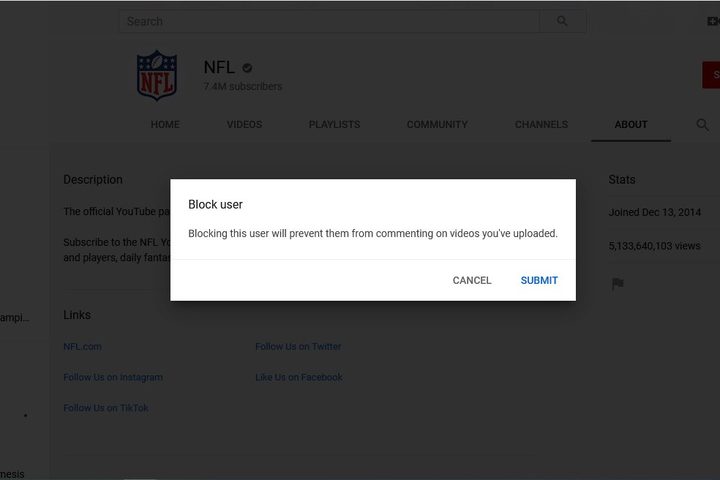
Image of YouTube Block User Submit Button
Daniel Martin/Screenshot

How to block channels on YouTube: iOS and Android

Step 1: Open the YouTube app on your smartphone or mobile device, tap the search icon, and enter the name of the channel you want to block.
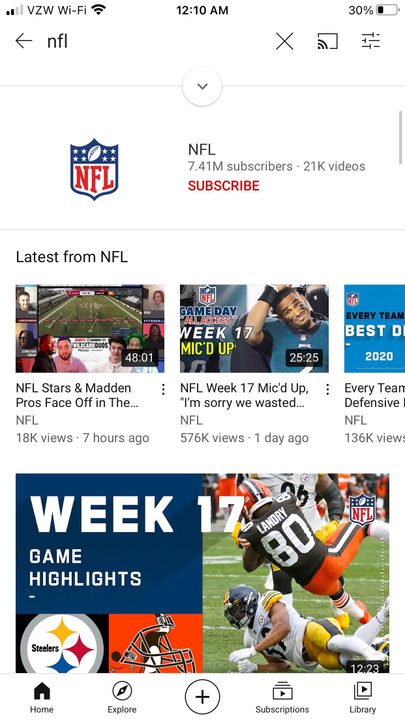
Image of YouTube Channel Search Results
Daniel Martin/Screenshot

Step 2: Tap the account to view their main page, then select the three vertical dots in the upper right corner of your screen.
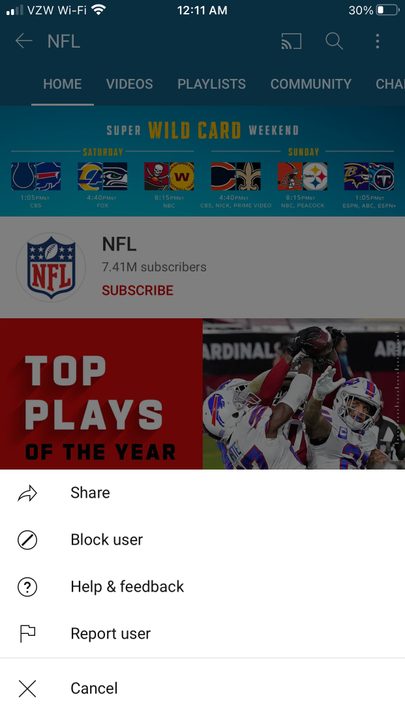
Image of YouTube Block User Button
Daniel Martin/Screenshot

Step 3: Tap Block User and then Block to confirm your decision.

You’re all set! That particular troll will be unable to talk smack about your videos (at least until they make their next burner account).

Want any more tips on how to manage your YouTube account? Check out our guides on how to change your YouTube name, and how to delete your account for good.

Daniel Martin
Former Digital Trends Contributor
Daniel Martin is a technology expert, freelance writer, and researcher with more than a decade of experience. After earning a…
T-Mobile says it has fixed the nationwide signal outage after hours of disruption
Bars are back. T-Mobile confirms it has fixed Monday's nationwide outage.
T-Mobile logo on iPhone

T-Mobile's Monday outage is officially over. After thousands of customers spent hours dealing with dropped signals and iPhones stuck in SOS mode, the carrier confirmed that service has been fully restored.

So what exactly happened?

Read more
Samsung may finally give the Galaxy S27 Ultra a meaningful battery boost using silicon-carbon tech
Galaxy S27 Ultra could reach 5,700mAh as Samsung explores silicon-carbon batteries
Electronics, Phone, Mobile Phone

Samsung was already rumored to be preparing a larger battery for the Galaxy S27 Ultra, while the upcoming Galaxy S27 Pro was expected to carry a 5,000mAh cell. At the time, however, there was no indication that silicon-carbon batteries were also in the works.

Samsung recently introduced the technology on the Galaxy Z Fold 8 series. A new GalaxyClub report has now revealed the alleged battery capacities of both phones, and they could represent significant upgrades by Samsung’s standards.

Read more
Spotify meets Snap Map in Snapchat’s latest update
The new Now Playing feature adds real-time music sharing with customizable privacy controls.
Now Playing on Snap Map Spotify Snapchat featured

Snapchat is giving Snap Map a musical makeover. The company has announced Now Playing, a new feature that lets users share the music they're listening to in real time directly on Snap Map. Launching first with Spotify, the integration allows friends to discover each other's favorite tracks, save songs, and jump straight into Spotify without leaving Snapchat. The feature is rolling out now in regions where both Snapchat and Spotify are available, with Canada set to receive it soon.

How Now Playing works

Read more