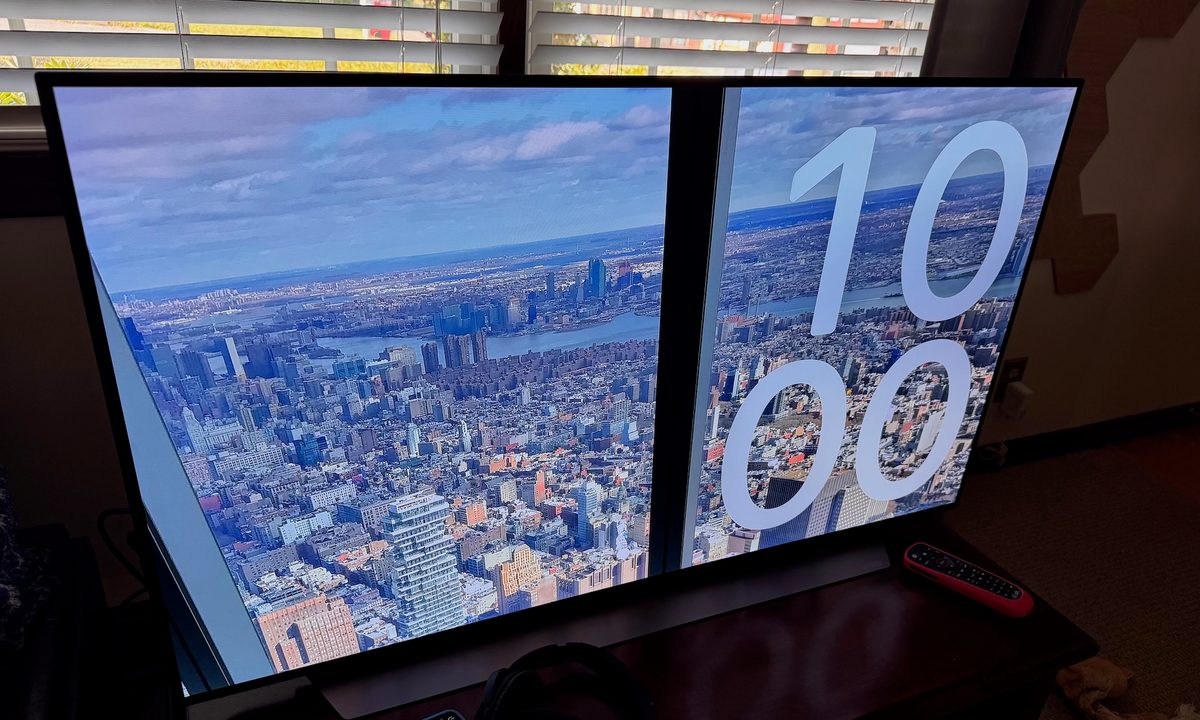
The Apple TV will never be the company's top product due to the continued popularity of its iPhone and Mac products. Nevertheless, Apple occasionally shows the digital media player,which has consistently topped our list of the best streaming devices), some love by introducing some fun new software updates.
In tvOS 18, the Apple TV has gained several new features. These include improved dialogue and automatic subtitles, updates to the Home App, and InSight, an intelligent feature that offers real-time information about actors, characters, and music in Apple TV Plus shows and movies.
The update also includes a stylish portrait screensaver. The new tool lets you showcase your favorite portrait-oriented photos from your library by displaying them with an overlaid clock.
While this sounds simple enough, getting started with the portrait screensaver involves some setup time, which we discuss below.
Does your Apple TV support the portrait screensaver?
Apple TV models supported by tvOS include Apple TV HD and Apple TV 4K (1st generation and later). However, to utilize the new portrait screensaver, you must have an Apple TV 4K (2nd generation and later). Otherwise, the option won't even show up on your device.
How to install tvOS 18
Installing the latest version of tvOS takes just a few steps, which we've discussed previously in more detail .
Expect the installation to take about 10 to 15 minutes. During part of this time, you can continue to use your Apple TV until it's automatically rebooted.
Step 1: To initiate the tvOS 18 update, navigate to Settings on your Apple TV.
Step 2: From there, select Software Updates. and check for updates. If available, install tvOS 18.
How to set up the portrait screensaver in tvOS 18
With tvOS 18 installed, you can take the steps necessary to set up the portrait screensaver.
Step 1: First, navigate to the Settings app, then choose General. From there, select Screen Saver.

Step 2: Next, choose the Current Selection option to view the current screensaver on Apple TV. The portrait screensaver is new and won't have been selected yet.

Step 3: From the list of options, select Portraits. The Apple TV will now begin syncing your photo data. Depending on the size of your library, this process may take some time. During this time you'll see the word "Sync" next to the Screen Saver option.
Step 4: After the syncing is complete, you can customize the settings according to your preferences. You can opt to display or hide People, Pets, Nature, and City in your portraits.
You can also adjust the Update Frequency, which determines how often the portrait photos change. Now you can start enjoying the new Portraits screensaver on your Apple TV. The screensavers will start showing along with a time overlay after your set idle time.

By following these simple steps, you can quickly transform your living space with a screensaver that is uniquely yours. It will pull you into a world where technology meets personal significance. Whether you're lounging with family, entertaining guests, or simply relaxing after a long day, the portraits screensaver mode brings your most memorable moments to the forefront, adding an extra layer of warmth and personality to your home.