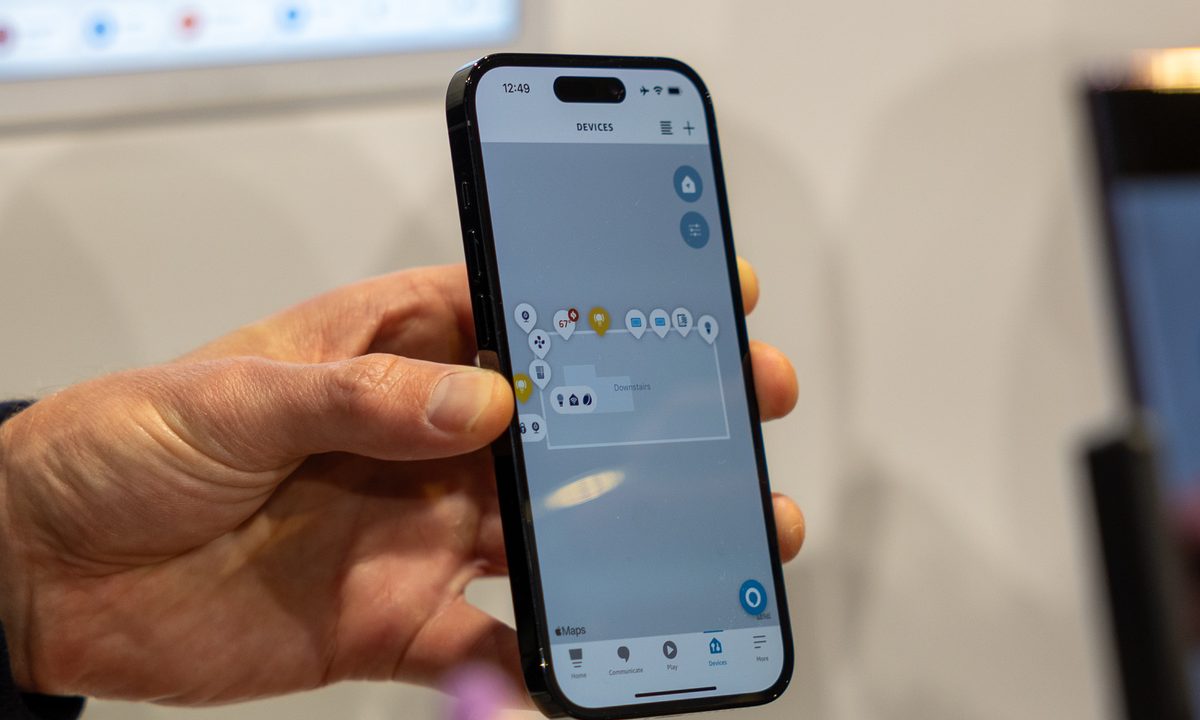
Even if you’ve never owned a smart home device, we’re betting you’ve heard of Amazon Alexa. Not only is it one of the most popular voice assistants of the last decade, but Alexa is also a tried and true command center for whatever smart home devices in your home are Alexa-compatible. And while you can run out and nab any number of Alexa-powered smart speakers and smart displays, you can easily use the popular assistant with nothing but your iPhone. Here’s a guide to teach you how.
In other words, there’s no better time to use Alexa with your iPhone, and the setup isn’t difficult. Your iPhone can also work with compatible Alexa devices like Amazon Echos. Here’s what you should know.
How do I connect Amazon Alexa to my iPhone?
The good news is that you don’t need a physical Alexa device to use Alexa as a voice assistant and smart platform -- there’s a separate app for that, which is available just about everywhere. Here’s how to get it on your iPhone.
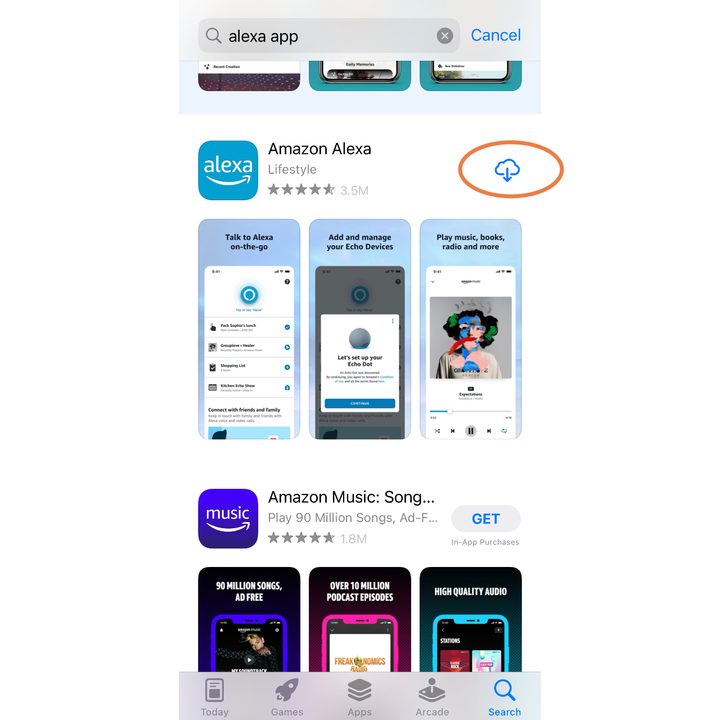
Step 1: Open the App Store on your iPhone home screen. Use the Search button on the bottom left to search for "Alexa app" or a similar phrase.
Step 2: Scroll through the results to find Amazon Alexa. Select the Blue cloud download button next to the app to download it.
Step 3: When the app is downloaded, select Open.
Step 4: Since this is your first time using the app, you’ll be asked to log in with your Amazon account email and password. Input this information and select Sign-in.

Step 5: Confirm your name and proceed. You have the option to set up a voice ID at this time, but you can always skip it and return to it later. When finished, choose Set up my features to implement some important Alexa settings, like your contacts for making calls, notifications, and so on. Choose Done when you’re ready.

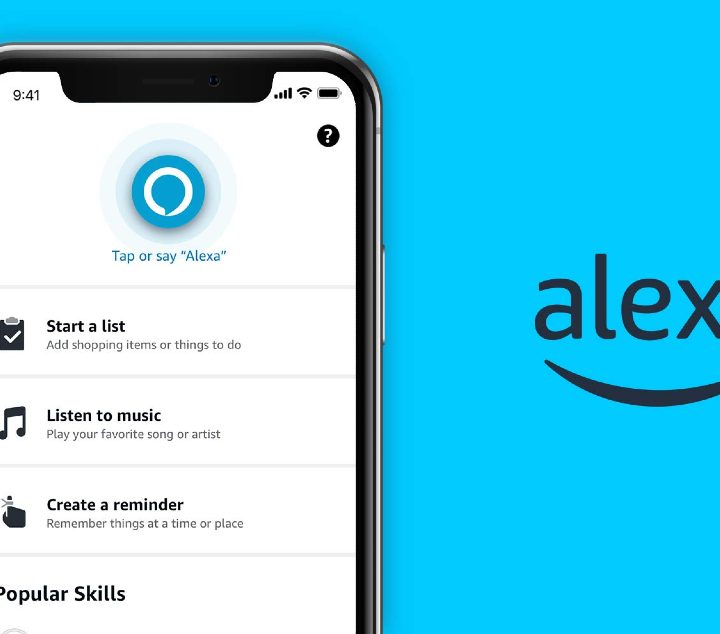
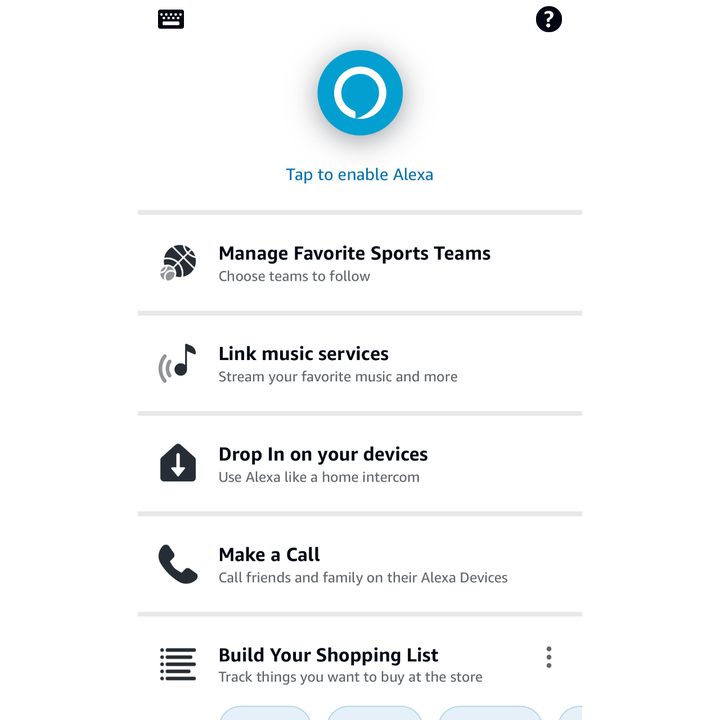
Step 6: You’ll now find yourself at the Alexa home screen, where you’ll see a number of options to link music accounts, add news or sports teams, make shopping lists, and so on. It’s a good idea to look around and get familiar with what Alexa can do.
For example, you may want to use the Add a device option to link all your compatible smart devices and the Routines section to create commands that can operate multiple devices at once.
How do I pair my iPhone with an Alexa device?
If you have an Alexa device like an Amazon Echo, you can also link it to your iPhone via Bluetooth. That’s an option if you’d like to play music or other audio through an Echo but don’t want to connect any of your music accounts to Alexa (or if you keep all your music as downloads in your iPhone library).
Fortunately, connecting via Bluetooth is simple. Finish setting up your Alexa device — if you’ve already set up the Alexa app, this should also be easy. When you’re ready, unlock your iPhone and ensure Bluetooth is activated. Hold the iPhone near the device and say, “Alexa, pair with Bluetooth.”
Your iPhone should quickly pick up the Alexa device in pairing mode and ask if you want to take action. Choose to Pair, and the two devices will link. Now you will be able to connect again by telling Alexa, “Alexa, connect to my iPhone,” or give the name you have called your iPhone.
With the Bluetooth connection, any music you play from your iTunes library, Apple Music, etc., will play from your Alexa device. You can say, “Alexa, disconnect my iPhone,” whenever you are finished.
Why is an Alexa device not pairing with my iPhone?
If you can’t get your iPhone to connect to an Echo or similar device, there are a few fixes to try:
Make sure your device and your iPhone are updated to the latest software versions.
Force close the Alexa app on your iPhone, then try connecting again.
Unplug your Alexa device, wait for several seconds, and plug it back again before trying again.
Bluetooth range is good, but sometimes it can be disrupted. Make sure your phone is close to the Alexa device.
If your device is showing as paired in the Bluetooth section of your iPhone settings, choose it and instruct your iPhone to forget the device. Now try pairing it again.