The OneXplayer Mini is a portable gaming PC that fits in the palm of your hand. That means it carries all the advantages (and disadvantages) of your standard desktop, including the need for periodic maintenance. And while the OneXplayer Mini is a powerful device right out of the box, there are a few things you can do to optimize its performance and squeeze every last frame out of your games.
If you’re looking to make a few small tweaks to your handheld PC, here are some tips to help you optimize the OneXplayer Mini.
Further reading
- The Onexplayer Mini has me skeptical about the Steam Deck
- How to install Windows 11 and 10 on Steam Deck
- Steam Deck review: Expect an experimental gaming experience
Start with our standard Windows optimization tips
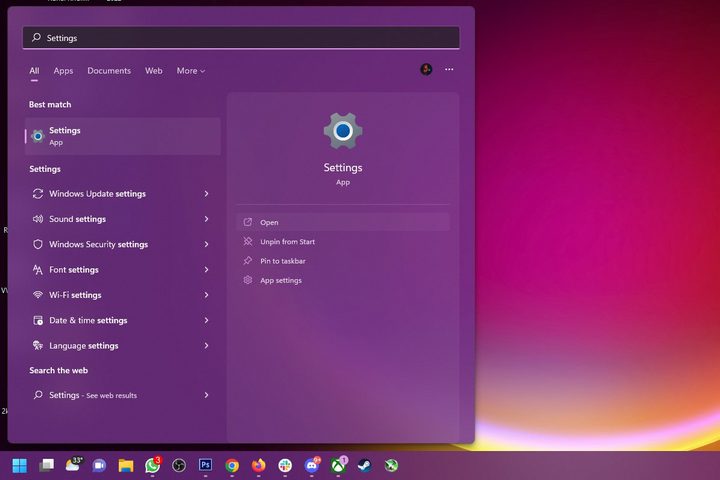
Since the OneXplayer comes with Windows 11 installed, it makes sense that many of the things you can do to improve its performance are the same things you’d do on a desktop or laptop. This includes running in Game Mode, pausing automatic updates, and configuring your GPU settings. If you need some help, be sure to check out our comprehensive guide on how to optimize Windows 11 for gaming.
Find your preferred resolution
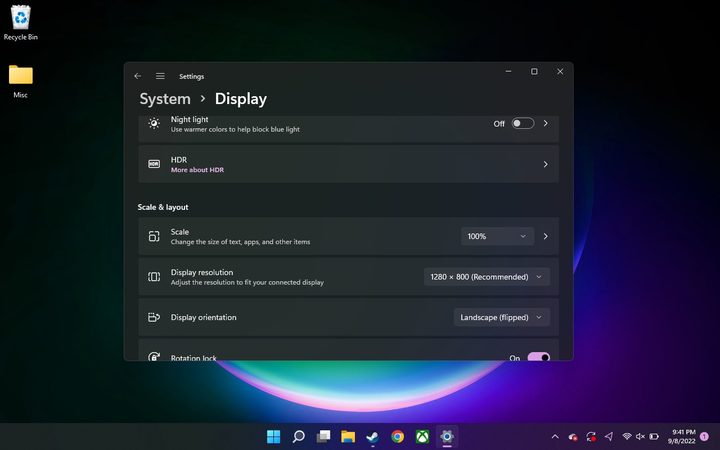
With those standard optimization tips out of the way, there are a few other things you’ll want to look at to maximize the potential of your OneXplayer Mini — and the first is playing around with your screen resolution. The screen runs at a native 1280×800, but you might find that text and icons are a bit difficult to see on the seven-inch screen. Be sure to adjust not only your display resolution (we’d suggest keeping it at 1280×800), but also the scale of text, apps, and other objects. If 100% is simply too small, consider bumping it up to 125% or 150%.
Make sure Rotation Lock is enabled
While you’re in the Display menu, make sure the Rotation Lock option is enabled. This will prevent the screen from flipping around if the handheld tips sideways. There’s nothing worse than getting a bit too excited in the heat of an online match and watching as your screen flips vertically.
Don’t forget to change your in-game settings
Just because you’ve modified the standard settings on your OneXplayer Mini doesn’t mean all games will default to your preferred selections. Before playing any game, take a few minutes to dive into its options menu and make sure its resolution is right (1280×800 or lower for more demanding games) and enable or disable any other options. The OneXplayer Mini is powerful, but sometimes you’ll need to reduce shadow options or other advanced graphics settings to get reliable performance.
Check your Intel Drivers
A few variants of the OneXplayer Mini are now floating around in the wild, but both will require regular driver updates. If you’ve got an Intel GPU, head over to its official website and check for any available updates. If you’ve got an AMD GPU, head over to its website and do the same. Running on an old system is just asking for issues, so be sure to take a few minutes to ensure you’re running the latest firmware.
Find a good size and space for your virtual keyboard
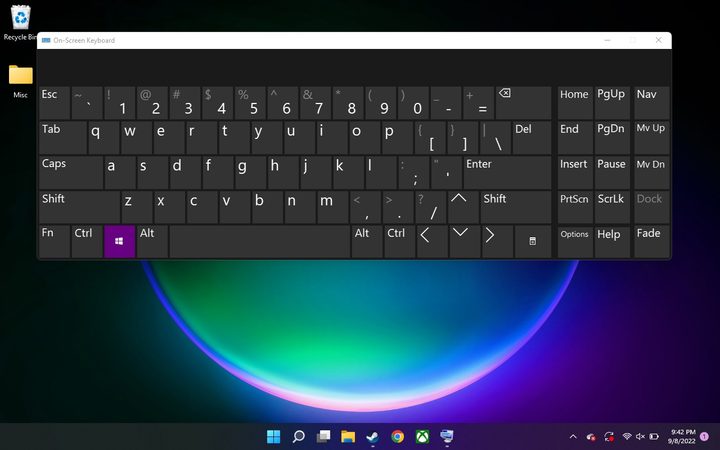
When you first launch the virtual keyboard on the OneXplayer, there’s a good chance it’s going to be configured to a size that’s way too small for practical use. Thankfully, the size and positioning of the keyboard are both fully adjustable. Simply drag the edges to resize it and drag the top bar to reposition it. The keyboard will default to these settings every time you press the Keyboard button, so take some time to find a layout that works for you. We’ve found that the keyboard is easiest to use when it runs nearly the entire length of the screen and is positioned towards the top of the device.
That’s it!
These basic optimization tips should help you improve the performance of your new OneXplayer Mini. Of course, there are countless other ways to enhance its abilities (some savvy users have even cracked it open to install a new SSD), but the above tips are the easiest ways to maximize its potential without needing a toolkit — and without voiding your warranty.