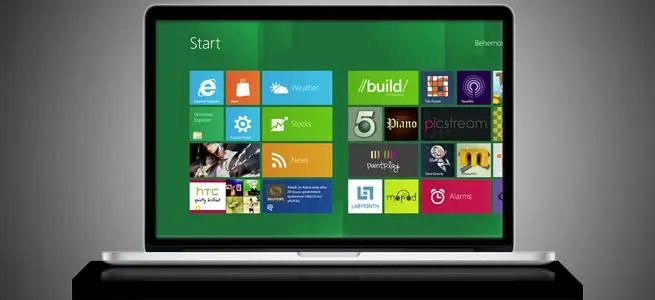
Though Windows 8 has received mixed reviews, it remains Microsoft’s latest operating system. If you own a Mac, and you want to use Windows, purchasing Windows 8 is likely the best option.
Unfortunately, it’s also a bit harder to install that than Windows 7. Changes to the way Microsoft sells its new operating system, along with a lack of support from the current version of Boot Camp, makes installation slightly more harrowing. But don’t worry; the steps are still doable for even the newest Mac owner.
Before you begin
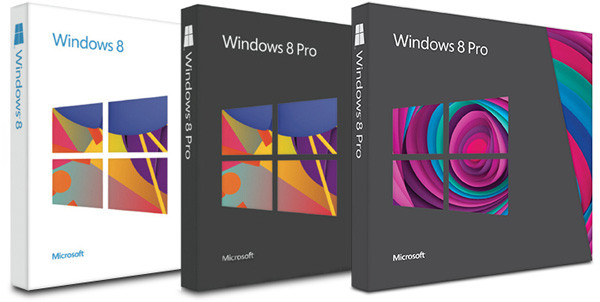
Windows 8 is the first version of Microsoft’s operating system to lack a retail copy. Want to walk down to the local electronics store and buy a fresh install? Too bad! You’ll find none on their shelves. You’ll only be able to purchase upgrade versions, and, since those require you have a previous Windows installation, they won’t work with Boot Camp.
The upgrade version will work if you’ve already installed Windows on your Mac with a valid key. Owners who have Windows 7 can follow the steps in this guide, install that version of Windows, and then install Windows 8 Upgrade.
Since the retail version is gone, you’ll instead have to buy an OEM copy. This isn’t carried by most brick-and-mortar retailers, but speciality computer retailers might have it. You can also find it at online stores like Amazon and Newegg. A regular copy of Windows 8 OEM is $99 and Windows 8 Pro OEM is $139.
You’ll also need to make sure your Mac has OS X Mountain Lion (so you have the latest version of Boot Camp) and at least 20GB of empty hard disk space. Free space is needed because Windows 8 will be installed on a partition of your Mac’s hard drive reserved specifically for it. That partition will also be used to store any software you install while using Windows 8.
Create a bootable USB drive (for Macs with no optical drive)
Owning a Windows 8 disk isn’t helpful if your Mac doesn’t have an optical drive. To make matters worse, Microsoft doesn’t offer an online install of Windows 8 OEM. You’ll need to use an alternative method of installation.
The easiest solution is to use an external optical drive that connects to your Mac via USB. These are not hard to find, but they’re also not free. Expect to pay $25 to $50 if you buy from an online retailer, or $79 if you buy Apple’s own version. If you decide to purchase an external optical drive, skip to the next step.
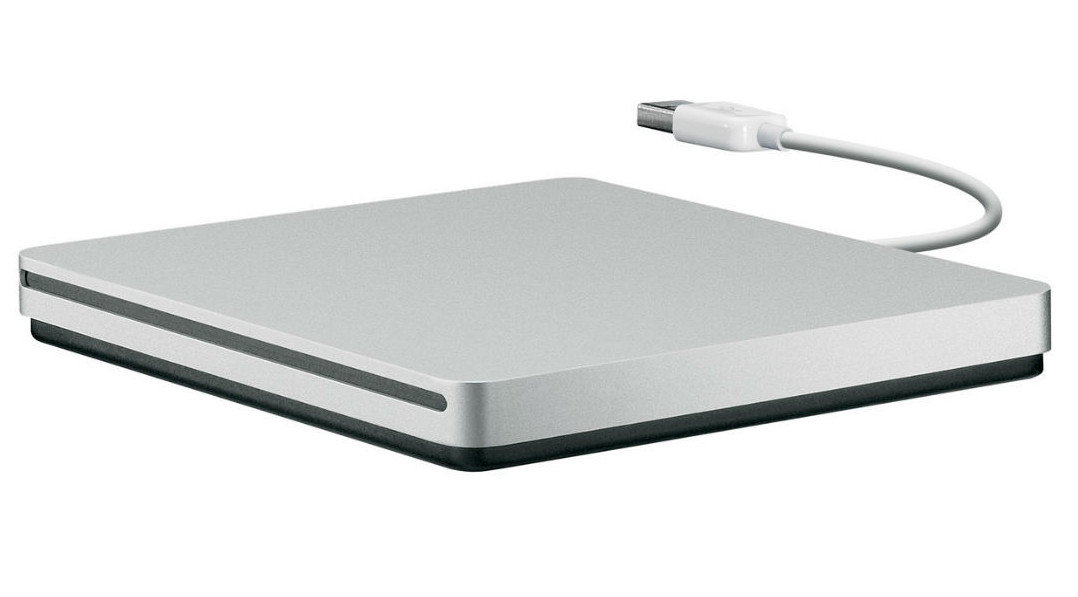
Still reading? Okay. To skip the use of an optical drive entirely, you’ll need a USB drive with at least 4GB of space and access to a Windows PC that does have an optical drive.
Download and install Imgburn to that computer, insert your Windows 8 install disk (but don’t run the installer), and then run ImgBurn. Select “Create Image from Disc,” select the optical drive (if not already chosen), set a destination, and then click the icon at the bottom. This will create a .ISO file from the Windows 8 install disc.
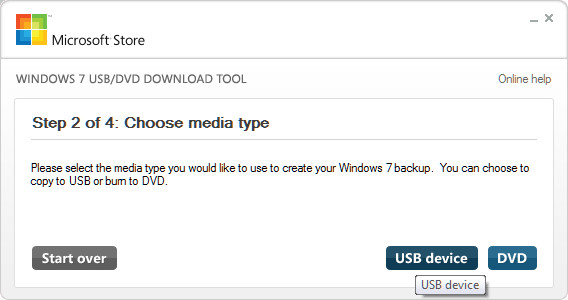
Now that you have the .ISO file, you need to put that file on a USB drive. To do this, download the Windows 7 USB/DVD tool from Microsoft’s website. Despite the name, it works with Windows 8 as well. Install the utility, open it, and select “USB Device” at the second step. Connect a USB flash drive, select it in the utility, and then continue with the wizard. After a few minutes, you’ll have a bootable installation drive.
If you don’t want to use Windows 7 USB/DVD tool, or you have trouble with it, Unetbootin works as well. Though primarily used for Linux, Unetbootin supports creation of bootable Windows drivers. You simply need to select the Windows .ISO manually, instead of from the drop-down list of Linux distros.
Begin Boot Camp
Open Boot Camp through a Finder search for “boot camp” or by opening Launchpad and then the Other folder. You’ll come to an introduction screen that provides information and suggests a backup of important information before you install Windows (always a good idea). Click the Continue button.
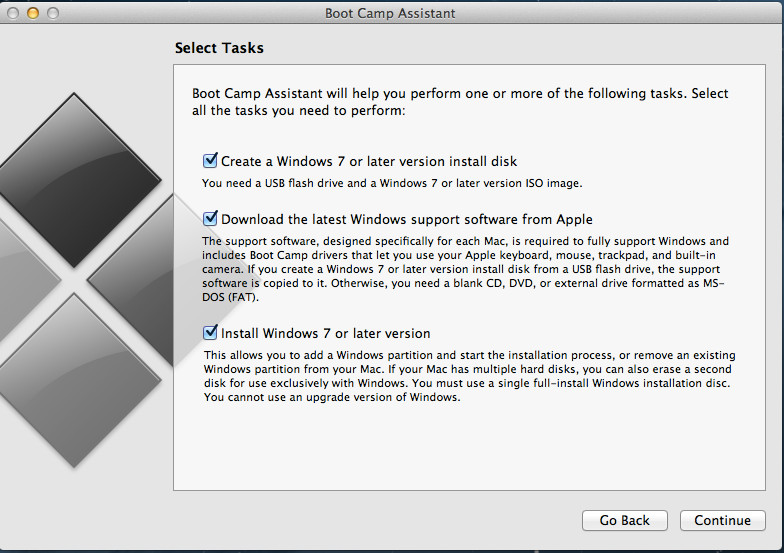
You’ll see several options in the next screen. De-select “Create a Windows 7 or later version install disk” because you already have an install disc or a bootable USB drive. Leave the other two options selected, and then click Continue again.
Now you’ll have a choice of where to play the support software files. These drivers help your make communication with Windows, an operating system it wasn’t designed for. You can send these drivers to a CD/DVD or to a USB drive – your choice. Don’t place them on the same USB drive that contains your Windows .ISO, though.
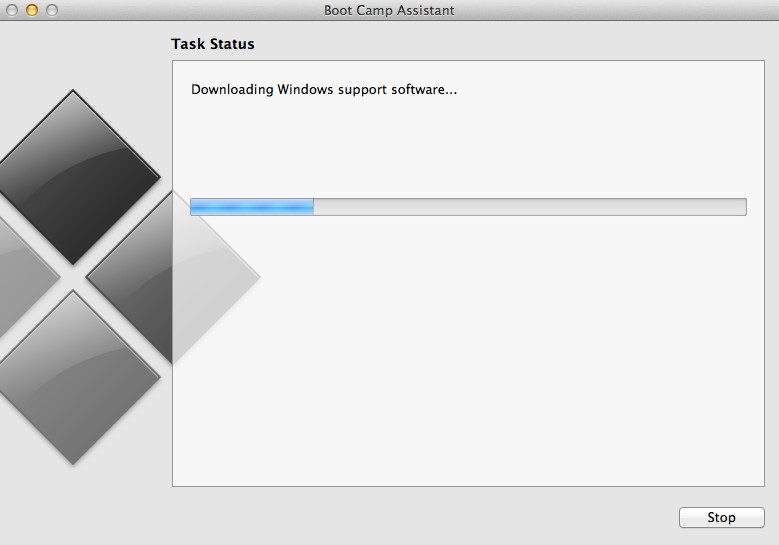
Check that you have a network connection, then click Continue once more. The support drivers will now download. This processor can take some time, so go make a sandwich, do some push-ups, and water the flowers.
Once the support drivers have finished, the next step is to create a partition. Boot Camp will give Windows only 20GB of space by default, which is enough to do an install and not much else. We suggest increasing that number by dragging the bar between the Mac OS X and Windows 8 partitions. Click the Install button once you’re satisfied with the space reserved for Windows.
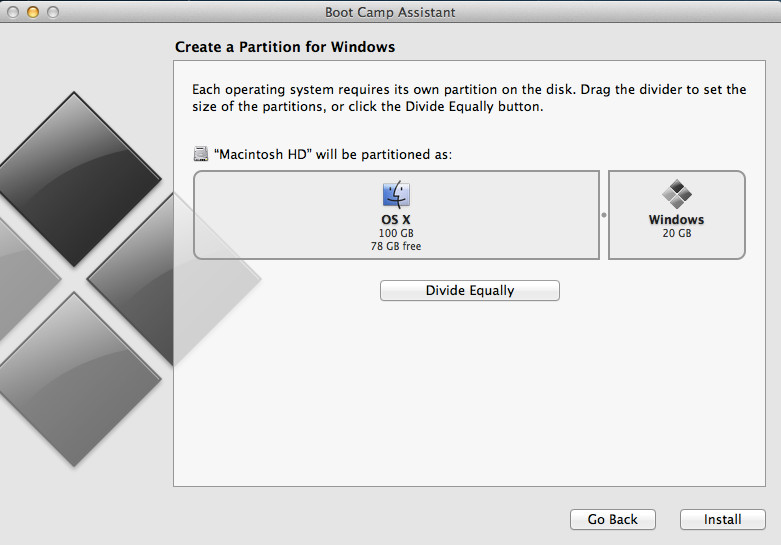
After partitioning is complete, which should only take a few minutes, restart the Mac and insert your Windows install disc or the bootable USB drive you created earlier. The system will automatically try to boot from your Windows 8 installation media. If you receive a “No boot drive found” error message, try restarting again but this time hold down the Option key while doing so. This brings up the boot manager which will display three partitions: one for OS X, one for OS X recovery, and one for Windows. Select the Windows option to proceed with installation.
Install Windows 8
Now you’re in the Windows 8 installation wizard. Follow the on-screen instructions and you’ll come to a screen that asks which partition you want to install Windows on. Select the one labeled BOOTCAMP. You will also need to format this partition to NTFS (the Windows file system) before installation can proceed.
And that’s it. There are more steps, but they aren’t different from installing Windows 8 on any other laptop, and the wizard will explain what you need to do (create a user account, for example). You’ll have Windows 8 on your Mac within half an hour.
After installation is complete, your final task is to install the Windows support drivers. Insert the disc or USB drive you placed them on and open setup.exe in the WindowsSupport folder. Follow the installation wizard and you’ll be done.
Wrapping up Windows 8
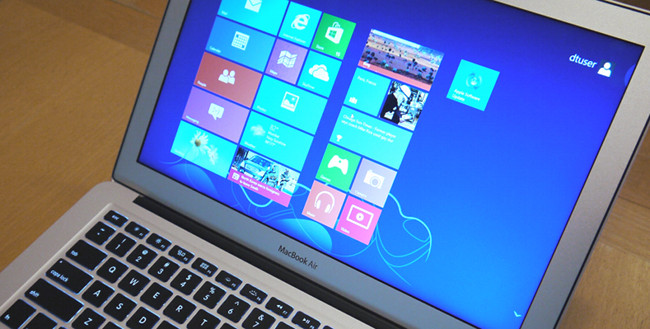
You’ve now installed Windows 8 on your Mac. There are, however, two more things you should know about how to operate the new OS.
To switch between Mac OS X and Windows 8 you must restart the system. Hold down the option key as soon as it begins to boot. This will bring you to the boot manager. Now you can select either OS X, the recovery partition, or Windows 8.
Also, you may notice features that don’t work properly when in Windows. At the time of this writing, Apple does not support Windows 8, so the support drivers you download are for Windows 7. In addition, the drivers for Windows are basic even when fully supported, so don’t expect your experience to take complete advantage of your Mac’s hardware.
Editors' Recommendations
- How to change where screenshots are saved on a Mac
- How to check the storage space on your Mac
- How to dual boot Linux and Windows
- How to convert FLAC to MP3 on Mac, Windows, and web
- How to convert M4A files to MP3 on Mac, Windows, and web