Many years after Sony introduced Remote Play with its PlayStation 4, Microsoft is now catching up with its own streaming service. Sure, Windows PC owners could stream their Xbox One or Xbox Series X/S console over the local network. But unlike PlayStation 4 owners, they couldn’t stream their games anywhere else, not even to Grandma’s house.
That’s all changed. Microsoft now provides two methods of streaming your Xbox One or Series X/S games to a mobile device: Directly from the console at any location, not just at home, and from Microsoft’s cloud. Now here’s the kicker: Remote Play outside the home network is only available on iOS and Android. Cloud-based gaming is only available on Android.
In this guide, we split all the Xbox game streaming goodness into two sections.
See more
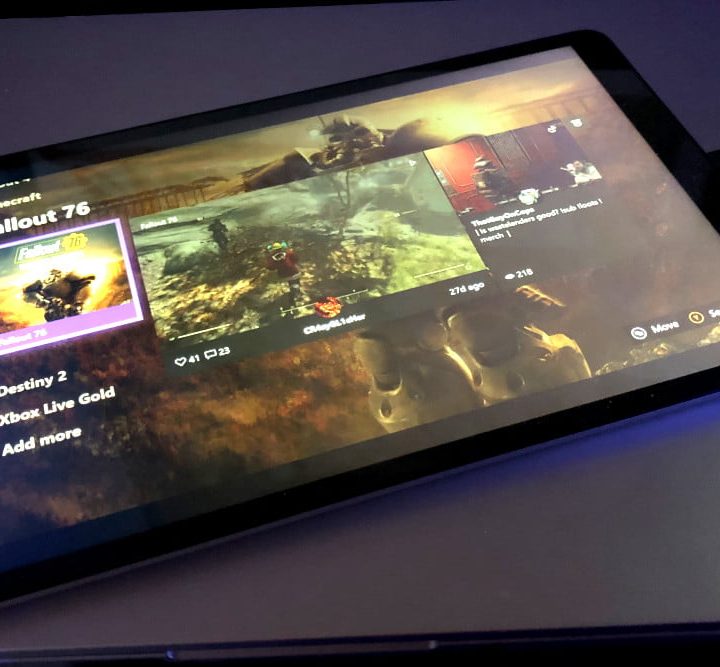
Stream from your Xbox
With the latest updates to the operating system and Xbox app, Microsoft has really simplified the method of streaming games to your mobile device. The settings are minimal at best, so there is less tinkering and more playing.
Get the console ready
These instructions assume you already have an Xbox One or Series X/S registered to your account and ready to stream.
Step 1: Press the Xbox button on the controller.
Step 2: Select Profile & System.
Step 3: Select Settings.
Step 4: Select Devices & Connections.
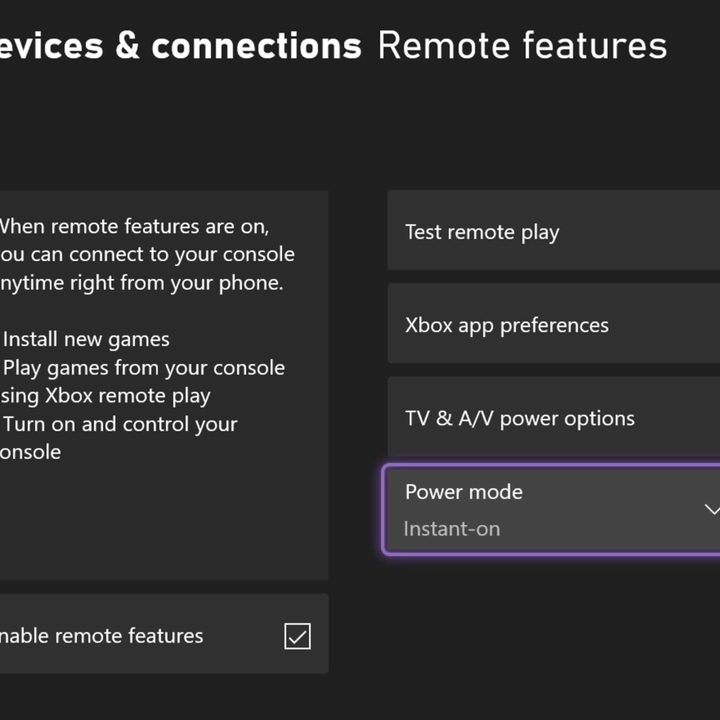
Step 5: Select Remote Features.
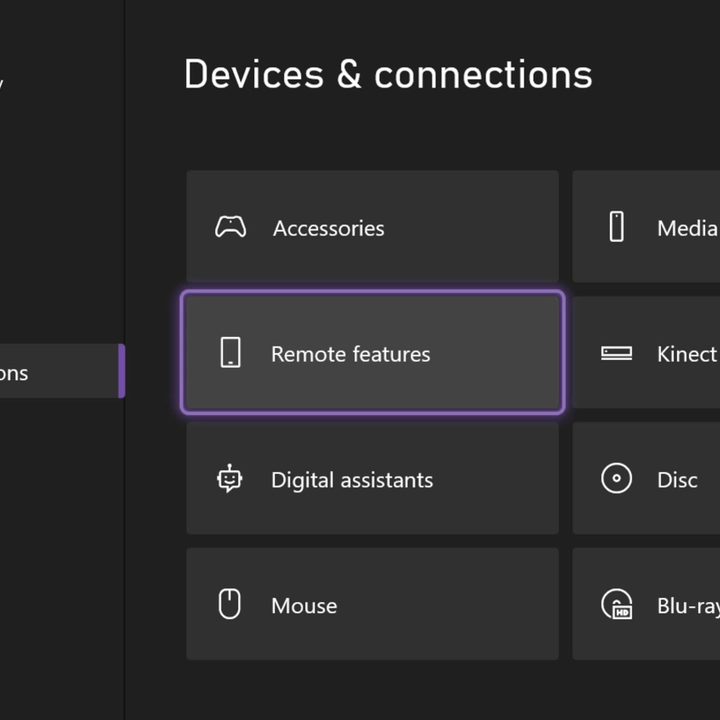
Step 6: Check the box next to Remote Features.
Step 7: Select Instant-On listed under Power Mode.
On mobile – Pair a controller
These instructions are based on pure Android 10 (shown below) and iOS 14. These steps may vary on Samsung Galaxy and other Android phones.
Step 1: Open Settings.
Step 2: Tap Connected Devices (Android) or Bluetooth (iOS).

Step 3: Press and hold the Xbox controller’s Pair button, found between the triggers, until the Xbox button flashes.
Step 4: On the phone, tap Pair a New Device (Android only).

Step 5: Tap on the Xbox controller listed on your phone.

Step 6: Tap Pair on the pop-up screen to confirm the connection (Android only).

On Mobile – Play your games
These instructions assume you already have an Xbox One and it’s registered to your account. The Xbox app now includes a Set Up a Console tool, but it’s only for setting up a new console, so ignore it.
Step 1: Open the Xbox app.
Step 2: Sign in to the same Microsoft Account used to access your Xbox One console.
Step 3: Tap the My Library icon. It resembles a stack of books.

Step 4: Tap Consoles.
Step 5: Tap the Xbox One console registered to your account.

Step 6: Tap the Remote Play on This Device option on the pop-up menu. Alternatively, you can tap the console button on the home screen (shown above) to access and stream from your Xbox One.
Note: The Set Up a Console button is used for just that — it’s not specific to game streaming. It’s a convenient way to get the console ready via a mobile device rather than having to fumble with a controller.


Stream from the cloud
This service only works if you subscribe to Game Pass Ultimate, which costs $15 per month.
With this plan, you can not only stream your purchased Xbox game,s but more than 100 games in the current Game Pass library. You cannot stream these games from the cloud using the Xbox app — this service requires the Xbox Games Pass app.
Microsoft still lists this service as a beta, so expect some issues for now.
Note: You are not required to install these games on your Xbox One console.
Step 1: Open the Xbox Game Pass app.
Step 2: Sign in to the same Microsoft Account used to access your Xbox One console.
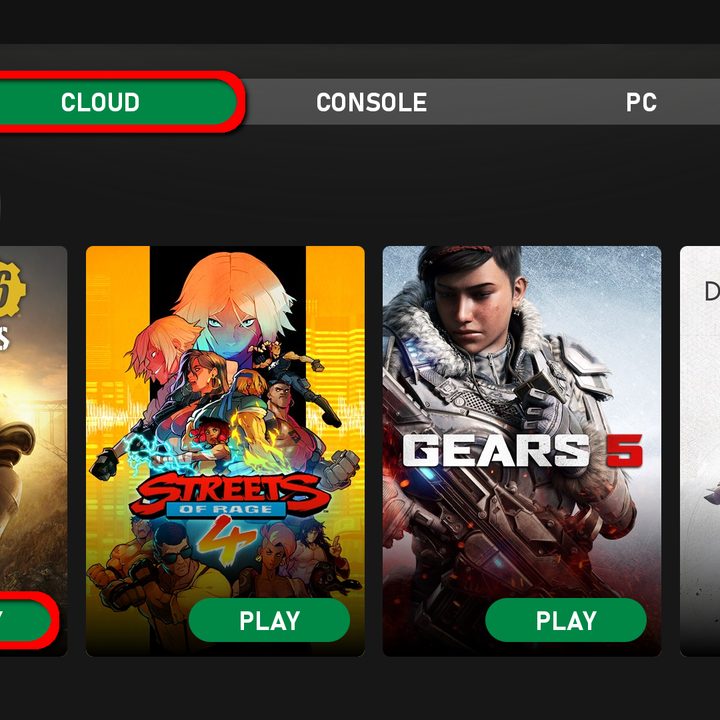
Step 3: Tap the Cloud tab.
Step 4: Tap the green Play button on any game you own or from the Game Pass library.
Troubleshooting
Here are several common questions and problems associated with game streaming:
Is Remote Play available in my region?
Microsoft provides a list of countries and regions on its website. Keep checking back if yours isn’t listed.
Does Remote Play support backward-compatible games?
No, not as of October 2021.


What do I do if I can’t pair the controller?
Your Xbox Controller may need a firmware update. To get the update, open the Xbox Accessories app on your console by navigating to My Games & Apps > Apps.
Open up the app and click the three dots that will be under your controller. On the next screen, you’ll notice an Update Now button. However, this will only appear if new firmware is available. If not, you’ll see the current version listed here.
If you’re still having trouble, you can connect to your Android via a wired connection.
Note: Be aware that you won’t be able to update an Xbox controller when it’s already connected to your Android device.
I’m having connectivity issues
You must have an Open or Moderate NAT type home network for everything to work properly. Be sure to look at your router and confirm that the settings are adjusted accordingly. Microsoft has info on NAT types that may benefit you, so feel free to check that out. If you want to look at the NAT type your console is currently using, all you have to do is head to Settings > General > Network Settings.
If you notice lagging while streaming the Xbox One to a mobile device, switch off your device’s Wi-Fi for a second, turn it back on, and then restart the Xbox app again. If your Xbox One is wired to the network, you’ll most likely experience improved performance. However, keep in mind that functionality will differ when you’re streaming your Xbox to your Android device with a mobile connection.
Here are a few suggestions from Microsoft:
- Don’t connect your mobile device to a Wi-Fi extender.
- Don’t use a VPN.
- Don’t cast to a second screen (Chromecast, Apple TV).
- Use a 5GHz Wi-Fi connection.
- Turn off Detect Suspicious Networks and Wi-Fi Power Savings Mode on Android.
- Clear the app cache on Android.
- Enable High-Performance Mode on your device, if available.
The Xbox app doesn’t show my console
If the app isn’t displaying or finding your console, you may need to locate it manually. Open the Xbox app and go to My Library. From there, select Consoles. Swipe from the top of the page downward to refresh your console list. Your device name should appear at that point.
I can’t play on a cellular connection
First, double-check that your Xbox app is connected to your cellular data. If you have an Android smartphone, navigate to Settings > Apps & Notifications and tap the Game Pass or Xbox app. After you’ve opened that app’s settings, be sure that the Background Data toggle is swiped on (it should appear blue).
If you’re using an iPhone or iPad, open your device’s Settings, tap the Game Pass or Xbox app, and double-check that the Cellular Data toggle is also flipped on (the button should appear green).