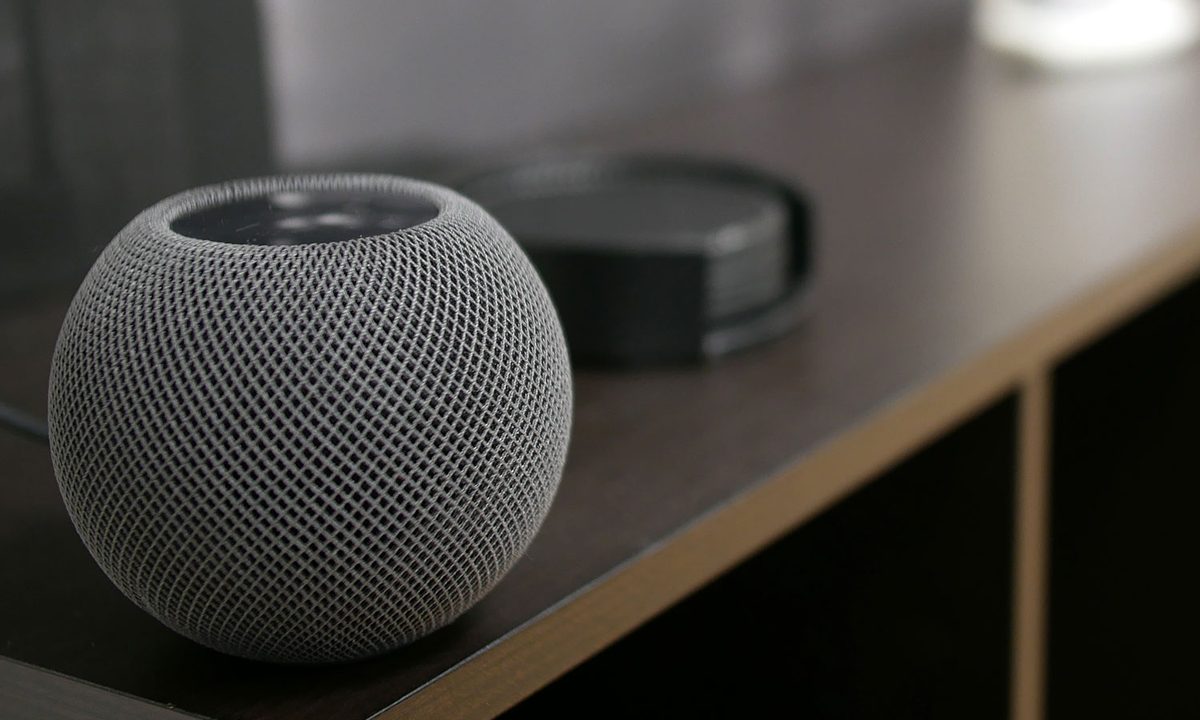
Apple’s HomePod and HomePod mini speakers are built from the ground up to work within the Apple ecosystem. They can automatically sense iPhones, play music without missing a beat, and work effortlessly with Siri.
Androids and HomePods can work together
This puts Android users looking for a smart speaker in a bind — is a HomePod worth using if you prefer having an Android phone? Fortunately, there is a method to stream music from an Android device to a HomePod. We’ll go over exactly how to set it up and start streaming!
Step 1: Download the CloudPlayer app
Android phones can stream to HomePods, but they need a little help first. Start by downloading the CloudPlayer app from Doubletwist using the Google Store link or from CloudPlayer’s primary website. There are other apps that can facilitate these kinds of connections, like AirMusic, but we generally prefer the simple CloudPlayer solution for this project. It’s readily available and doesn’t take much time to understand.

Step 2: Sign in to your Google Account.
When the app is downloaded, open it. It should ask you to sign in with your Google Account, which is necessary for all its streaming abilities to work. It will also ask permission to connect to your local storage, and you need to choose Allow at this point.
Step 3: Start your free trial
This will start the 30-day free trial that will allow you to use all the features, including all premium features. If you refuse to purchase the premium edition at the end of the trial, you will still keep free access to the basic features of the app, which should be enough to continue streaming on your HomePod.
Step 4: Find the music you want to listen to on the app
When you allow CloudPlayer to access your local storage, you are giving it the ability to play any songs that you are keeping on your Android phone, which is key for this process to work. The app will also ask if you want to connect to Dropbox, Google Drive, or OneDrive to access any music you keep there, so this is also an option if you store a lot of your music in the cloud.

Step 5: Access your songs from the CloudPlayer library
Once CloudPlayer has reviewed and collated all your music from these sources, you will be able to access them from the CloudPlayer library and play your songs. The premium version of CloudPlayer also includes a radio station you can use to browse genres and set up a long-term source of music. This will not work with a service like Apple Music or Spotify.
Step 6: Cast the music to your HomePod
Once you have music playing and playback is performing as expected, look at the top of the app, where you should see the name of the song or station playing. Now look to the right on this bar, and you will see a small box with a Wi-Fi icon in it. This is the casting tool that you can use to tell CloudPlayer to stream to other devices. CloudPlayer supports AirPlay as well as Chromecast, so finding your HomePod is possible.

Step 7: Connect your HomePod
Here’s where it gets a little tricky. Select the Casting button, and CloudPlayer will bring up devices available for connection. Look for your HomePod on the list. CloudPlayer isn’t always great at recognizing the name you’ve given your HomePod, or that it’s your HomePod at all, so you will need to learn which option is the HomePod based on clues. It will be an AirPlay connection and could be under the name of the room you designated for it — like “Kitchen” or “Living Room.”
Step 8: Troubleshoot if necessary
Fortunately, you’ll immediately know when you’ve found your HomePod because it will start streaming your music. If you are having trouble linking to it, unplug your HomePod and then plug it back in to give it a quick reboot and see what device shows up on CloudPlayer.
Step 9: Close the app when you are through
While playing, you can adjust the volume on your HomePod or use CloudPlayer’s equalizer to tinker with audio settings. Keep in mind that some HomePod features won’t work when you’re streaming across AirPlay this way, so don’t expect the same access to Siri controls. When you are finished, use the CloudPlay controls to stop playback and close the app. You will have to use the casting button to stream to your HomePod every time you use CloudPlayer, but after learning the process, it should be a quick and reliable method!