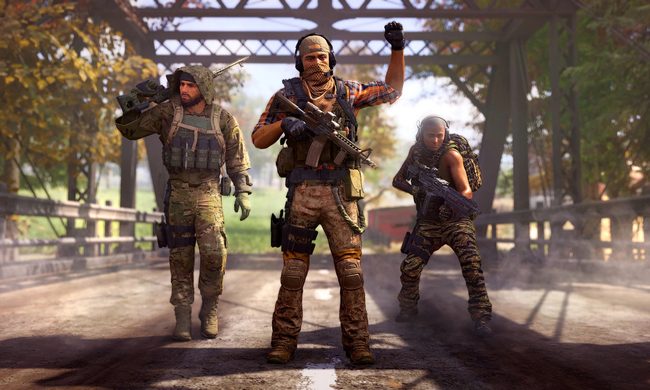
It’s been about six years between Halo 5 and Halo Infinite, but the king of Xbox first-person shooters has finally returned with a brand new multiplayer suite. Released as a stand-alone, free-to-play experience, players on Xbox One, Xbox Series X and S, and even PC can all jump into some classic Halo fun online. There are all-new maps, new weapons, and new gadgets called equipment to spice up the sandbox. It’s still early days, but so far this feels like the old days of Halo being the go-to multiplayer experience for years to come.
Having been so long between releases, and even longer since Halo felt like the classic arena shooter it began as, it can take a little bit to adjust to how it plays compared to other shooters on the market. Whether you’re playing on console or PC, Halo Infinite was designed with controllers in mind, and is one of the shining examples of how controls, and controller options, should be for a multiplayer game. Whether you’ve been nailing headshots since the days of Halo: Combat Evolved or are experiencing the series for the first time, a good control scheme can help make your transition go much smoother. Here are the best controller settings for Halo Infinite to get you started.
See more
- Halo Infinite: Multiplayer beginner’s guide
- Is Halo Infinite cross-platform?
- The best keybinds for Halo Infinite
What each setting means

The button prompts will be immediately familiar to just about anyone who’s played a game on controller before and won’t need much explanation. However, there are some options that Halo Infinite provides that make some very important tweaks, but are not super clear on what they actually do based on the name. PC players are usually the only ones who get to make such granular adjustments to their controls, however. This time around, we controller users can also make adjustments to really make the game feel as comfortable as possible.
Look Acceleration and Look Sensitivity will be the first two that most players may not be familiar with. Look Acceleration is what determines how long it takes between when you press the stick in a direction for your character to accelerate their turn to the maximum speed. The higher this number, the faster your head will reach top turning speed, and vice versa. Look Sensitivity is directly related to this. This setting determines how fast that max acceleration speed is. Again, the higher the number, the faster your max turning speed is.
Deadzones are a godsend for anyone with slightly warn controllers, or ones suffering from minimal drift. A deadzone is the amount of distance from neutral you need to move your control stick before it registers as movement. If you have some drift, you can increase the deadzone so that the game won’t detect that slight drift as actual movement. However, if you have no drift, there’s no need to have a deadzone at all.
Last up is Maximum Input Threshold, which is almost like the opposite of deadzones. This setting determines how close you need to move your stick to the outside rim before it is registered as being furthest from the center. The higher you make this number, the closer to the actual edge you need to move the stick to hit the maximum amount, but this also widens the range you have of different speeds between neutral and maximum. You could want this extra range for more precise aiming, though perhaps not as much on your movement stick when you almost always want to be going at max speed.
Controller settings

- Move: Left thumbstick
- Jump: A
- Crouch/ Slide: B
- Sprint: L3
- Fire weapon: RT
- Use equipment: RB
- Melee: R3
- Throw grenade: LB
- Reload/ Vent: X
- Switch weapon/ Drop weapon: Y
- Zoom: LT
- Zoom level: L3 while zoomed
- A.I. scan: D-pad down
- Toggle helmet light/ mark: D-pad up
- Scoreboard: View button
- Vibration: Off
- Maintain Sprint: On
- Auto Clamber: On
Vehicle controls
- Boost/ E-brake: LT
- Ascend/ Brake: RB
- Descend/ Trick: LB
- Switch seats: A
- Fire weapon: RT
Look acceleration and sensitivity
- Look Acceleration: 4
- Look Sensitivity (Horizontal): 6.0
- Look Sensitivity (Vertical): 6.0
Zoom sensitivity
- Zoom Level: 1.4x
- 1.4x Sensitivity: 1.0
Movement thumbstick
- Center Deadzone: 0
- Maximum Input Threshold: 10
- Axial Deadzone: 0
Aiming thumbstick
- Center Deadzone: 0
- Maximum Input Threshold: 15
- Axial Deadzone: 0