  1. Home
  2. Gaming
  3. How tos

How to remap and customize controller buttons on PS5

Add as a preferred source on Google
DualSense
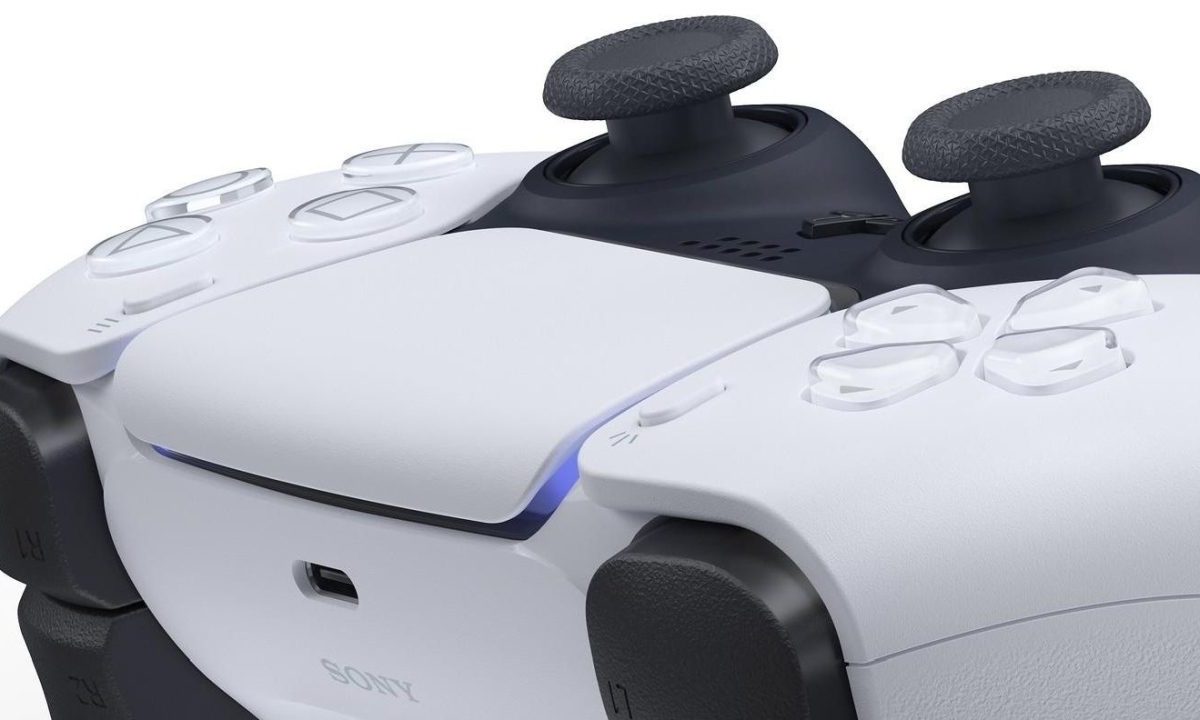
Image used with permission by copyright holder

Accessibility options in games are becoming more widespread, but unfortunately, not every game provides players the opportunity to completely remap their controllers' button layouts. Thankfully, Sony offers a lot of settings you can alter on the PlayStation 5, including an integrated accessibility feature that gives you the freedom to play games with your PS5 controller in a way that works best for you. Even better, like many PS5 tips and tricks on the console, setting it up is a breeze.

Recommended Videos

Difficulty

Moderate

Duration

5 minutes

What You Need

  • DualSense controller

Using custom button assignments in the PS5 menu means any button can function as another button, though it all comes with one caveat — this customized layout won't be integrated into a game's own UI or button prompts. This means that even if you completely remap the controller, the default buttons for each action will continue to be displayed in-game. Because of this, it's important to memorize which buttons you've customized so that you can navigate games properly.

DualSense
Image used with permission by copyright holder

How to customize controller button layout on PS5

When you're ready to customize your DualSense controller's button layout, here's a step-by-step explanation of how to do so.

Step 1: Navigate to the Settings icon on the PS5 home screen, which is located on the upper right of the screen and looks like a gear.

PS5 UI showing Settings locations
Image used with permission by copyright holder

Step 2: Click on Accessibility near the top of the list.

PS5 Settings menu
Image used with permission by copyright holder

Step 3: Scroll down to Controllers and then select Custom Button Assignments for DualSense Wireless Controller on the right.

Accessibility menu on PS5
Image used with permission by copyright holder

Step 4: Toggle on Enable Custom Button Assignments and then select Customize Button Assignments just below it. Make sure you keep this part of the menu in mind for if or when you'd like to toggle any custom button layouts back off again, as you can do so by simply using the same toggle.

PS5 Accessibility menu
Image used with permission by copyright holder

Step 5: In this menu, you're free to select any button on your DualSense controller and assign an entirely different button to it. When you're done remapping your layout, select Apply to save your settings.


PS5 settings menu for controller remapping
Image used with permission by copyright holder
Billy Givens
Billy Givens is a freelance writer with over a decade of experience writing gaming, film, and tech content. He started as a…
The hottest indie game on Steam just had a malware scare
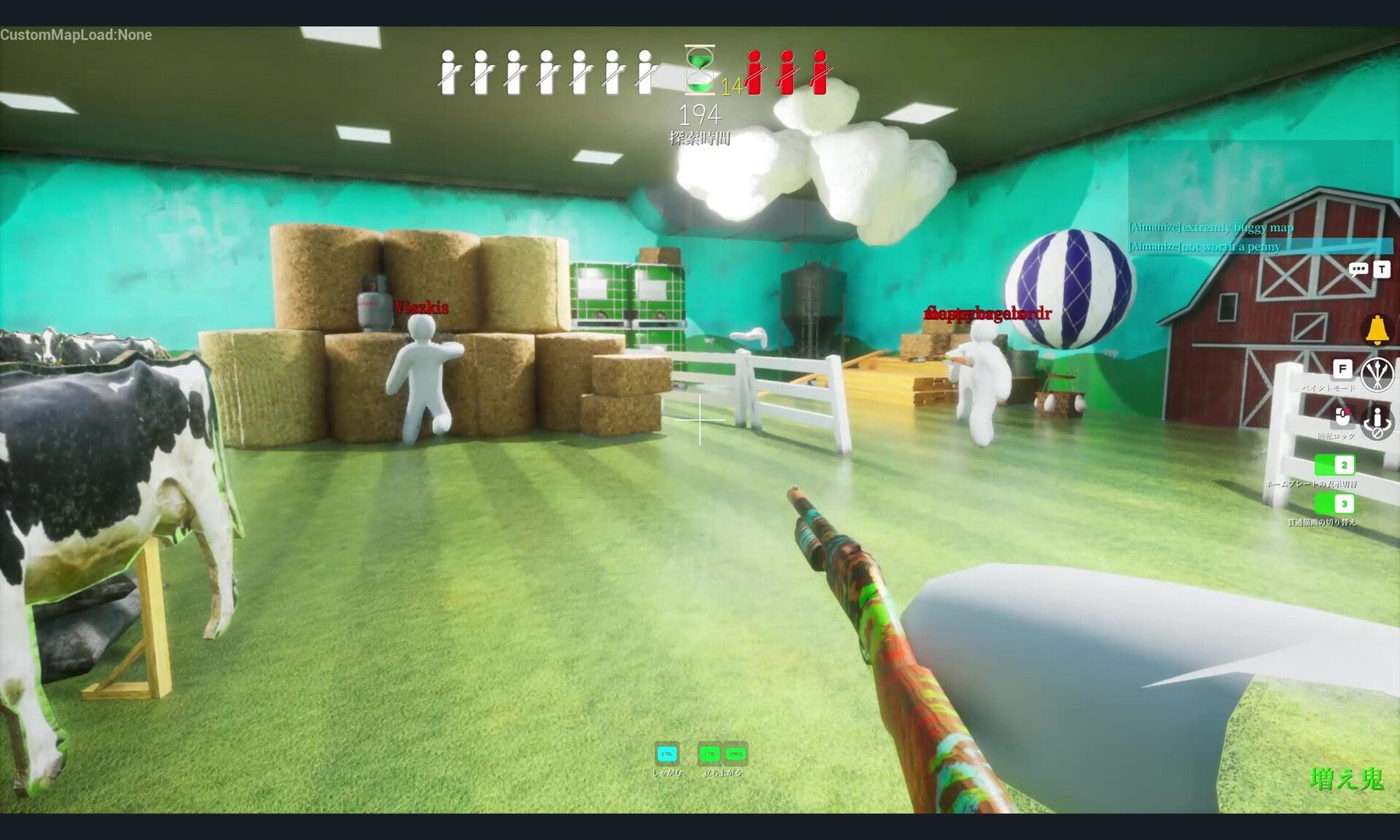
A Meccha Chameleon Workshop map was found attempting to write and execute code outside the game.
MECCHA CHAMELEON Gameplay screenshot

One of Steam's biggest success stories of 2026 has suddenly found itself at the center of a security scare. A security researcher has discovered that a community-made Meccha Chameleon Workshop map contained code designed to write files outside the game and launch a hidden PowerShell process that attempted to download an additional payload from an external server.

How did a custom map become malware?

Read more
You can play Xbox games for free if you don’t mind watching ads
You can watch some ads and play for an hour!
Xbox logo

If you've been curious about Xbox Cloud Gaming but didn't want another monthly subscription, Microsoft may have a new option for you. The company is testing a free, ad-supported version of Xbox Cloud Gaming for Xbox Insiders, allowing eligible players to stream select games they already own without a Game Pass membership.

However, you'll have to watch a short advertisement before your session begins. Microsoft says the ads will never interrupt gameplay, making this an early test of whether a simple tradeoff can bring cloud gaming to more players.

Read more
Lenovo’s latest LOQ is more comfortable running newer AAA games
Lenovo's LOQ 17 gets a new RTX 5070 12GB graphics option
LOQ 17 gaming laptop

Lenovo has expanded its LOQ gaming laptop lineup with a new graphics option. The company has introduced a refreshed version of the LOQ 17IRX10, pairing Intel's Core i7-14700HX processor with Nvidia's newly announced GeForce RTX 5070 12GB laptop GPU. The update gives buyers another configuration to choose from without changing the overall design or feature set of the laptop.

The new variant joins Lenovo's existing LOQ 17IRX10 lineup, which was previously available with GeForce RTX 5050, RTX 5060, and RTX 5070 8GB graphics options. While the chassis remains unchanged, the addition of a 12GB RTX 5070 brings more VRAM to the series, a specification that has become increasingly important as modern AAA games demand larger texture caches and higher memory capacity.

Read more