Gmail has created multiple methods intended to make your online life a bit easier, incorporating tabs and categories designed to help you organize the onslaught of emails you receive throughout the day. These simple features help you manage your emails in a variety of ways, rendering it easier and quicker to locate specific emails and subjects that may have otherwise been buried under a heaping of spam, much of which indicates you’re either broke or suffering from a life-altering dysfunction of some sort. Sure, it happens, but that doesn’t mean you want an email reminding you about it. Here’s how to sort your email the proper way.
Skip ahead for instructions on how to use Gmail labels.
Using Gmail tabs
Google’s Gmail has been automatically sorting messages into Primary, Social, Promotions, Updates, and Forums tabs ever since the filter was first implemented in May 2013. Although you certainly don’t have to place emails into the aforementioned tabs, you can specify which tabs are visible and where each is located within your inbox for greater control. To do so, follow the the three steps below.
Step 1: Launch and log into your Gmail account as you would normally. Afterward, access your Inbox.

Step 2: Click the addition arrow (+) situated on the right-hand side of the visible tabs. A window should then automatically appear, listing the selection of tabs you can utilize, ranging from Primary to Promotions.

Step 3: Check the boxes directly left of the tabs you want to utilize and click the Save button at the bottom of the window. Alternatively, use the same methodology and checklist to hide tabs you no longer want to use. Also, keep in mind that removing a tab will automatically filter any email under said banner into your Primary tab.
Once you’ve chosen your desired tabs, you can manage them more efficiently. Move emails between tabs by simply dragging them, for instance, or star emails to automatically move them into the Primary tab. You can’t add or remove tabs on a mobile device, but you can move messages between tabs on your phone by selecting them and clicking the down arrow at the top, before choosing which tab you’d like to include the email under.
Using Gmail labels
Tabs may be great for sorting through emails, but you can’t customize them in the way you can labels. Unfortunately, you’ll have to manually move emails around considering Gmail currently doesn’t organize them into labels on your behalf. Still, doing so makes it far easier to locate messages under a given topic.
Step 1: Launch and log into your Gmail account as you would normally. Afterward, click the More option housed on the left-hand side of the page.
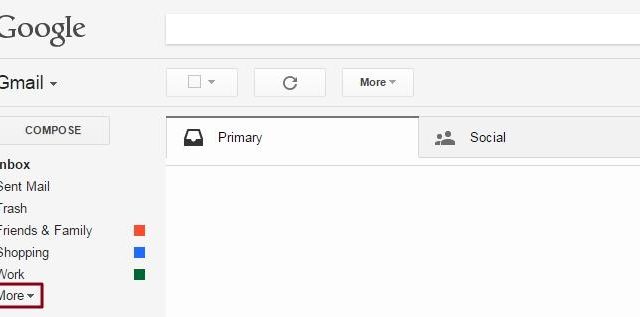
Step 2: Scroll down, click Create new label, and appropriately name your label in the resulting pop-up window. Once created, the labels will automatically appear below the Compose button on the left-hand side of your Gmail inbox.

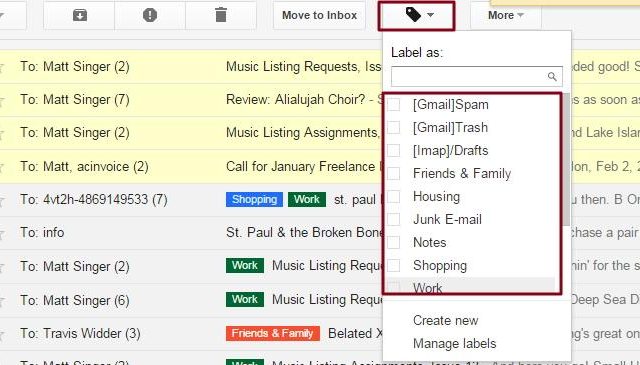
Step 3: Now it’s time to label your emails. To do so individually, either click and drag your message over the label in the left-hand column, or click the down arrow in the bottom-right corner when composing a new email. To bulk assign labels, check the boxes directly left of the emails you want to label and click the labels icon in the toolbar at the top of the page. Afterward, choose your desired label from the resulting drop-down list.