


“While it can’t match the viewing angle or contrast of pricier monitors with IPS panels, the x2301 will make a majority of users extremely happy for the $249 price tag...”
- Incredibly thin display panel
- Sharp, colorful picture
- Effective antiglare coating
- Practical base-mounted buttons, connections
- Low power consumption
- Little room for adjustment, no VESA mounts
- Sometimes quirky interface
“Why you can trust Digital Trends – We have a 20-year history of testing, reviewing, and rating products, services and apps to help you make a sound buying decision. Find out more about how we test and score products.“
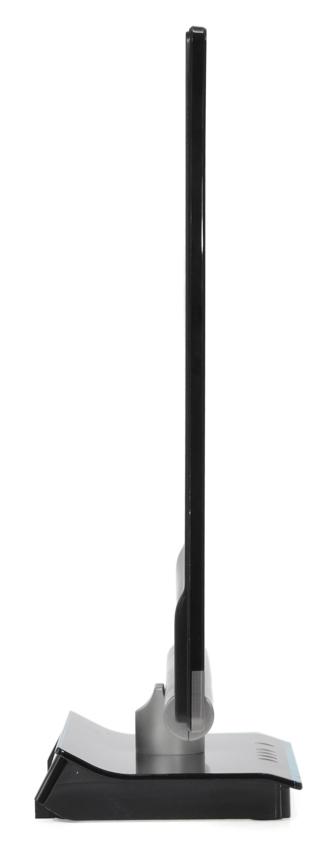
While the TV industry has been busy hammering, slicing and shaving TVs down to inconceivably thin dimensions, monitor makers have been watching – and following suit. The same technology that makes TVs so inconceivably thin — LED backlights — makes even more sense for monitors, which take up precious desktop space, run for entire workdays, and get turned on and off all the time. HP takes the thinning game to its logical extreme with the X2301 Micro Thin monitor, which measures just 9.8mm thick.
 |
 |
 |
Features and design
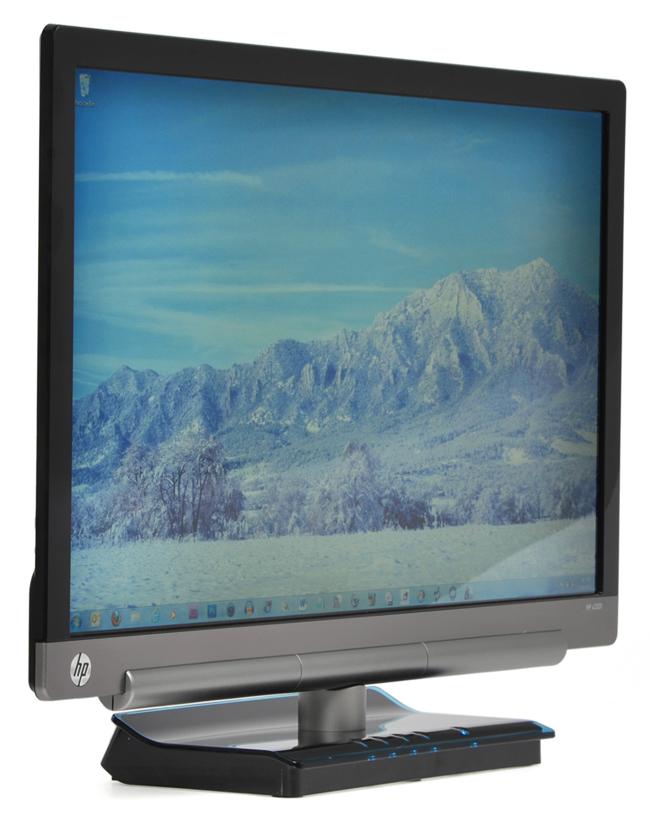
We’ve seen our share of slim LED monitors recently, but even by the new standard of thin, the x2301 is almost unbelievably waif. Viewing it from the side, the 23-inch monitor can scarcely hide a pencil, except for the lower two inches of the screen, which bump out an extra few millimeters to accommodate some internal guts. To be blunt, the saved space really isn’t going to free up much room on your desk, but its blade-like profile will definitely attract attention.
As you might expect from HP, the x2301 has a modern look that works well in an office space, but wouldn’t look quite as at home in a living room the way some of Samsung’s swoopy designs do. Most of the bezel is surrounded by gloss black, but the bottom edge sports a clean, brushed-metal strip to set it off, and a shiny HP logo in the lower left. To give the flimsy panel some meat to support it, the bottom edge fattens up into a bar as thick as a stack of quarters, which the neck attaches to.
If that makes it sound like you can flick this thing with your pinky and tip it over, think again. Although it weighs only 7.7 pounds, all the slimming occurred up top, leaving the heavy stuff in the base like a counterweight. This bottom-heavy build reduces that annoying tendency to sway when you bump into it or the desk, as some chunkier displays do.
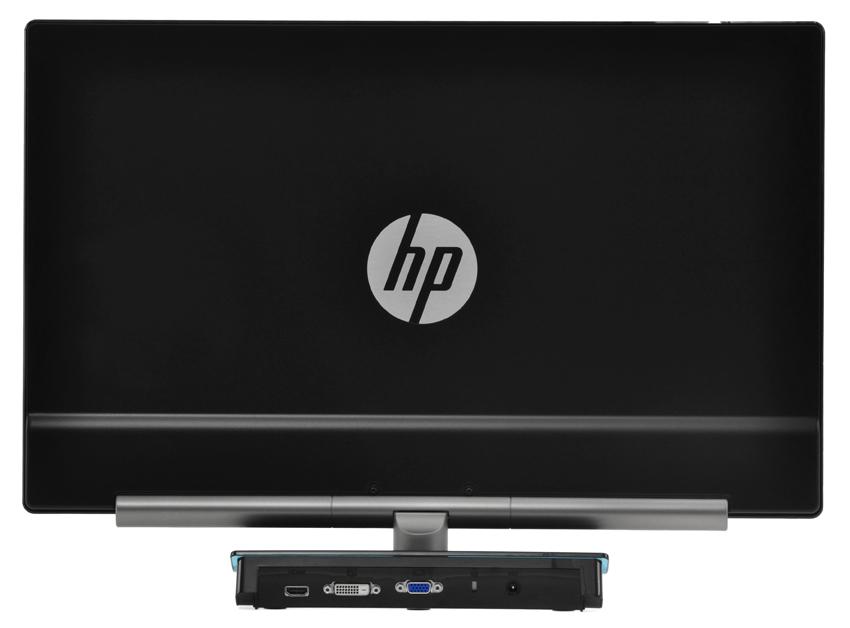
In a coup of practicality, HP designers not only passed on the fad of capacitive touch buttons to go with real ones, they relocated them to the base of the unit. The slab base has five M&M-sized buttons that light up blue from below. Ports too have been relocated here. On the back you’ll find VGA, HDMI and DVI inputs, along with a laptop-style power input. That’s right; the x2301 requires an external 12V power adapter. While it’s potentially one more part to lose or misplace, it also has the benefit of supplying copious cord length between the AC cord that runs to an outlet and the thin DC cord that runs to the monitor.
Interface
Of the five buttons of the base, one is a dedicated power button and one is a dedicated OK button, leaving three more to confuse you. One offers access to the whole gamut of tweaks from brightness to contrast, one lets you quickly skip through preset modes, and one lets you switch inputs.
For the most part, cruising through these makes sense, but the OK button sometimes threw us for a loop. Usually, it merely selects the option you want, but in some cases, it adds unnecessary and confusing additional steps. For instance, if you’re scrolling through the different inputs and choose DVI when you’re already using it, the OK button highlights “Cancel,” rather than just selecting DVI and closing out the OSD. Pressing “Cancel” will do the trick, but it’s initially disorienting.

If you can get past this relatively minor quirk, there’s a wealth of settings waiting to be tweaked beneath the surface. Beyond your basic brightness and contrast adjustments for image tweaking, you can choose color temperature presets, adjust individual RGB levels, and even dabble in obscure settings like Video OverDrive. Perfectionists can adjust where the OSD appears, set precise times on a 24-hour clock to put the monitor to sleep, and view how many hours the backlight has been blazing (though we’re not sure why you need this odometer on an LED monitor, it should outlive its usefulness well before the backlight dies).
Display quality
HP rates the 1920 x 1080 (1080p) TN panel on the x2301 for an 1,000:1 native contrast ratio, 250 nits of brightness, and 3ms response times. It covers 72 percent of the color gamut.
Like most monitors, the x2301 comes with a number of setting presets: movie, photo, gaming and text. Also like most monitors, most of them were completely useless. Movie and photo both blew out the brightest colors spectacularly, and gaming had a course, over sharpened look that made reading text feel like chewing gravel with your eyes. The text setting offered the most natural look out of the box, and our calibration using the custom settings later confirmed this.
In our tests, we were able to differentiate all but the brightest two and darkest two levels of white and black, respectively, which is acceptable for a monitor in this price range (but not perfect). The X2301 also exhibited zero banding in gradient tests
After calibration, the x2301 has an inky, saturated look that lends a bit of perceived depth to items on the desktop. Text looks especially sharp, and the pixel density of 96 pixels per inch makes for a comfortable reading size with default Windows 7 settings.
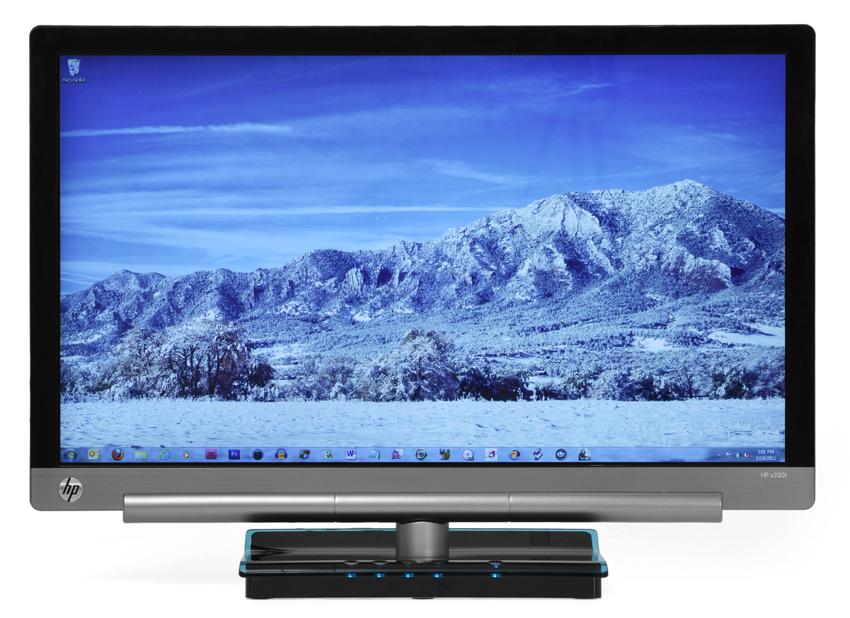
Although the x2301 uses a glossy coating that seems to contribute to some of the monitor’s “pop,” it didn’t have as much irritating glare as many competitors. While the monitor does have a mirror quality when turned off or showing complete black, it seems to cut the brightest (and more distracting) parts of a reflected image to minimize distraction so you can focus on the image art hand.
As the 3ms response time would suggest, we experienced zero ghosting on the x2301, either on the desktop or in fast-paced FPS games like Call of Duty. This is a display we can confidently recommend to gamers.
 While not everyone cares how many watts they’re burning, the x2301’s LED backlighting also makes it quite efficient, with a maximum power consumption of just 30 watts. By contrast, the 23-inch LG D2342P we reviewed back in October uses 39 watts at peak, and even the x2301’s slightly older sibling, the HP 2310e, uses 32 watts.
Although the heavy base and stout arm suggest the x2301 has plenty of swivel, it can only tilt 5 degrees forward and 20 back. That’s about average, but should suffice for most viewers dealing with standard seating positions. You can rule out mounting it, too: Since everything connects through base, there’s no choice to ditch the standard stand and bolt it up with a VESA mount.
Conclusion
If you’re looking for a display with more character than the black-bezel rectangles you see on everybody else’s desk, HP’s x2301 will do the trick. With an ultra-thin design, practical base-mounted ports and buttons, and efficient LED backlighting, you might even forget that the picture quality makes a lot of competing monitors in this price range look weak. While it can’t match the viewing angle or contrast of pricier monitors with IPS panels, the x2301 will make a majority of users extremely happy for the $249 price tag, which has already fallen to as low as $200 at many online retailers.
Highs:
- Incredibly thin display panel
- Sharp, colorful picture
- Effective antiglare coating
- Practical base-mounted buttons, connections
- Low power consumption
Lows:
- Little room for adjustment, no VESA mounts
- Sometimes quirky interface


