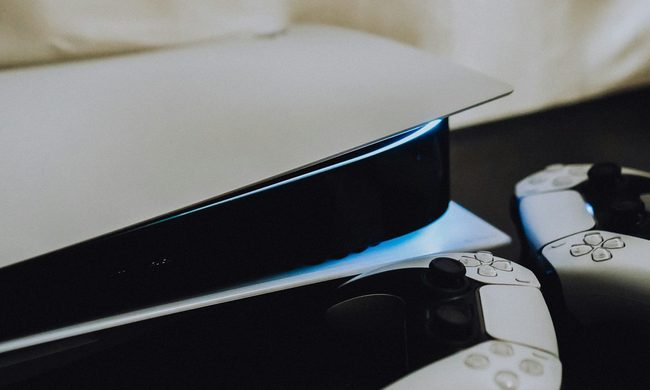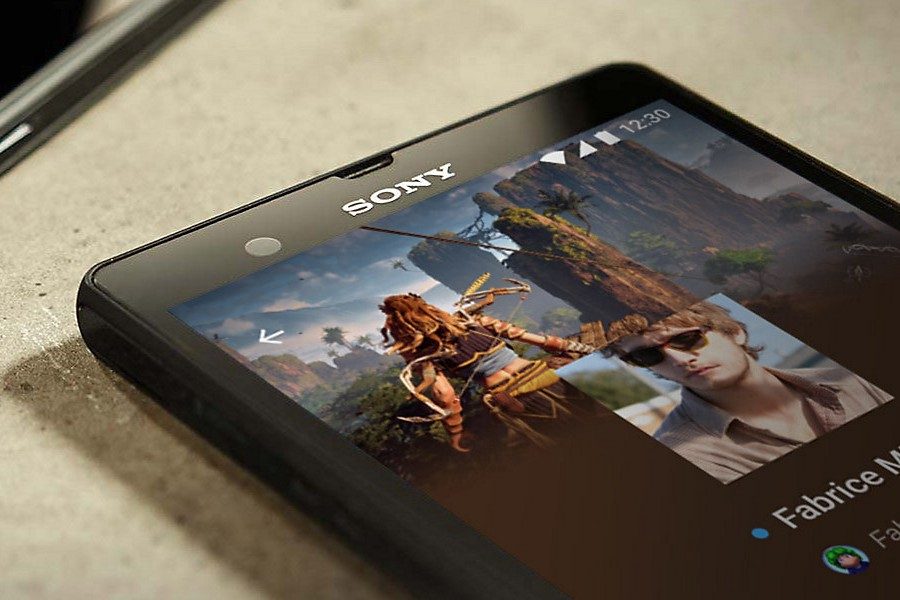
There is no better feeling than being able to game on the go, and the PlayStation 4 allows us to do just this. Although the PlayStation Vita and PSP have been discontinued, PlayStation users are still able to take their gaming on the go by connecting a smartphone to their PlayStation.
By simply downloading the PlayStation mobile app and having Wi-Fi connection, we are able to take our PlayStation everywhere we go. Download the app and follow these instructions to be able to take your favorite PlayStation games everywhere with you.
Further reading
How to connect your phone to a PS4 using the PlayStation mobile app
The PlayStation mobile app allows you to browse PlayStation profiles, compare trophies, and purchase content from within the app. It will then automatically download to your console as long as it’s active or in standby mode. The app lacks some functionality such as messaging, which has been moved to a standalone app, but it remains a worthwhile companion for PS4 owners.
If you need to message a friend on PlayStation Network (PSN) or check your PlayStation account from your phone, you can also use Sony’s new My PlayStation social portal in your web browser.
Either way, we’ll take you through the process of connecting your phone to a PS4, step by step.
Step 1: Download the PlayStation app. Before downloading the PlayStation application for iOS or Android, you’ll want to update your smartphone or tablet to the latest version of the operating system.
Step 2: For iOS users, you’ll want at least version 7.0, while Android users will need version 4.0 at the very least.
Step 3: Once updated, head over to either iTunes or Google Play and enter “PlayStation” in the search field to locate the app.
Step 4: Tap the Install button to begin downloading the app to your smartphone or tablet as you would normally, and launch it once installed.
Step 5: You’ll be prompted to sign in to your PSN account, which you’ll need to do. After signing in, you’ll have access to most of the app’s features, including events, live streams, and the PlayStation Store.

Sync your smartphone or tablet with your PS4
Previously available in the same app, the Second Screen experience is now only accessible via a separate app.
Step 1: Head to the app store on your mobile device and search for PS4 Second Screen. You can also find a link to your respective app store by hitting the PlayStation symbol at the bottom of the page and selecting Second Screen.
Step 2: Open the app and you’ll automatically be signed in under the same account as the main PlayStation app, and you’ll see any available PS4 systems that are ready to use.


Use the app
With your smartphone or tablet now synced to your PS4, you have access to a wide range of features. The biggest difference you’ll notice once your phone and console are linked? Several PS4 games, such as Metal Gear Solid V and Watch Dogs, feature companion functionality you can use while gaming.
The Battlefield 4 app, for instance, provides access to your PSN friends and your multiplayer stats and even lets you customize your weapons and character loadouts on your mobile device. The PlayStation App did once provide access to a messaging service, but communicating with friends and enemies has been relocated to the PlayStation Messages app, which is also free and available on both Android and iOS.
Using My PlayStation
If you don’t want to use a dedicated app to control your PlayStation friends list and a second app to message your friends, Sony also gives you access to your PSN profile through its My PlayStation service in your phone’s web browser. Introduced in February 2018, My PlayStation lets you message friends, view trophies, and update your profile on the go. It does not, however, allow you to connect directly with your console as the dedicated app does.
Step 1: To use it, head to my.playstation.com and sign in with your PlayStation Network account. You can also find it by visiting the PlayStation homepage and signing in — the My PlayStation tile will be in the top-right corner.
Step 2: Once you’ve signed in, you can view your friends list, trophies, and profile by clicking on the drop-down menu at the top of the screen.
Step 3: To message individual friends, go to their profile and select the Send Message option.

Using PS4 Remote Play
You can easily control your PS4 using Remote Play on your phone.
Step 1: First, make sure your PS4 is powered on.
Step 2: On your phone, go to the store and download the app.
Step 3: Your PS4 will appear on a list in the app once you open it and log in to your PlayStation Network account. Choose your PS4 to connect. You’ll need to enter a code manually if the app doesn’t automatically locate your PS4.
Step 4: You can easily connect your smartphone to your gaming system and use it for convenient gameplay. To get the ball rolling, all you need to do is log into the Remote Play app and choose your PS4.
Step 5: After the two devices have paired, you can take advantage of the virtual buttons feature to modify your phone into a controller.

This playing method won’t work all the time. Playstation reminds users that a wide range of games does not support Remote Play currently, including games with restrictions on video content. You should also know that the Remote Play app won’t work if you’re also broadcasting, using Share Play, or streaming a movie or other forms of entertainment on a Blu-ray or DVD. On top of that, you also won’t be able to stream music on Spotify while you’re logged into Remote Play.
A win for any smartphone user operating with iOS 13— you can pair your phone to your DualShock 4 controller through Bluetooth. This option is useful for any games supported by Remote Play as well as mobile games that are compatible with this controller.