

Even though Graph Search hasn’t been rolled out to everyone yet, it has managed to become the talk of Facebook lately; and for good reason. For those unfamiliar, Graph Search is Facebook’s answer to the personalized results you can get from search engines like Google and Bing – just far more contextualized and with way more specific data about your social circle (and your social circle’s social circle).
How exactly Graph Search works has remained a bit of a mystery, but recently Facebook’s Engineering blog gave a no-holds-barred look at what makes Graph Search’s gears turn.
By comparison, Facebook’s older search engine (called PPS) was elementary. Keywords were the only factors that PPS used to generate results . Even its “Search Filter” was rudimentary, narrowing down results based on broad topics like People, Groups, and Pages, to name a few.
Now let’s dig into Graph Search. Over the past few years, Facebook has been slowly integrating new features that would eventually feed Graph Search. Take, for example, “Typehead,” which is essentially Facebook’s answer to Google’s Autocomplete. As you type a query, the search engine makes an educated guess as to what you’re searching for and suggests results in a dropdown box. Typehead introduced in 2009 – long before Graph Search was introduced – but it wasn’t as sophisticated then as it is now inside Graph Search.
This is where things start to get complicated. To conceptualize how Graph Search works, think of the bigger picture of relationships between friends, pages, photos, posts and groups as a vast web. Friends have a relationship to friends, pages and photos via likes and comments. And these pages, photos and groups have a relationship with each other.
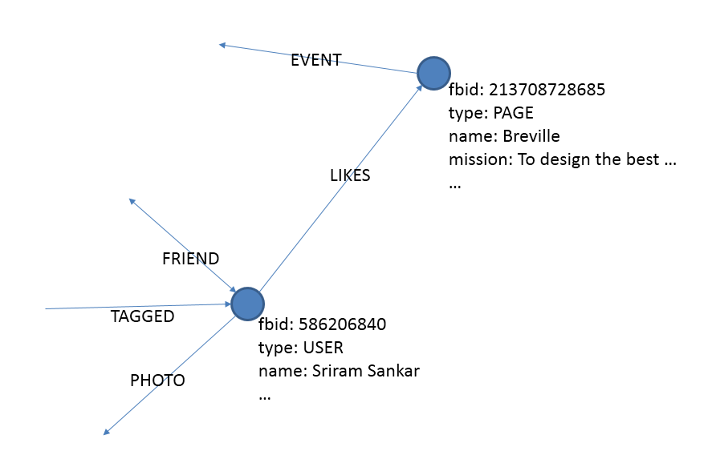
Facebook’s engineers shared the above diagram to try to break things down a little bit. Picture the large dots, which we’ll call nodes, as nouns – they could be friends, pages, groups, posts and even your name. How these nouns are related to each other are represented by the arrows (which include relationship attributes like “Friend,” “Tagged,” “Photo,” “Event,” “Likes,” and so forth) called “Edges.” So, what you see in this diagram is how user Sriram Sankar would be related to the page titled “Breville.” In this case, the relationship is via a “like.”
Taking a step back and looking at the bigger picture, you might be astonished at how Facebook has managed to map out a network piggybacking on our social nature. It even knows the relationship between Queen Elizabeth and George VI and the history of Star Wars, says Facebook Engineer Sriram Sankar.
To make the experience for users more search engine-like, Facebook moved away from solely relying on keyword searches for Graph Search and decided on natural language processing. This means you can type searches the way you naturally speak and Graph Search’s algorithm will look at every single word you’ve typed and determine what you’re looking for.
The concept seems easy enough, but apparently executing it was easier said than done. With Facebook’s original search engine (1.0), actions on Facebook – check ins, likes, comments, your personal info, etc. – were only used to rank results. With version 2.0, Graph Search indexes all of these actions to figure out the relationship between the words you’ve typed. For instance, if you search for “Mark Zuckerberg,” Graph Search needs to know that “Mark” and “Zuckerberg” refers to Facebook’s CEO, not people who happen to share the first name “Mark” and last name “Zuckerberg.” Programming Graph Search to know the difference wasn’t easy – and that’s where “Unicorn” enters the picture.
Simply put, Unicorn tags each node with numbers and uses it to decipher what you’re searching for contextually. Take a look at the following index, which was noted in the blog post as an example.
If Facebook were to index the names Mark Zuckerberg (fbid: 4), Randi Zuckerberg (fbid: 13755), Mark David Johnson (fbid: 1001) Randi Johnson (fbid: 5542), and David Johnson (fbid: 10003), the following is how it might look. It’s a bunch of names and numbers and graphs right now, but you’ll understand what it means in just a minute (for reference: fbid refers to Facebook ID).
mark → 4
zuck → 4
randi → 13755
zuck → 13755
mark → 1001
david → 1001
johnson → 1001
randi → 5542
johnson →5542
david → 10003
johnson → 10003
The name Mark Zuckerberg (Zuck) is tagged with fbid 4, Randi Zuckerberg is tagged with 13755, and so forth. This organization is applied without regard to the space between the names since the names are related. Potentially, a name like Mark could have as few as one entry (fbid number) or millions.

This is important because Graph Search treats a name like “David Johnson” as a search for “David” and “Johnson.” But, as the grid above illustrates, Graph Search seeks to understand that relationship between the two names.
To figure out which “Johnson” you might be searching for, Facebook uses what it calls “importance” to pull results that Unicorn thinks are the most important to you.. To visualize how Unicorn would decipher what you’re looking for, look at the three dots under “Johnson.” Of the possible results, the one that Facebook will spit back at you is the one considered most relevant. Facebook doesn’t get into the specifics of importance metric however, so there’s little light we can shed on how it works.
And there you have it. Now you should have a pretty good idea on how Facebook Graph Search works for you to impress your friends with, or to bring up in a bar conversation.


