Giving digital games to friends has been a key feature on Steam and other PC gaming clients for years, but console gaming has lagged behind that trend. Thankfully, Microsoft now offers the ability to gift games over Xbox Live. To help make your next foray into gift shopping quick and painless, here’s how to gift Xbox One games without leaving the comfort of your couch.
Further reading
- The best co-op games for 2021
- How to gameshare on an Xbox One
- Can’t find a PS5? Xbox Series X is the better long-term choice anyway
Step 1: Choose the game
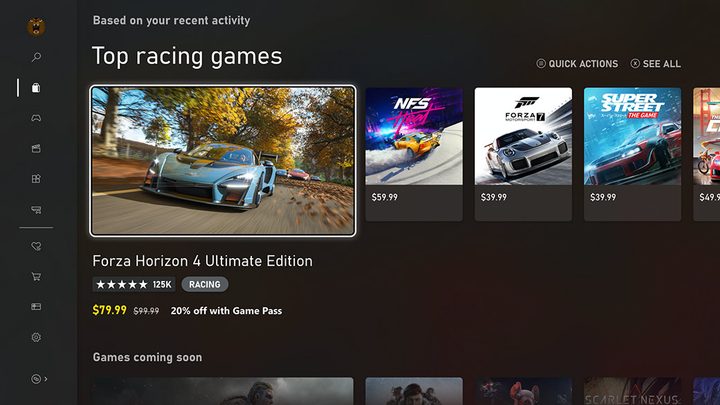
You must be logged in to an Xbox One account and connected to the internet to access the store. Scroll to the store from the dashboard (the menu to the furthest right). We recommend using the search function to quickly find your upcoming gift.
Step 2: Buy as gift
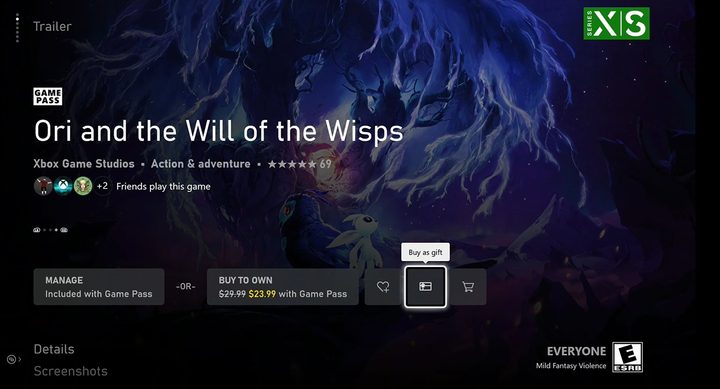
After you’ve settled on a game, you’ll notice a few options on the right of the purchase screen, each with its own icon. Choose the gift card icon called Buy as gift (not the shopping cart icon, which is buying it for yourself). If you accidentally purchase the game for yourself, you can return it and fix your mistake (provided you don’t slip up and play your friend’s gift for more than two hours), but the process is a bit time-consuming.
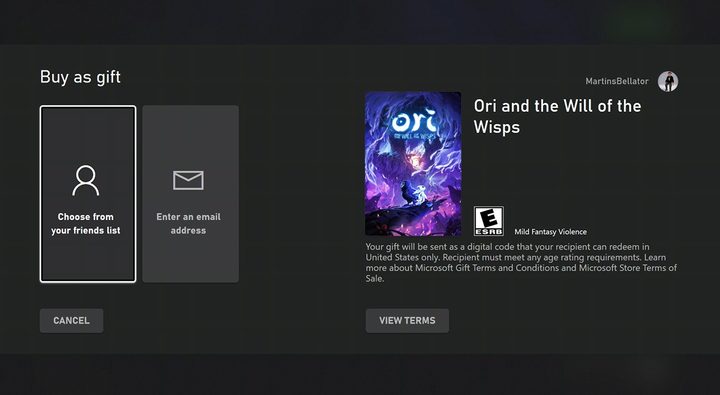
Now you’ll see two methods for sending a game to a friend on Xbox One: Gifting to an Xbox Live friend and sending it to an email address.
Sending to an Xbox Live friend
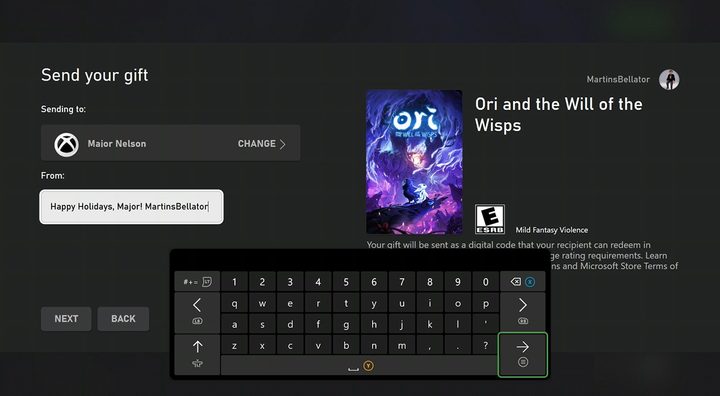
The simplest and most accurate method, this top option opens up a sidebar with your list of Xbox Live friends. Scroll down and select the lucky friend who’s getting a game. If you aren’t friends with the intended recipient on Xbox Live, but you know their gamertag, you can choose the “enter gamertag” option above your friend list in the sidebar.
We recommend double-checking that you have the correct gamertag selected before sending, though.
You’ll be asked to enter a sender name and gift message after selecting a gamertag. The default moniker is your gamertag, but you can change it to your real name if you’d like.
The final screen asks you to confirm your purchase. Here you can update your payment information or modify the recipient if needed.
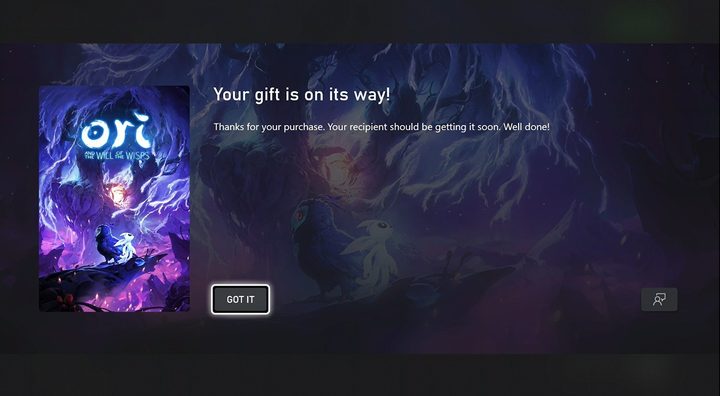
When you’re satisfied, press Buy as gift. The receiver will get an Xbox message on their Live account with your message and all associated details, including an option to immediately redeem their code.
Sending to an email address
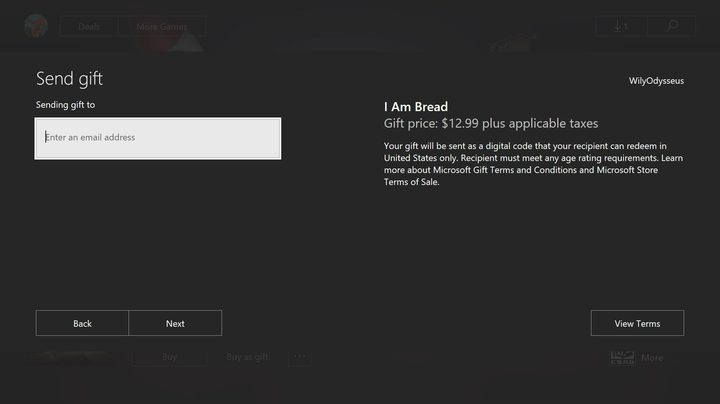
If you don’t know the recipient’s gamertag, but you do know their email address, you can choose “Enter an email address” on the send gift page instead. The process is virtually the same as sending to a specific gamertag but comes with a slight risk.
Make sure you are sending the game to the email address connected to the recipient’s Microsoft account and that the address is spelled correctly. Xbox Live does not verify that the email address you’ve typed in is associated with an account, nor does it sniff out fake addresses.
Gifting an Xbox One game on PC
Step 1: If you find the Xbox Live store cumbersome to navigate, you can buy and gift Xbox One games on PC, too. Head over to Xbox. Click the magnifying glass in the upper right-hand corner of the webpage to bring up the search bar.
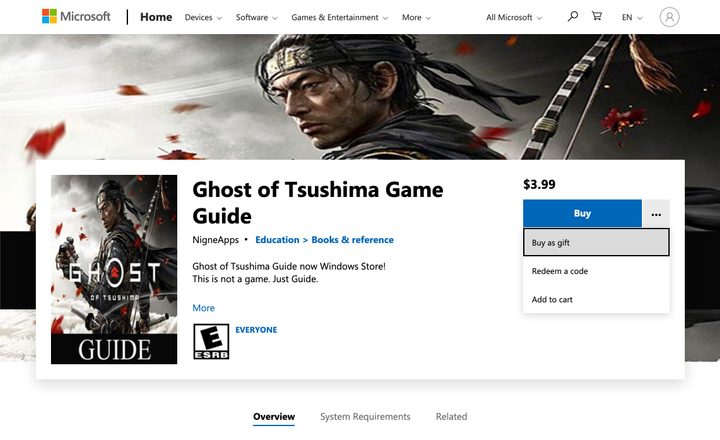
Step 2: After finding the game, select the dotted icon to the right of the Buy button, and select Buy as Gift. Sign in if necessary.
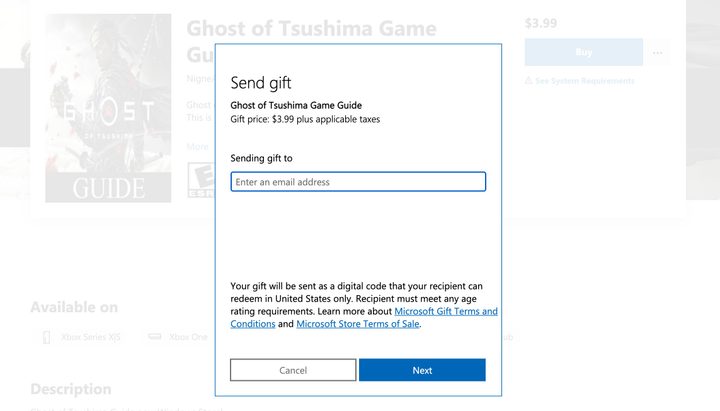
Step 3: You can only send games to an email address on PC. Carefully type in the address and then fill out the sender box.
Step 4: You can modify your payment information and gift details on the confirmation page before confirming your purchase.
Compatibility with the Xbox Series X
Generally, Xbox has excellent compatibility between console generations, although it’s always a good idea to check to make sure that the game is supported on the platform your recipient uses.
According to Microsoft, games gifted from an Xbox One to an Xbox Series X should still work, though if it’s a game that requires other accessories, like the Kinect, it might not be compatible. In other words, it’s unlikely to be a problem. Also, if a 360 game works on Xbox One, it will work on the Series X too, so that’s nothing to worry about.
Many of the new releases will have a note that says Optimized for Xbox Series X/S, so you know it’ll not only be compatible but look even better on a Series X console.
If you receive a gift …
First off, lucky you! When a friend gifts a game to you, simply head over to Microsoft’s redeem webpage and enter the 25-digit code. If you have an Xbox One, then you can go to the store and select the “Use a code” option to redeem the gift directly from the console.