You're on a plane embarking on long trip with a friend, AirPods firmly packed in your ear holes enjoying an episode of Baby Reindeer on Netflix when your iPhone up and dies. You could beg your best bud to lend you one of his AirPods so you can get in on the downloaded episode of The Alcolyte he's watching on his iPad, but we have a better idea: connect your AirPods to his device, too.
Sharing your audio with others has come a long way from having to sit shoulder-to-shoulder with someone as you both get tangled up in a wired earbud. If you or your friend is using an Apple device and you're both using Apple AirPods, you can connect two pairs of AirPods to one device and enjoy better, two-bud audio, wire-free. And it's easy. Here's how.

How to connect two pairs of AirPods to one iOS device
With Apple's Share Audio feature, you can connect up to two pairs of AirPods — AirPods, AirPods Pro, AirPods Max, and a range of Beats headphones — to various generations of iPhones and iPads (more on this later). But let's cut to the chase:
Step 1: First, connect the first pair of AirPods to your device. If your AirPods won't pair for some reason, we can help you fix that.

Step 2: Open your device's Control Center and select the AirPlay icon to access the connected devices list.

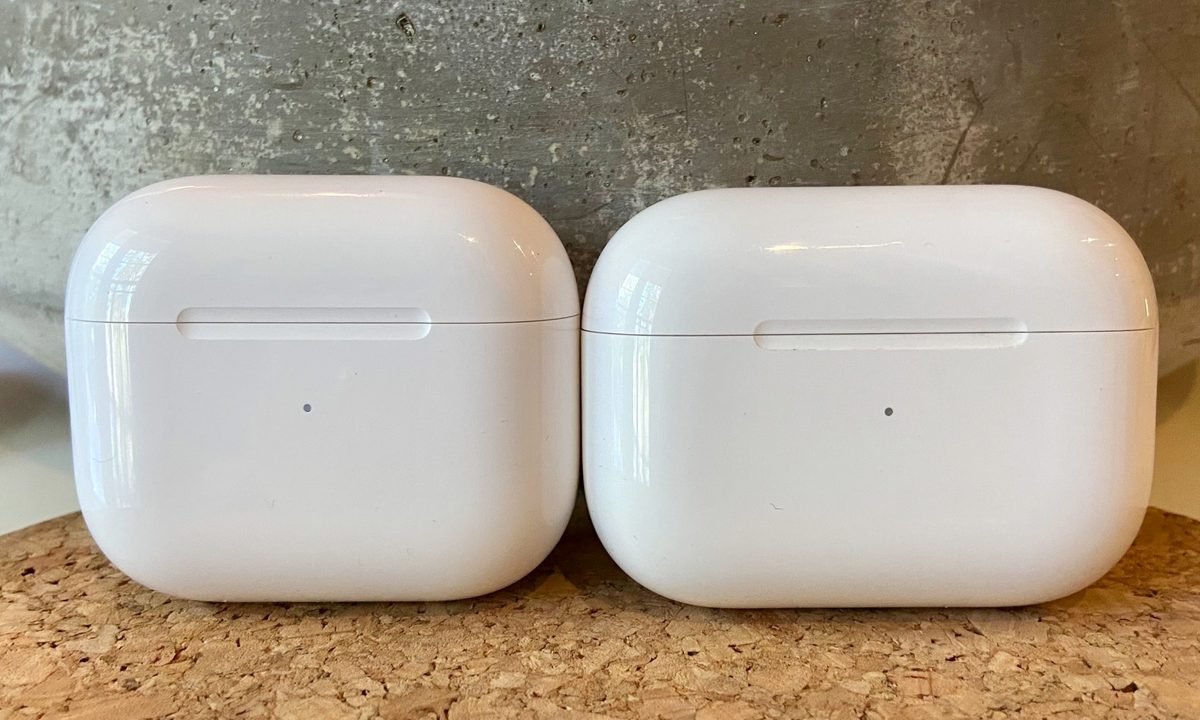
Step 3: If your second pair are either AirPods or AirPods Pro, with them still in their case, open the lid and bring the case close to the phone you want to connect to (if they're AirPods Max, just move the headphones close).
Step 4: When they appear, select Share Audio.

Step 5: When they appear on the list, select Share Audio again and select the second pair of AirPods. They will now both be activated.

Step 6: Just a note: the audio quality of the second set or AirPods may not be as good as the first, and Spatial Audio's head-tracking feature is disabled in both pairs when two pairs are connected.
Controlling the volume in two pairs of AirPods
With two pairs of AirPods are connected to one device, you can control the volume and playback in a few ways. Playback features can also be accessed in the lock screen.
Step 1: You can use each set of AirPods' swipe gestures on their stems as you would normally to turn volume up or down.
Step 2: The Control Center will also have individual volume sliders for each pair of AirPods.
Step 3: In the Control Center, you can also control the volume of both AirPods simultaneously with the main volume slider.

What iPhones and iPads support audio sharing?
Apple iPads and iPhones running iOS 13 or later will support the audio sharing feature, but it's limited to the following devices:
- iPhone 8 and later.
- iPad Pro 12.9-inch (2nd gen) and later.
- iPad Pro 11-inch.
- iPad Pro 10.5-inch.
- iPad Air (3rd gen) and later.
- iPad mini (5th gen) and later.
- iPad (5th gen) and later.
- iPod touch (7th gen)

What headphones support audio sharing?
There's a wide range of Apple-owned headphones that will support the audio sharing feature. They include:
- AirPods (1st gen) and later
- AirPods Max
- AirPods Pro (1st gen) and later
- Beats Fit Pro
- Beats Flex
- Beats Solo3 Wireless
- Beats Solo 4
- Beats Studio3 Wireless
- BeatsX
- Powerbeats
- Powerbeats Pro
- Powerbeats3 Wireless
- Solo Pro

How to connect two pairs of AirPods to your Mac
Audio sharing isn't limited to just iPhones and iPads, as you can also connect two pairs of AirPods (and other headphones on our list above) to your Mac. Here's how:
Step 1: On your Mac, navigate to your Utilities folder (it can be found in your Applications folder).
Step 2: In Utilities, find and open Audio MIDI Setup.
Step 3: At the bottom of the window, select the "+" icon and then select Create Multi-Output Device.
Step 4: With both pairs of AirPods connected to your Mac, select each of them to create the group.
How to connect two pairs of headphones to an Apple TV 4K
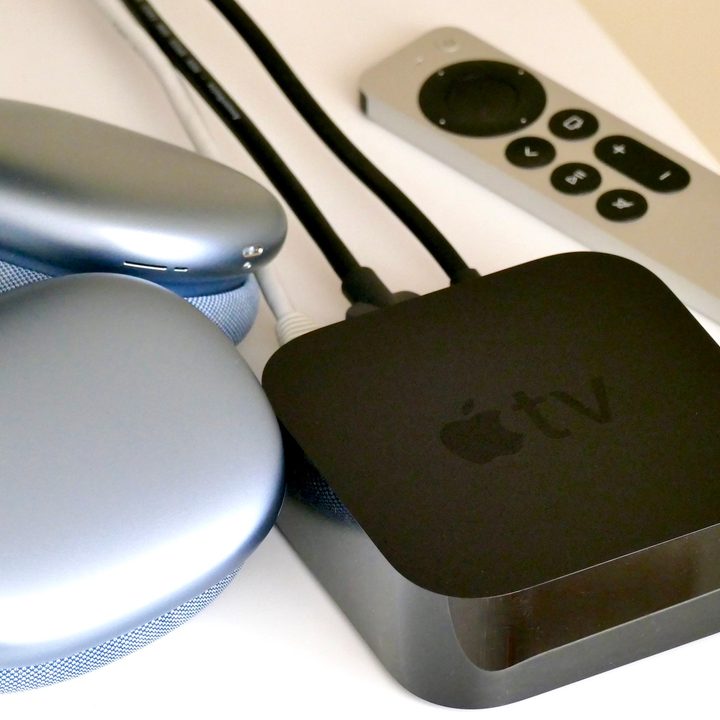
Wait, there's more! You can also connect two pairs of compatible Apple headphones from our list above to an Apple TV 4K (Apple TV HD is not supported, unfortunately). To reiterate: even though you can pair non-Apple or non-Beats headphones too an Apple TV, to use the Shared Audio feature with two sets, they must be compatible.
Step 1: On your Siri remote, press and hold the TV button to open the Control Center.
Step 2: Choose Audio Controls.
Step 3: Navigate to Headphones and choose yours as the first pair.
Step 4: Next, select Share Audio and follow the instructions to connect and pair the second set.