Are you looking to trade in your PS4? Maybe it’s time to upgrade to the PS5 at last, or maybe you’re taking advantage of great deals on the PS4 Pro.
To get your console ready, you should wipe it of all data first. Here’s exactly how to do that — while making sure your saved games stay safe.
Further reading
Step 1: Sign into the right PSN account and prepare
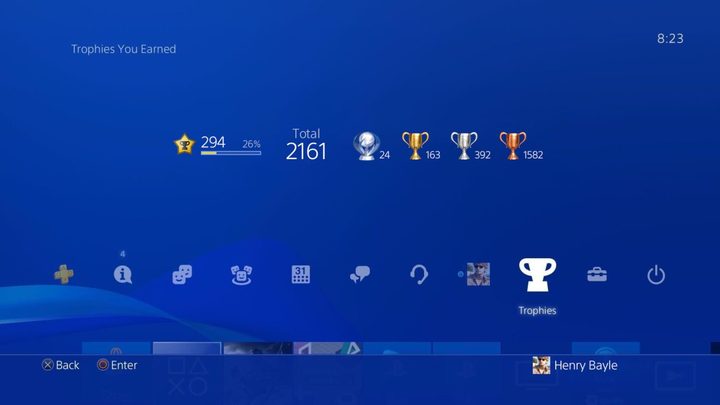
Turn on your PS4 and double-check that you’re signed into the right account, you’re connected to Wi-Fi, and everything is working properly. This is typically nothing to worry about for frequent PS4 users, but it doesn’t hurt to check. If you have any outstanding updates that haven’t been applied yet, update now.
Finally, head to your Trophies section in the PS4 menu, and press the Options button to access settings. Here, choose Sync with PlayStation Network. This ensures you won’t lose any trophy data if you’re migrating to a new console.
If you’re planning to upgrade to the PS5 and you already have the console, boot it up as well and make sure that you are signed into your PSN account here as well. Run through the basic setup steps, and connect to the same Wi-Fi network that your PS4 is connected to. Now everything is ready.
Step 2: Transfer your PS4 data

With a PS5
Before wiping your PS4, you need to make sure that all the important data on it — including your preferences and downloads — is properly saved. If you are switching to a PlayStation 5 and you already have the console at hand, this step is incredibly easy if you haven’t already done it.
On your PS5 menu, head to Settings, go to System, and select System Software. Now go to Data Transfer, and select Continue. Your PS5 will now search for any PS4s on your Wi-Fi network and bring up a list of the PS4s that it has found. Select your console.
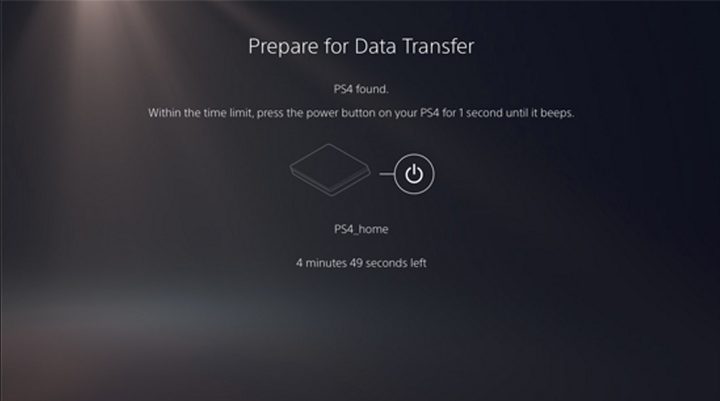
Next, your PS5 will show you the message Prepare for Data Transfer. At this time, press and hold the power button on your PS4 until it beeps — about a second. Your PS5 will make sure it’s connected, take a look, and then give you a list of data categories so you can choose what data you want to transfer. Make your choices (at least transfer saved game data), confirm you are ready, and choose Start Transfer. Your PS5 will take care of the rest!
If you aren’t able to use Wi-Fi, a LAN cable will work just as well.
Without a PS5
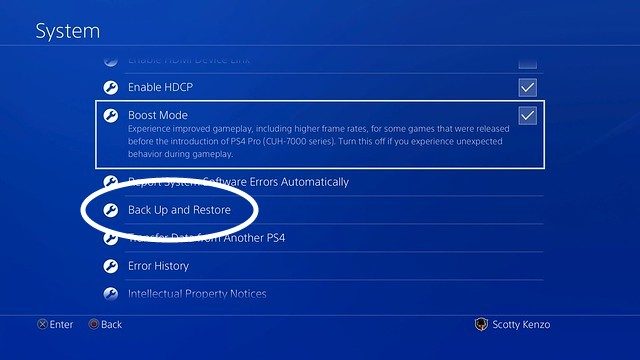
If you are still waiting for your PS5 console to arrive or trading in your PS4 so you can buy one, then you’ll need to take an intermediary step and transfer your data to an external hard drive for safekeeping (our list of external hard drives may be of help!).
To do this, connect an empty external storage drive to your PS4 via USB. Then, in the PS4 menu, select Settings, System, and choose Back Up and Restore. In this section, select Back up to begin the process. Your PS4 should give you an option to choose what data categories to back up. Make your choices and confirm, then wait for the backup to complete. You will now be prompted to name your backup and end the process.
Important note: Your external hard drive should have at least double the PS4’s hard drive space (500GB) and have FAT32 or exFAT formatting for everything to work smoothly. If it’s a new hard drive and you aren’t really sure, you should be able to format your drive by going to the Devices menu, choosing USB Storage Devices, and selecting your hard drive. An option should be available to Format as Extended Storage.
Step 3: Wipe your data with a factory reset
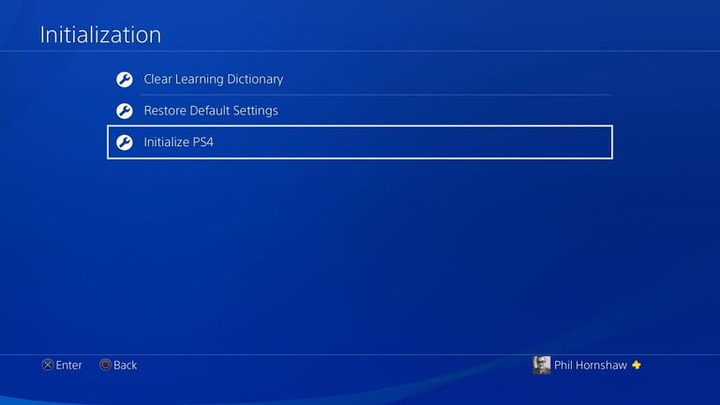
Most trade-in spots will always wipe your PS4 as a matter of procedure, but you really don’t want to leave it to them. Erase all your personal data for privacy reasons before you send your PS4 in. The best way to do this is with a factory reset, which can you initiate easily at home.
To begin, head to the Settings menu on your PS4 and select Initialization. This section provides a few options for clearing data, but you want the one that says Initialize PS4, which is Sony’s version of a factory reset. We have a more detailed guide here, but it’s not a very complicated process.
Next, the PS4 will ask what kind of wipe you want, and you should select Full. The PS4 will then delete all data and return to out-of-the-box factory settings. This may take a little while, but the process is permanent, so make sure you are ready.
Step 4: Trade in your PS4 with confidence!
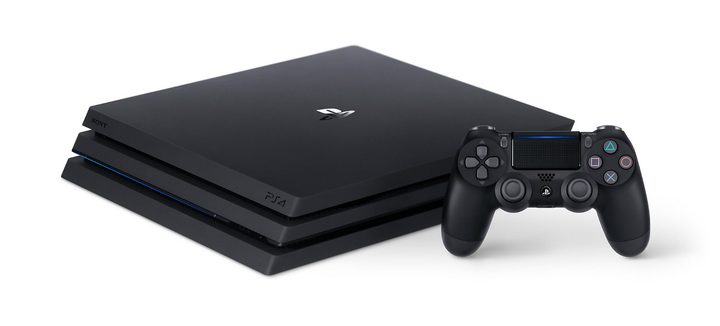
With a factory reset, you are now ready to trade in your PS4 wherever you please. Sony doesn’t have a trade-in option itself, but many stores do, including Amazon, GameStop, Walmart, Best Buy, and Target. It may be worth comparing options to see which have the best prices.