Whether you’ve owned one of the best Macs for years or are totally new to the Apple ecosystem, knowing your way around the latest updates to macOS is crucial. Thankfully, you don’t have to do so alone, since we’ve got everything you need to know about the latest macOS updates.
Should you upgrade to the newest macOS release, and how do you do that in the first place? How does it compare to older versions of macOS — and, indeed, Microsoft’s Windows operating system? We’ve set out to answer all those questions and more, giving you all that you need to know when it comes to the newest macOS update.
macOS 16
Expected to be confirmed during Summer 2025, macOS 16 is currently unnamed, although a some other details are more solid. For example, rumors of an overhaul of the UI design have spread, with it likely inspired by the user interface enjoyed by wearers of Apple’s Vision Pro mixed reality headset. Apple Intelligence, the company’s AI system, will almost certainly enjoy a greater presence in the new macOS.
In terms of compatibility, it seems likely that macOS 16 will only be compatible with Apple Silicon processors, with older devices unable to progress beyond macOS Sequoia.
Further macOS 16 details will come to light as we near the release date, and during the expected 2025 WWDC (Worldwide Developers Conference) event, taking place on June 9.
macOS Sequoia
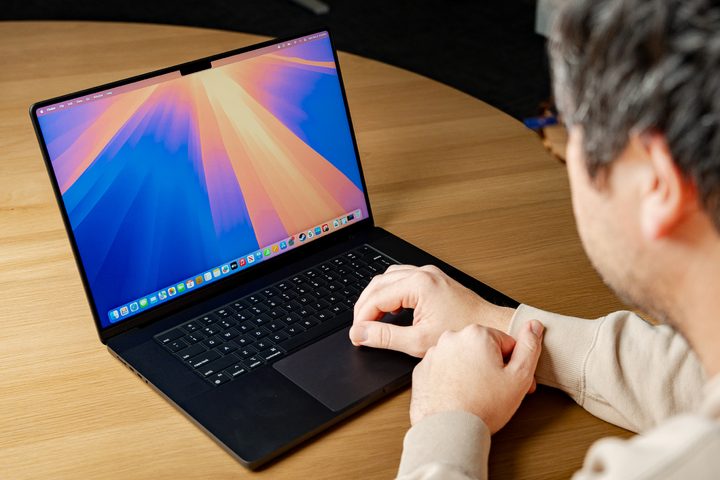
The latest macOS release is macOS Sequoia, which launched on September 16, 2024, and it comes with a host of new features for your Mac. Perhaps the most significant addition is Apple Intelligence, Apple’s own AI system. This brings new powers to Siri, can create images and text based on a few quick prompts, summarizes notifications so you’re less distracted, better organizes your email, and much more.
Another worthwhile new feature is iPhone Mirroring. Here, connecting your iPhone to your Mac now places a virtual mockup of your phone on your computer’s desktop, allowing you to run apps, see notifications, and drag and drop content from one to the other.
And Apple has revamped a bunch of its macOS apps, too. There’s a new Passwords app, window tiling is far more powerful, there are new text and image effects in Messages, you can create custom routes in Maps, and the Notes app can transcribe audio and carry out mathematical equations.
It’s definitely an update worth checking out for the iPhone Mirroring feature alone.
Recent macOS updates
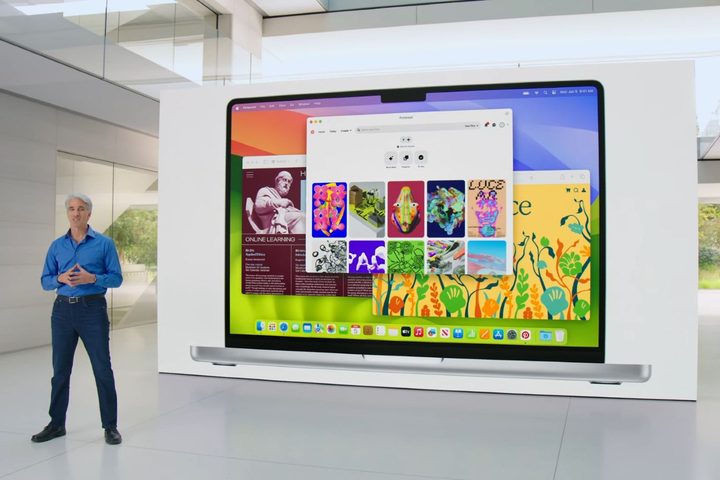
macOS Sonoma (2023): Released in 2023, its new features included a new Lock Screen design and moving screen savers that slowed down and settled into new wallpapers. You could place interactive widgets on your desktop, while Safari got new profiles that kept bookmarks, extensions, and cookies separate. Gaming also got some love with the addition of Game Mode and the Game Porting Toolkit. When macOS Sonoma launched, Apple dropped support for Macs released in 2017.
macOS Ventura (2022): Ventura saw the Stage Manager productivity feature, which grouped open apps and windows into a sidebar on the left-hand side of your screen. Elsewhere, there were new Weather, Clock, and Freeform apps, support for passkeys in Safari, a new high-security Lockdown mode, and an upgrade to the Metal 3 graphics engine. Apple also introduced Continuity Camera, which allowed an iPhone to be used as a Mac webcam. Macs released in 2015 and 2016 were no longer supported when macOS Ventura launched.
macOS Monterey (2021): One of this update’s best features was Universal Control — when enabled, you could use one mouse and keyboard for multiple devices, with the pointer moving across screens. It even allowed you to seamlessly drag files across connected products. We also got the Shortcuts and TestFlight apps on the Mac, Live Text, and Visual Look Up for images, plus SharePlay video controls in FaceTime. Apple ended support for Macs from 2013 and 2014 with the launch of macOS Monterey.
macOS Big Sur (2020): This was macOS’ first major visual redesign since OS X Yosemite in 2017, and it helped bring the Mac operating system right up to date. Aside from that, Apple added support for its Apple silicon chips, which meant iOS and iPadOS apps could run natively on the Mac. There was new functionality in Safari, Messages, and other apps, plus the porting of the Control Center across from the iPhone. Support for Macs from 2012 and early 2013 was ended, however.
macOS Catalina (2019): This last one that I’ll mention foreshadowed macOS Big Sur’s cross-platform app support by introducing Mac Catalyst, which let developers port their apps from the iPad to the Mac. Strengthening the link was Sidecar, which turned your iPad into a Mac drawing pad. Apple also split iTunes into Apple Music, Apple TV, and Apple Podcasts, while it also launched Apple Arcade for gamers. As for security, all apps had to be notarized by Apple in order to function properly. If a Mac could run the previous year’s macOS Mojave, it worked with macOS Catalina too, with the exception of Mac Pros launched in 2010 to 2012.
How to update macOS
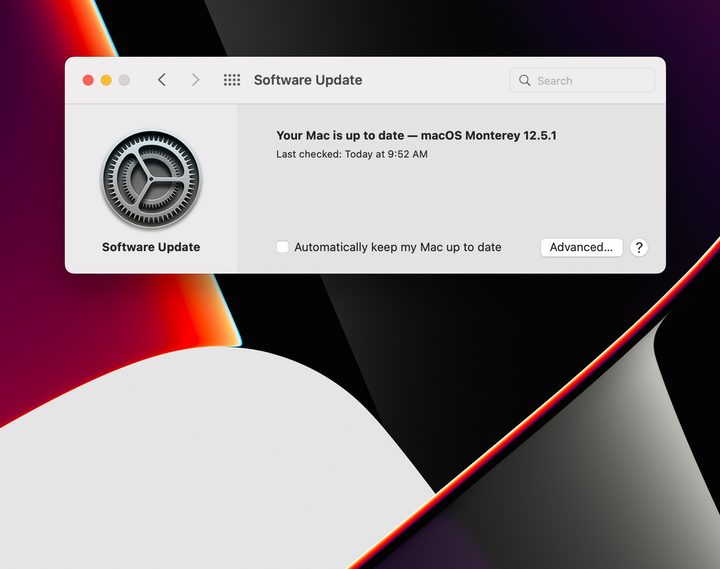
If you want to update your Mac to run the latest version of macOS, the good news is that it’s very simple to do so. It’s also totally free, but you will need to check that your Mac is compatible before starting. Apple explains which Macs can run macOS Sequoia on its website, so be sure to check that out.
To get started, open the System Settings app on your Mac and head to General > Software Update in the sidebar. When you land on this page, macOS will start searching for updates.
If an update is found, you’ll see its details listed on the screen. To proceed, select the Update Now button. Your Mac will then download the update.
When it’s ready, your Mac will restart and install the new version of macOS. It might restart several times, so just let it do its thing. When it’s finished, you’ll see the macOS login page.
On the Software Update page, it’s a good idea to enable the checkbox next to Automatically keep my Mac up to date. That way, you’ll get important feature and security updates as soon as they’re available.
Differences between macOS and Windows
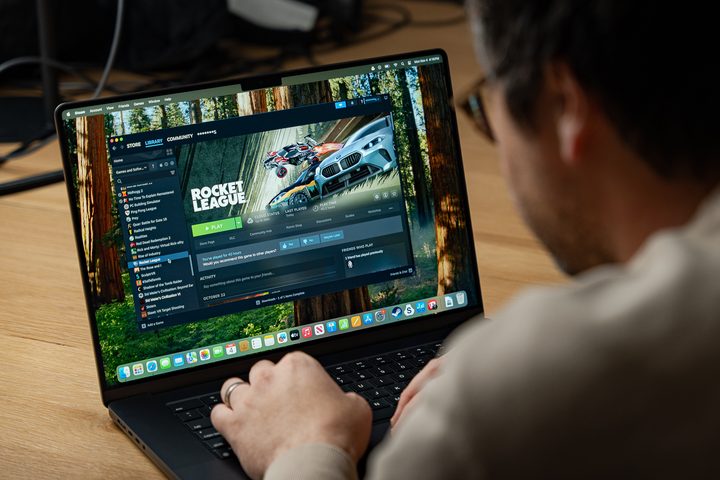
People often wonder whether they should use macOS or Windows, and the two rival operating systems have a lot in common since the Windows 11 update rolled out since 2021. There are plenty of differences between them though.
One of the first things people notice when coming to macOS first is the basic UI. Windows has a taskbar whereas macOS has the Dock. Both are used to launch apps but have slightly different looks and features. Aside from the taskbar, you can open apps in Windows with the Start menu. In macOS there’s the Launchpad and the Applications folder, plus the aforementioned Dock.
Various operating system features work a little differently, too. That includes how to take a screenshot, how to use Split View for multitasking, how to accessing menus within apps (macOS has the menu bar and Windows puts menus inside the apps themselves), and much more. There are also different key layouts and keyboard shortcuts, although they’re not hugely dissimilar. If you’re using a MacBook or Magic Trackpad, there are some gestures you’ll want to know.
On a software level, you might not find the same apps on both operating systems. While many apps work perfectly well on both macOS and Windows, some are exclusive to one system or the other. That extends to games, where you’ll find many of the best games are not available on the Mac (although that’s starting to change).
Artificial intelligence has exploded in recent years, and this is a key difference between macOS and Windows. Both systems use AI, but the specific AI systems vary: macOS has Apple Intelligence and Windows has Copilot. Both have their strengths and weaknesses, so it’s worth checking out how Apple Intelligence and Microsoft Copilot compare.