Technology companies often advertise their gadgets and gizmos as devices that will simplify your life, but they sometimes cause their own problems. This is particularly true of the PC, which can still be a mess of cords, hardware, and peripherals that can eat up your space. Here’s how to cut through the clutter like a samurai, and restore order to a messy office.
Cord routing and cutting
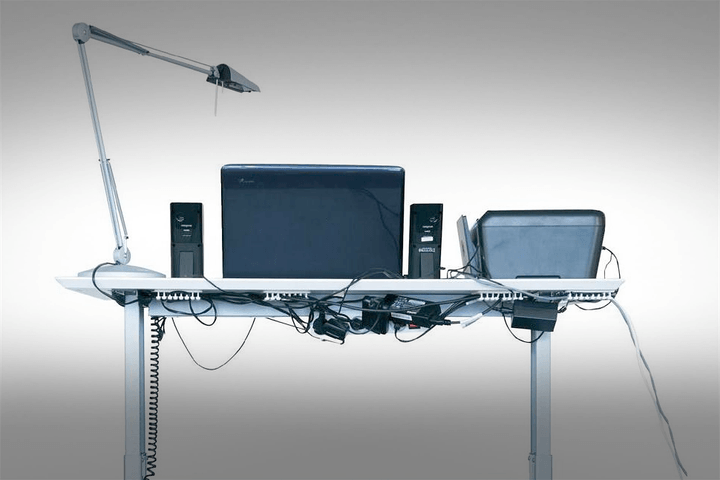
Even a basic home PC usually introduces five or more cords to keep track of, and often necessary extras like speakers and a printe, add to the mess as well. This looks bad, and can make connecting hardware more difficult, as you must first weave you way through a mess of cables to find an open port.
Cords don’t have to run wild and untamed, however. Simple and inexpensive tools like a label maker, Velcro ties and cable raceways can help you organize them. While they won’t go away, they will be contained, making them far less likely to cause trouble.
Routing and bundling cables can be useful, but it doesn’t always help – or help enough to satisfy your tastes. Those who truly despise wires may want to get rid of them entirely, and there’s numerous ways to do so.
Let’s start with your keyboard and mouse. Switching from wired to wireless will knock out two cables that are likely to get in your way, and it’s not expensive to do so. Logitech sells wireless bundles with a keyboard and mouse for less than $20. Enthusiasts who love mechanical keyboards have fewer options, but there are a few available.
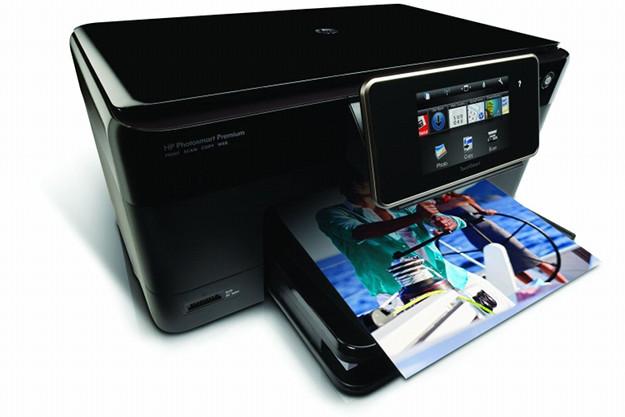
The next step is to replace your printer with a wireless model. Most printers now have Wi-Fi connectivity, with even the best printers under $100 including it. Going wireless with your printer cuts an extra cord, and makes your printer easily available to multiple PCs and smart devices.
Do you have an array of external hard drives tangling you up in their cables? Don’t worry – they also can go wireless. Many modern Wi-Fi routers have a USB port that can be used to connect an external drive, which automatically turns it into a wireless network drive. Alternatively, you could grab a Wi-Fi hard drive with a built-in battery, though you’ll have to frequently plug it in to recharge.
Still feeling cord-crazy? Go wireless with your monitor. Intel’s Wi-Di tech is available on laptops and desktops and can be used in lieu of HDMI. You’ll first need to check your system’s compatibility before buying buy an adapter like Microsoft’s Wireless Display Adapter.
Hubs and docks, oh my
Wireless is great for reducing clutter but, as you may have already noticed, it can be an expensive choice if you try to replace everything. Thankfully, there’s another way – the humble, but effective, USB hub.
USB hubs can be great for charging multiple portable devices, and they can also be used to expand the number of ports available on a PC and help organize systems with lots of USB-compatible clutter. Simply sit the hub somewhere on (or under) your desk, and then connect devices to it rather than your computer. This reduces the length of cord runs, and concentrates them, which makes organization less daunting.
Hubs have become especially important with the advent of USB Type-C, and though the reversible standard is versatile, it doesn’t cater to many Type-A legacy devices. Hubs can give you that functionality while decluttering your desk.
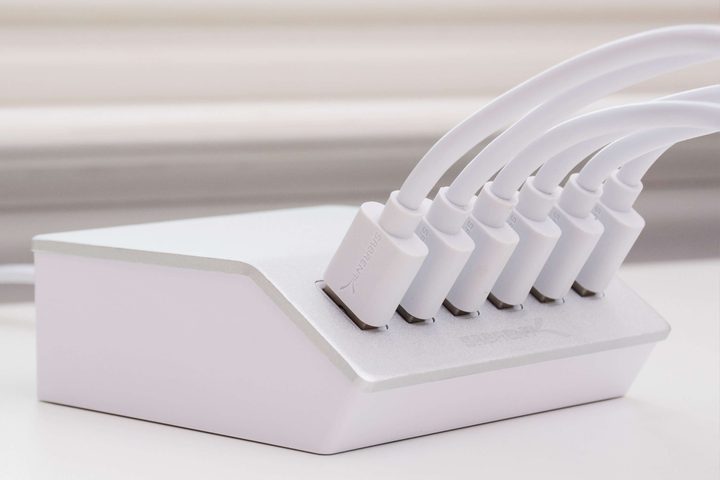
The downside to this approach is a potential loss of performance. If you have multiple hard drives connected to a hub, and they’re used simultaneously, their speed may be reduced. Still, as long as you get yourself a hub that supports the latest high-speed USB standards, you shouldn’t notice too much of a drop-off.
Laptop owners should consider a dock if one is available for your particular model. A dock can improve organization by providing a permanent base to which other peripherals are connected. While cords will still exist, they’ll be easier to manage because you’ll no longer have to unplug them each time you remove the laptop from your desk. Docks also often face their ports toward the rear, rather than the right or left, which provides a more direct route to the edge of your desk.
Change your monitor’s stand
Chances are good that your monitor has a simple, static stand. Perhaps it tilts – perhaps not. Whatever the case, your monitor likely takes up desktop space that could be used for other tasks.

That doesn’t have to be the case. Most monitors come with a VESA mount, and a set of four screw holes arranged in a box formation on the rear. This can be used to attach your monitor to any VESA monitor mount, including those that are highly adjustable.
Picking up such a stand will let you move the monitor out of the way when you don’t need it, freeing up the space for paperwork, reading, or whatever else you might want to use your desk for. Choosing an adjustable stand can also have ergonomic benefits, as you’ll be able to move your monitor to the exact position where you find it most comfortable to use.
Switch to a smaller desktop
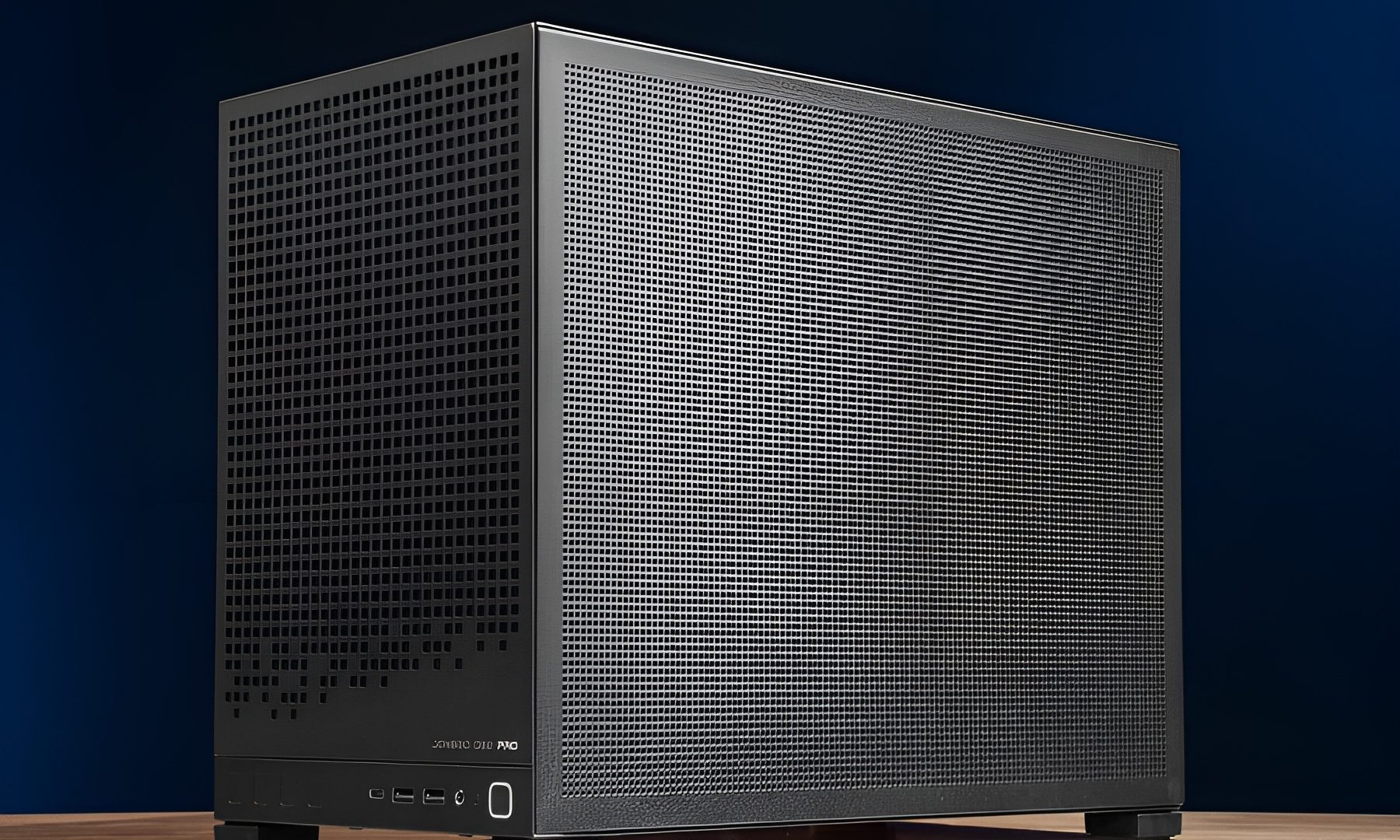
A desktop computer can be a source of clutter by itself. A standard mid-tower is generally eight inches wide, and fourteen to eighteen inches long, which is a sizable footprint. The system can be placed beneath a desk, but this common solution increases the length and complexity of cord runs.

Switching to a smaller desktop can be helpful, because it can be placed where its name suggests (on top of your desk), making organization easier. It doesn’t even necessarily mean sacrificing power either, as there are many microcomputing systems produced now that pack in high-end processors and even powerful graphics cards and chips too.
Zotac’s latest range of ZBox PCs are tiny and yet fit both an Intel Core i7 CPU and an Nvidia GTX 1080 graphics chip. There’s also purpose-built Intel NUC (next unit computing) systems, which are some of the smallest complete PCs around. They, too, come in a variety of guises, including powerful gaming systems. For more mainstream functionality, a simple Chromebox may be enough.
If you want to go super-trim though, there are always stick PCs. No bigger than a chunky USB-drive, these plug and go systems offer decent performance in a package that would have been thought impossible just a few years ago.
Many small computers are Video Electronics Standards Association (VESA) compatible, which means that they can be attached to a monitor with a VESA mount, hiding them from view completely. This makes cable routing easier. Choosing this option will make the use of a VESA monitor stand impossible, however, so you’ll have to decide between them. We generally recommend the monitor stand, due to its ergonomic benefits, but mounting a small PC to your monitor can make sense if you find your current stand comfortable.
Conclusion
As you can see, the options you have for tidying up your computer space go well beyond organizing cables. Going wireless can eliminate almost every cord beyond those that provide power, and choosing a different monitor stand or a smaller PC will increase the desk space you have available for other tasks. Eliminating wires can become an expensive endeavor, but it may be necessary if cord creep has made your desktop useless for anything besides computing.