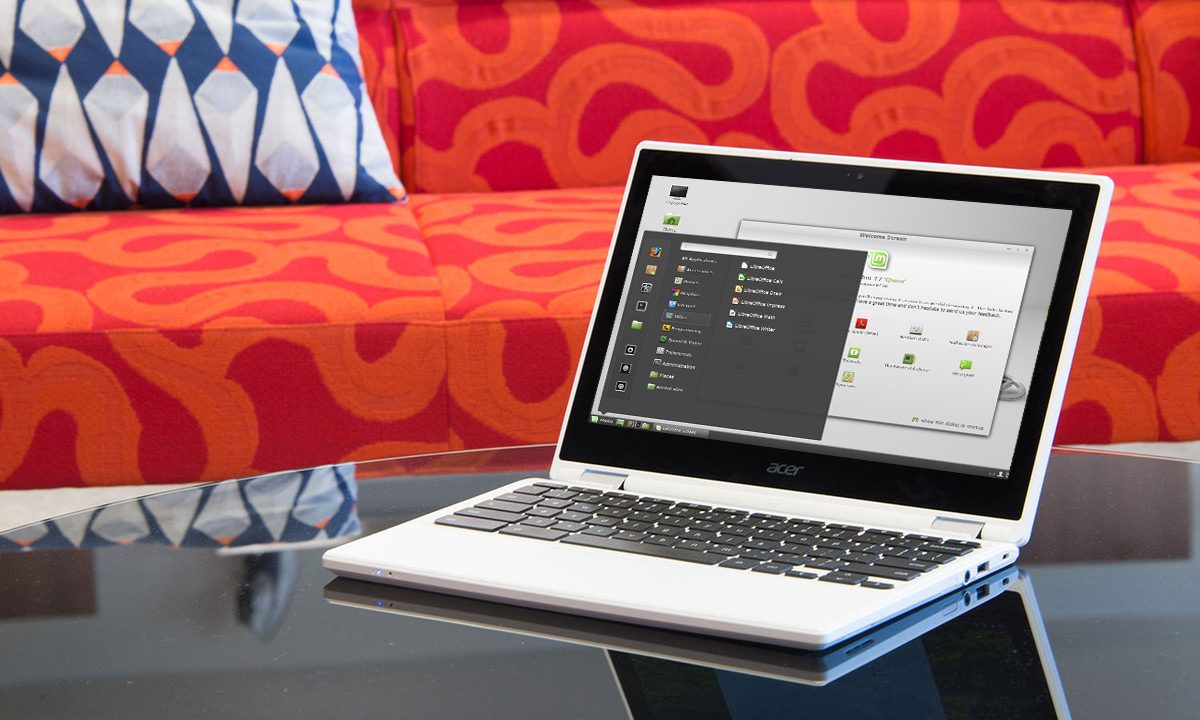
The first Chromebooks were never designed to run desktop software. Heck, they were never meant to support Android apps either, but now you can run both. Most modern Chromebooks provide integrated tools to toggle on Linux and/or Android. We'll show you how to install Linux on a Chromebook to get it up and running.
Most Chromebooks tend to have low-end hardware, so don’t expect this to be your portable Linux gaming machine. Google’s integrated Linux tool is actually intended for developers, but you can use it to install any Linux-based software if you’re comfortable using Terminal commands.
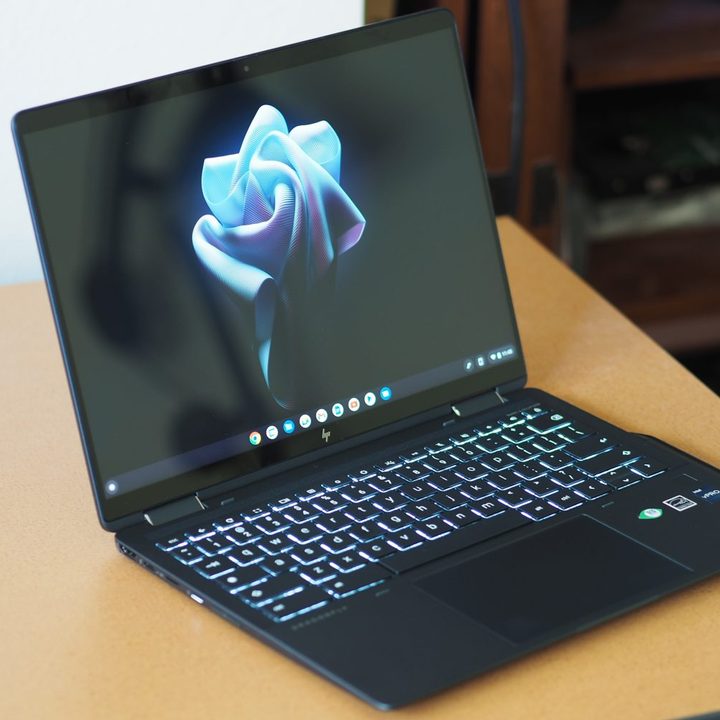
Enable Linux
Linux is available on every Chromebook produced after 2019 and running Chrome OS 89 or later. Chrome OS 103 is the newest version of the system and offers the most support for Linux, so consider updating if you're still using an older version.
Thankfully, there's a simple method to get Linux running on your Chromebook.
Step 1: Open the System tray and click on Settings.

Step 2: Scroll to the bottom of the Settings menu and find the Developers section

Step 3: Select Turn on where it reads Linux development environment.
Step 4: Chrome OS will guide you through the next few steps with an install wizard. Select Next to continue.

Step 5: Next, you'll get a screen asking you to input your username and choose your hard drive storage space. Type whatever name you want to go by while using Linux.
You can choose how much drive storage to use, but if you plan on gaming with this machine, you'll want more than 10 GB.
Install Ubuntu XFCE
In this section, we switch the Chromebook into Developer Mode and install Ubuntu XFCE using Crouton (short for Chromium OS Universal Chroot Environment) developed by Google hardware engineer David Schneider. We chose Ubuntu XFCE as our Linux distribution because it’s lightweight and functional, which is perfect for preserving the long battery life and portability of a Chromebook.
There are a bunch of great Linux distros to pick from, though. Here are our favorite Linux distros.
If you have any files stored on the Chromebook’s local storage that you don’t want to lose, back them up to the cloud, an installed SD card, or external hard drive. Zipping up groups of files can help you put them back where they’re meant to be after the installation.
You’ll also want to have a recovery image on hand just in case something goes wrong. You can download software directly from Google that makes this process easy, and then all you need is a flash drive or SD card, depending on your Chromebook’s connectivity.
First, you'll need to enter developer mode. Here's how:
Step 1: Press and hold the Esc + Refresh keys and then press the Power button.
Step 2: The Chromebook restarts and enters Recovery Mode. Press the* Ctrl* + D keys to open the OS Verification screen.
Step 3: Press the Enter key to enter Developer Mode. This deletes all local data (not on the SD card if inserted).
Note: Later on you will need to retype Ctrl + D each time the Chromebook reboots.
Step 4: The Chromebook should then delete all data, boot back into Developer Mode, and reset Chrome OS. When prompted, reconfigure Chrome OS just as you did when you first purchased the device.
With Chrome OS reset, you can now use Crouton to install Ubuntu XFCE.
Use Crouton to install Ubuntu XFCE
Step 1: Download the Crouton file from the Crouton Github page. There you will also find detailed instructions, troubleshooting tips, and forums that discuss issues and tricks for making everything run smoothly.
If you’re not exactly sure what you’re supposed to download, click the link in the Usage section under the main directory. A Crouton file will download to your Chromebook’s Downloads folder.
Note: Installing the Crouton Extension is suggested, which “provides much-improved integration with Chromium OS,” according to the notes.

Step 2: Press the Ctrl + Alt + T keys. This opens the Chrome Shell terminal (Crosh).

Step 3: Type "shell."
Step 4: Type the following command and press the Enter key:
sudo sh ~/Downloads/crouton -t xfce
If you installed the extension, use this command instead:
sudo sh ~/Downloads/crouton -t xfce,extension

Step 5: Wait for Ubuntu XFCE to download and install on your machine. Note the command you’ll need to launch Ubuntu XFCE later on.

Launch Ubuntu XFCE
Step 1: Press the Ctrl + Alt + T keys. This opens the Chrome Shell terminal (Crosh).
Step 2: Type the following command and then press the Enter key:
sudo enter-chroot startxfce4
The system will display a black screen for a minute and then boot into the Linux desktop. If you aren’t familiar with Linux, keep in mind that it takes a bit more effort than Windows or MacOS, especially the first time you boot it up.
Some great Linux software to start you off
There are lots of advantages to installing Linux on your system, but there are a few that are particularly relevant to Chrome OS users. The following programs provide functionality that your Chromebook can handle but doesn’t fall within the Chrome OS ecosystem, or they provide functionality you wouldn’t have if you were using your Chromebook offline.
Steam: Valve’s digital storefront and its surrounding community are awesome, and, thankfully, you can use your Chromebook to play any games in your library that natively support Linux. However, as always, check the system requirements, as Chromebook hardware tends to be on the lower end. Check out our separate guide on how to get Steam on a Chromebook.
VLC: VideoLAN Client supports dozens of audio and video formats as well as a bevy of useful features for network streaming and playback. It couldn’t be easier to install — it even comes packaged with some larger distributions — and is open source, if you want to try your hand at compiling the software yourself.
GIMP: The GNU Image Manipulation Project (GIMP) is free image-editing software that provides a large number of tools typically reserved for Photoshop and other premium software. Moreover, the active user base is constantly working to help solve problems and develop new tools and features.
Once you know how to install Linux on a Chromebook, you open up an entirely new world of gaming and offline software you otherwise wouldn't be able to use. If you don't have a compatible Chromebook, then we've got some great Chromebooks suggestions for you.